
Answered
How to create a non-closed stroked path
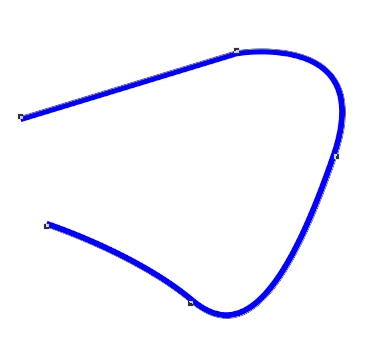
Hi! I am trying to stroke a path that is not closed. I would like only to have the stroke showing on the path and not between the endpoints of the path.
Is this possible? I am using Photoshop CC 2017.1.1 (2017.1.1 20170425.r.252 2017/04/25:23:00:00 CL 1113967 x64).
I first create a path with the Pen Tool, then create a Shape (click the "Shape" button on the Pen toolbar). Next, I use the Direct Selection Tool to turn off fill and to add a stroke. The results so far looks like this:
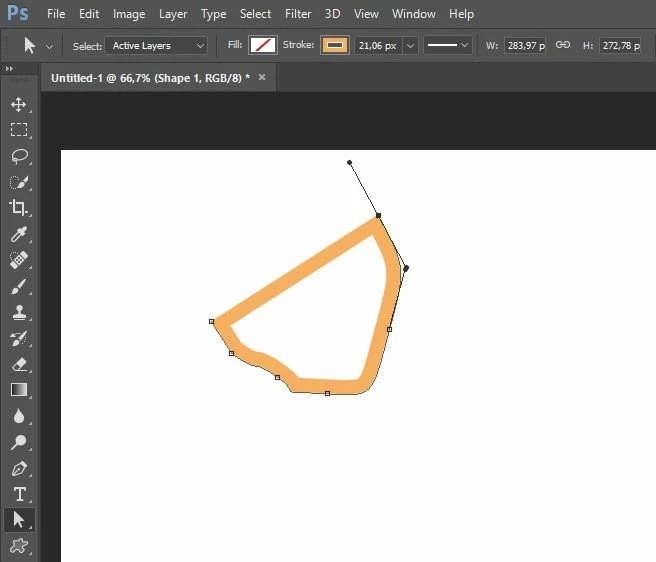
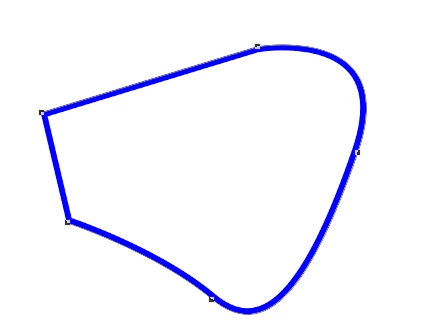
The problem is that the stroke appears also between the end points of the path. I would like the stroke only to be on the actual path, excluding the upper straight line between the two endpoints.
Is this possible?


 AdChoices