Participant
October 20, 2013
Answered

How to create a painting crackle effect?

  • October 20, 2013
  • 3 replies
  • 24480 views

Hi,

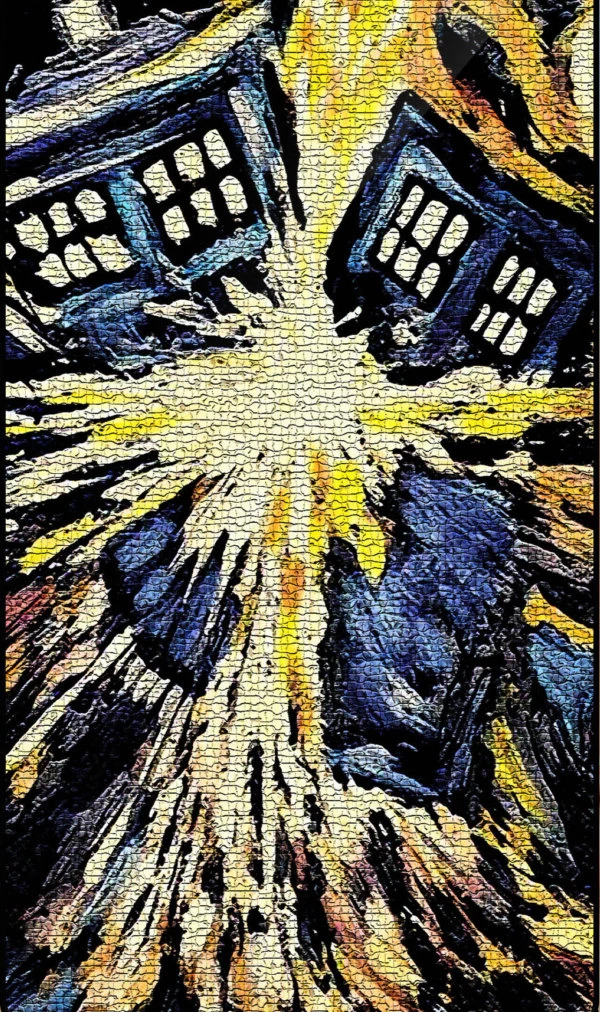
I am wondering how a crackle effect like in the attached photo?  I searched the web for actions and crackle effects, but I couldn't find one quite like this one.  Thanks for any help.
    This topic has been closed for replies.
    Correct answer J453

    Filter>Filter Gallery...

    Then select Artistic > Under Painting.

    or Texture > Mosiac Tiles

    or Texture > Texturizer

    3 replies

    Participant
    January 29, 2024

    Кракелюрный лак млжет создать подобный эффект

    Adobe Employee
    October 20, 2013

    Hi there!

    As Jeffery said, you can use Filters from the Filter Gallery to acheive a similar effect. However, I'd like to show you another way, which looks pretty cool!

    I'm going to overlay a paint texture on top of the photo to give it a more realistic cracked paint effect.

    First I chose a free, creative commons texture online. Here's a bunch that you can look through:

    http://designshack.net/articles/freebies/weekly-freebies-50-prime-paint-textures/

    I'm going to use the Orange Paint Texture.

    First, open the image you want to apply the effect to in Photoshop.

    Then, you're going to Place the texture on top of it:

    Scale the Image to fit where you want it to, then hit enter/return on the keyboard.

    Next, Rasterize the layer (right click on layer) :

    Then, make the texture a black and white, because we are only interested in the shadows/highlights not the color:

    Then, change the Blending Mode of the layer to Overlay:

    There you go!!

    Hope this helps!

    Julia

    J453Correct answer
    Legend
    October 20, 2013

    Filter>Filter Gallery...

    Then select Artistic > Under Painting.

    or Texture > Mosiac Tiles

    or Texture > Texturizer
