Participating Frequently
April 24, 2025
Answered

How to create a radial displacement or distortion effect on an image?

  • April 24, 2025
  • 2 replies
  • 761 views

Hi Adobe Community,

I'm looking to create a radial distortion/displacement effect on an image — kind of like it's being warped from the centre outward, almost like a ripple, spin, or lens-distortion burst. Think of it like the image is pulling or stretching out from a central point.

I'm working in Photoshop (but open to Illustrator or After Effects if that’s better), and I’d love to achieve this effect in a non-destructive or editable way if possible.

A few questions:

  • What’s the best tool or filter to start with for this kind of radial distortion?

  • Would a displacement map work better than the distort > polar coordinates filter?

  • Can I use a gradient map or radial pattern as a base for the displacement?

  • Any plugins or brushes you’d recommend for this?

If anyone has a method they love — or even just keywords or tutorials to look up — I’d be really grateful. 🙌

Thanks in advance for your help!
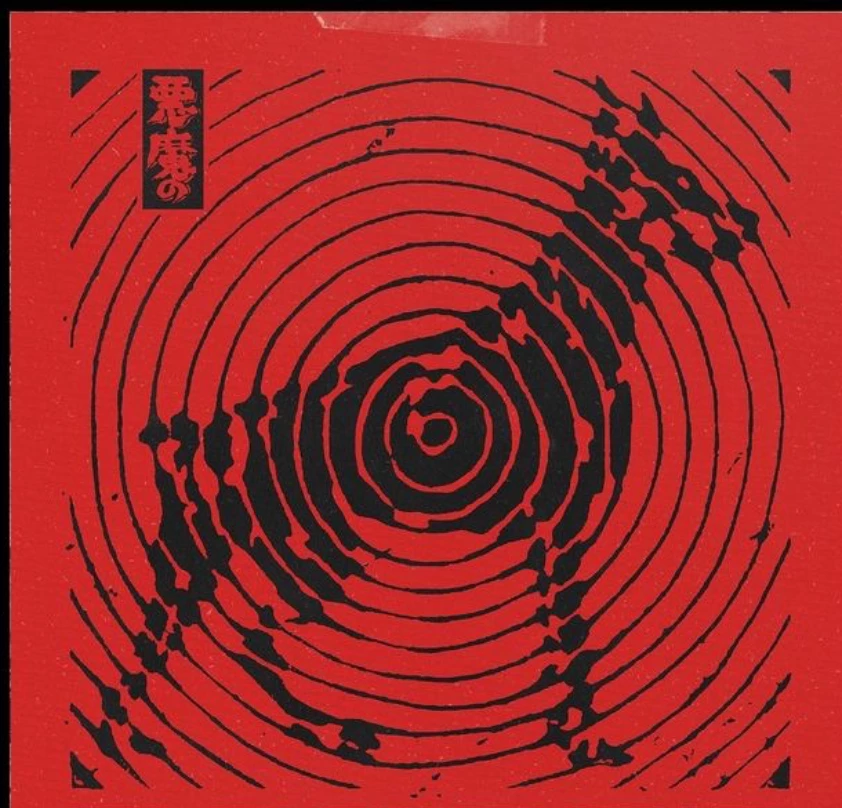
Correct answer Semaphoric

You can do this witht the Filter Gallery > Sketch > Halftone Pattern, with Pattern Type set to Circle, and Contrast set to maximum.


2 replies

Semaphoric
Community Expert
SemaphoricCommunity ExpertCorrect answer
Community Expert
April 25, 2025

You can do this witht the Filter Gallery > Sketch > Halftone Pattern, with Pattern Type set to Circle, and Contrast set to maximum.


Trevor.Dennis
Community Expert
Community Expert
April 24, 2025

I am not sure I am fully understanding what this should look like.

I did this very quickly using Step & Repeat and reversing the layers.

I add a black stroke (same colour as the background) to the original layer to diferentiate each layer.


There's a nifty trick someone shared on this forum recently, that makes it possible to use Step & Repeat on Smart Objects.  If you used this you could experiment by trying something like outer glow to soften the layer transition.  (I have just realised that I am not even sure if changing a Smart Object's Layer Style is reflected on all copies of that SO.)


If you have any other examples of the look you a trying for, or describe in more detail, I am sure people will try and work it out.

Trevor.Dennis
Community Expert
Community Expert
April 24, 2025