You would use this sort of Gradient:
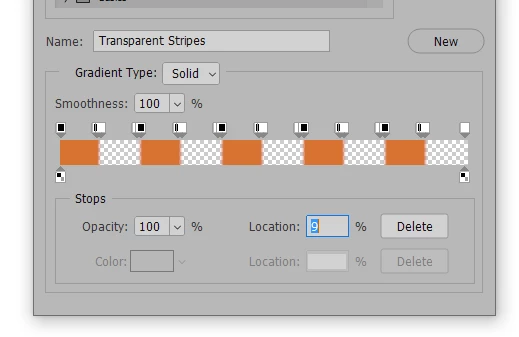
If you look closely, you can see that the stops for 100% and 0% opacity are right next to each other, separated by only 1% of position. In this screen shot, 100% opacity is at a 9% location. There is a 0% opacity stop next to it , at a 10% location. I think Photoshop comes with this gradient as a preset; I know it used to (I've had this preset as long as I can remember).
You can make this sort of gradient with or without transparency. I find the easiest way to construct them is to have all the stops spread out, and then position them by entering the location with the keyboard. In this example, you can see a slight transition at the edges of the stops. You can get sharp edges by placing the stops at the same location, but it can be a little challenging to get the proper stop "On Top", so to speak. I don't know if that sentence makes much sense, but if you try it, you'll see what I mean.
Once you have the gradient, you can just include it in a Layer Style —

I think the waviness here is due to the gradient being scaled down in the Style, so it may be better to work large, and then scale the result down.


 AdChoices