
Inspiring
May 9, 2023
Answered

How to create stroke from path?

  • May 9, 2023
  • 2 replies
  • 17637 views

Dear all,

I'm little confusing of how to create a stroke from path. Here are my steps :

1. I'm creatin an amazing path using pen tools like below :
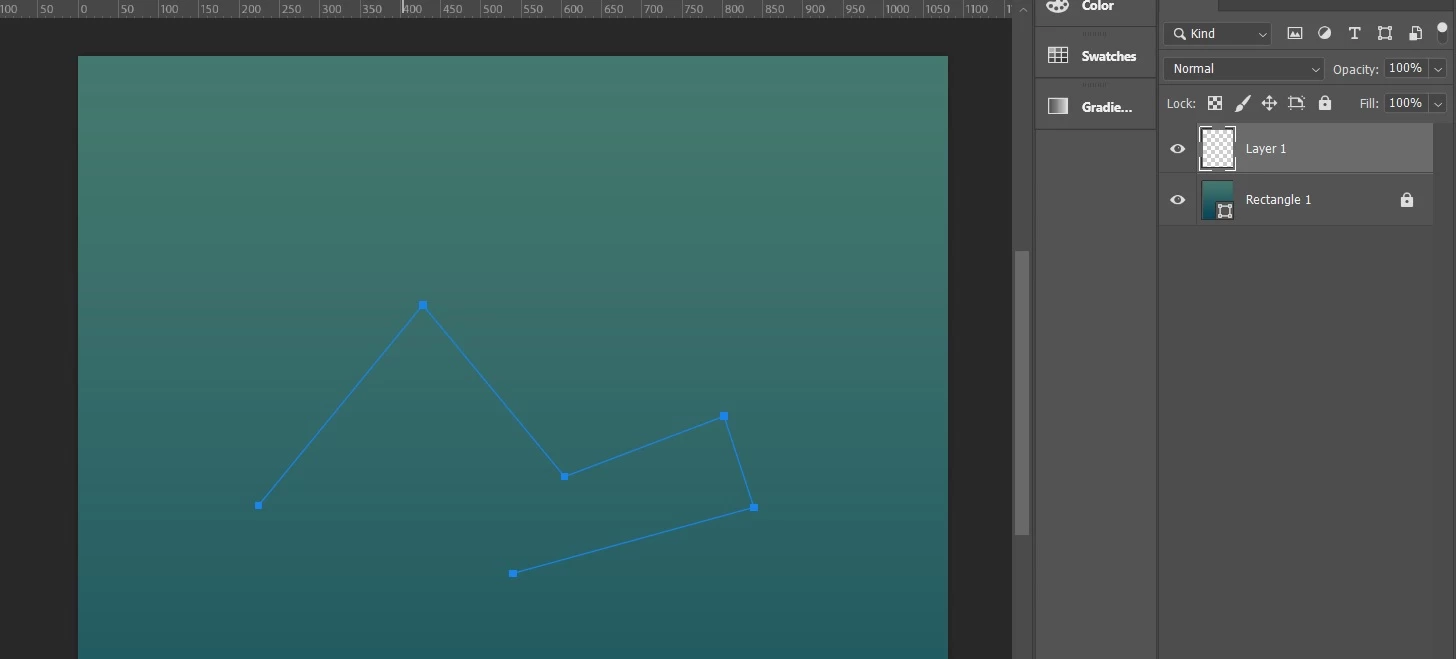
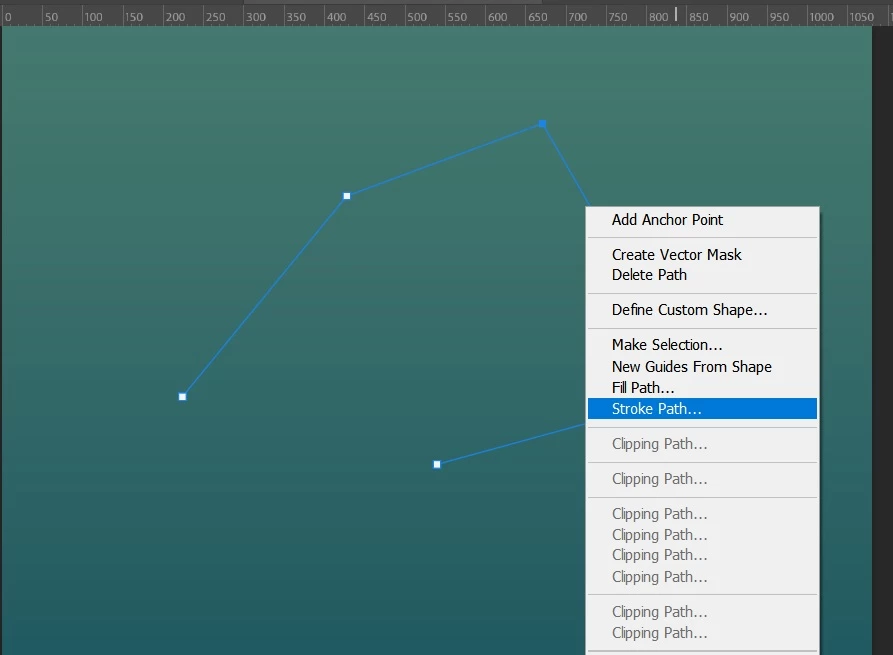
2. Next, i want to make this line bigger and colorize this line. To do that, i should create stroke by right clicking this path -> choose stroke path.

Until here, am i in right steps??
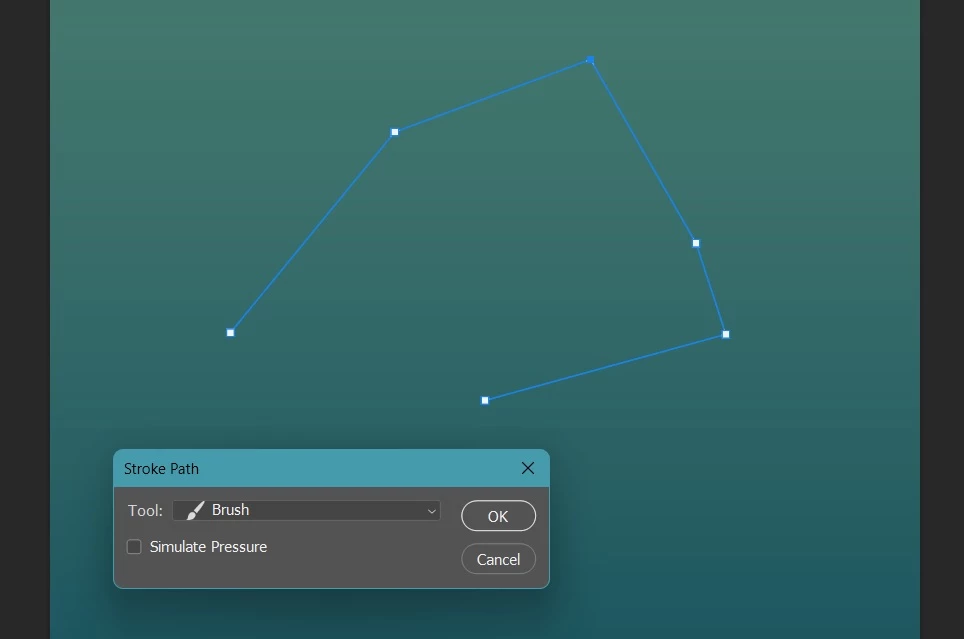
3. Then, from the dialog, i choose brush.
4. Great, i have create an bigger line.

NOW, I HAVE A DIFFICULTIES :

a. How to change the brush style?

b. When i change my path, my stroke of brush doesn't follow it. How to make it follow the path?
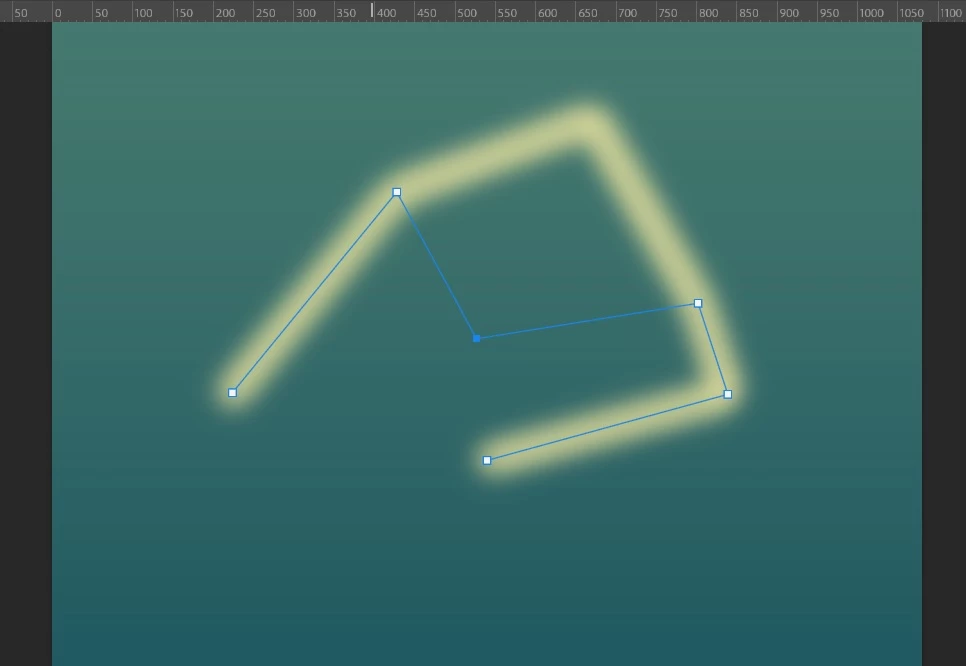
Thanks so much for help.

Correct answer c.pfaffenbichler

@Trevor.Dennis already explained to create a Shape Layer; if you already have an existing, plain Path you an create a Shape Layer by selecting the Path in the Paths Panel, use Layer > New Fill Layer > Solid Color, then select the Direct Selection Tool (A) and change the Layer’s settings in the Options Bar. 

2 replies

c.pfaffenbichler
Community Expert
Community Expert
May 9, 2023

Use a Shape Layer with a vector stroke. 

If you need a soft line convert to a Smart Object and apply a Gaussian Blur for example. 

Inspiring
May 9, 2023

Thanks @c.pfaffenbichler , sound insteresting for beginner like me. Sorry, what do you mean of "Use a Shape Layer with a vector stroke" ? would you please tell me what i should begin with? Create layer then draw a shape then what? thanks.

######Raizen 7, 40Gb Ram, RTX 3060, Win 11 -- All of Software in the world are just tools. Buy it if it works for you :)
Participant
May 6, 2025

@Trevor.Dennis already explained to create a Shape Layer; if you already have an existing, plain Path you an create a Shape Layer by selecting the Path in the Paths Panel, use Layer > New Fill Layer > Solid Color, then select the Direct Selection Tool (A) and change the Layer’s settings in the Options Bar. 


This doesn't work anymore.

Trevor.Dennis
Community Expert
Community Expert
May 9, 2023

Hi Eko


You have set up the brush preset before using Stroke Path.  You have Simulate Pressure checked.  That simulates using a pressure sensitive tablet so if you have Pressure Adjusts Size preset selected, you'll get this sort of effect.  


Note the green highlight.  That icon allows you to stroke a path using the last used settings.

Inspiring
May 9, 2023

Thanks @Trevor.Dennis , i have practiced your advice. but when i change the path using direct selection tool, the brush doesn't follow it. Is it normal?? should i delete earlier brush and regenerate again with the new one?

######Raizen 7, 40Gb Ram, RTX 3060, Win 11 -- All of Software in the world are just tools. Buy it if it works for you :)