- Home
- Photoshop ecosystem
- Discussions
- Re: How to crop batch multiple images?
- Re: How to crop batch multiple images?

Copy link to clipboard
Copied


 1 Correct answer


Image > Trim, based off transparency, upper left or lower right pixel colour?


Explore related tutorials & articles
 14
Replies
14
14
Replies
14


Copy link to clipboard
Copied
Do they all need exactly the same amount of crop and same positioning of crop?
If so, create a 'canvas size' action. Then go to File > Automate > Batch. Select your images and apply your Canvas Size action.
If each image needs a unique input, I can't think of a way to batch that.
Copy link to clipboard
Copied
Thank you, but what is 'canvas size' action?
Copy link to clipboard
Copied
I just want to trim the 'blank page' around my images.
Copy link to clipboard
Copied
Photoshop has a facility to record a set of repetitive actions which you can run in the future.
Canvas Size is a means to change the canvas size (not to be confused with resampling the image). So if you had a canvas of (say) 200px x 200px. If you set canvas size to 180px x 180px, you would reduce the canvas size by 10px on each side. (crop).
What do you mean by 'blank page'? Why have images got blank page?
Copy link to clipboard
Copied
Image > Trim, based off transparency, upper left or lower right pixel colour?
Copy link to clipboard
Copied
Thank you! It works!

Copy link to clipboard
Copied
I created an action for trimming images with transparent backgrounds but when I run Batch for multiple files, Photoshop asks me every single time anyway whether I want the trimming to be based on transparent pixels or whatever color in the corners. How can I skip on this dialogue and sort of set it to transparency by default so I can leave the computer and just let it run?
Copy link to clipboard
Copied
@kaig11620057 - Action panel screenshot please, relevant steps expanded.
Copy link to clipboard
Copied
I mean the standard dialogue when you trim a picture:
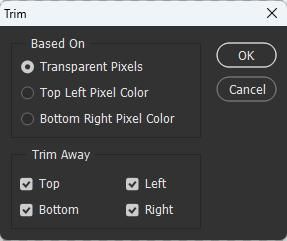
Although I recorded an action having my preferred default options ticked, Photoshop asks me for every single picture in a batch process...and that is not the point obviously.
Do you know how to skip this dialogue?
Copy link to clipboard
Copied
@kaig11620057 – I know what you want to achieve, but I don't know how you have recorded your batch action... This is why I asked for a screenshot of the action panel with the steps expanded and visible (not the command itself).
EDIT: here is an example of how to setup the action correctly. I have tested in a batch action and it works fine!
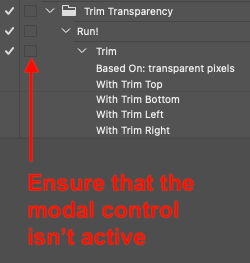
This of course presumes that the image isn't flattened!
Copy link to clipboard
Copied
Ah sorry I misunderstood 🙂 Yeah the pictures are not flattened but may have multiple layers inside. The whole procedure is basically
* trim transparency
* Select all layers
* set transparency on all layers to 0%
* merge all layers to one
Here is my action:
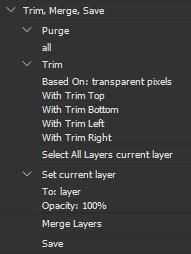
Any ideas?
Copy link to clipboard
Copied
@kaig11620057 – I setup an action the same as yours and ran it via batch, the trim step didn't pop up any dialog with non-flattened files.
I can't test this script as I can't reproduce your issue, but you could always try replacing the Trim step in your action with a script:
#target photoshop
var savedDisplayDialogs = app.displayDialogs;
app.displayDialogs = DialogModes.NO;
try {
    activeDocument.trim(TrimType.TRANSPARENT);
} catch (e) {}
app.displayDialogs = savedDisplayDialogs;
https://prepression.blogspot.com/2017/11/downloading-and-installing-adobe-scripts.html
Copy link to clipboard
Copied
Thank you, I will definitely give that a try!

Copy link to clipboard
Copied
Provided all files are set up the same way (if not, batch save out as png first);
Set up an action that performs a CTRL+Left Click on the layer,
Then ALT+i
Then P to crop flush.
Then CTRL+SHIFT+ALT+S to save for web as a png.
Test it on a control group, once confirmed as working, batch run this action on your folder.
If you have glow effects and such, there may be empty space that seems useless, but it still contains a pixel somewhere at the outermost edge.


Find more inspiration, events, and resources on the new Adobe Community
Explore Now
 AdChoices