

Rizum
Known Participant
June 13, 2022
Answered

How to drag and drop an image in windows explorer to Photoshop and keep it centered?

  • June 13, 2022
  • 3 replies
  • 4873 views

I often need to drag and drop an image file from windows explorer to the current working psd file, and since I am working on it, I always zoom in the canvas quite a lot. So, when I drag and drop an image while the photoshop canvas in really zoomed in, the image will be place where the cursor is. My work around now is to zoom out the canvas on photoshop and then drag and drop, that will fit the image in the center of the canvas, but that is annoying extra step in my workflow, since I have to do this hundreads times in a day. Is there any way or setting to drag and drop an image while the photoshop canvas is really zoomed in? really apprenciate it.
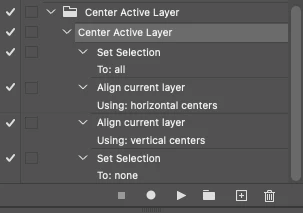
Correct answer Stephen Marsh

record the action, because I am not sure how to achive that.


@Rizum wrote:

record the action, because I am not sure how to achive that.


Link:


https://shared-assets.adobe.com/link/7e5bb69f-bdc6-433e-785f-f841e8824214


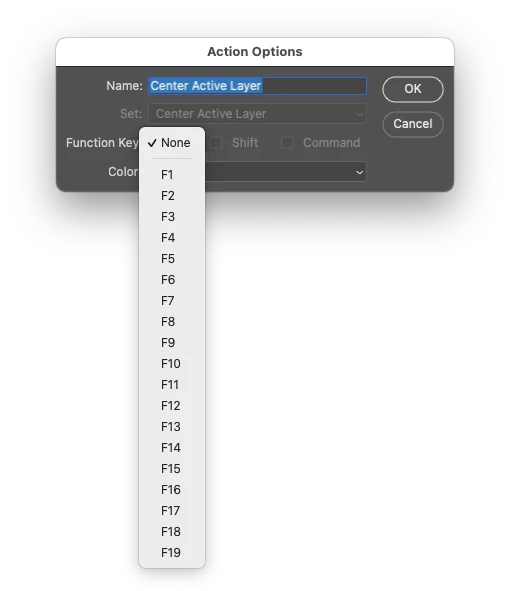
Download the .atn file and save it to your drive or to a backup etc. Use the Window > Actions menu command to open the Action panel, then use the upper right hand menu to load the .atn file. You can then set a custom F-Key shortuct by highlighting the action (not the set/folder) and using the action panel menu item for "Action Options".


Helpx Articles:


https://helpx.adobe.com/photoshop/using/creating-actions.html


https://helpx.adobe.com/photoshop/using/playing-actions.html


3 replies

Jeff Arola
Community Expert
Community Expert
June 13, 2022

Try doing a Select>All, then drag your image in from explorer.

Stephen Marsh
Community Expert
Community Expert
June 13, 2022

@Jeff Arola – nice one, that works too! 


At this point, it appears to be a case of either:


1) Use an action + F-key shortcut or a script + standard custom keyboard shortcut

Pros: only a single step once setup

Cons: requires setup and remembering a keyboard shortcut


or


2) Select all, drag from Finder/Explorer, deselect

Pros: no actions or scripts required, uses standard keyboard shortcuts

Cons: two additional steps


Does anybody have a third option?

Zesty_wanderlust15A7
Known Participant
June 13, 2022

Maybe there's an event trigger for dropping an image in?

I'll have to check these out asap! 🙂

Stephen Marsh
Community Expert
Community Expert
June 13, 2022

@Rizum – Having dragged content auto centre on the canvas does appear to be dependent on having the entire canvas visible.


I have tried different keyboard modifiers without success. When dragging from one open document to another open doc in Photoshop, holding down the shift key modifier will centre the new layer content – but you are dragging from outside Photoshop.


Perhaps a less onerous extra step would be to use a keyboard shortcut to run an action or script to auto-centre the active layer to the canvas, at least that way your zoom and pan don't need to be changed.


Edit: I now see that @Trevor.Dennis has replied while I was typing my reply!

Trevor.Dennis
Community Expert
Community Expert
June 13, 2022

You could do it with an Action and trigger it with a Function key.  I just tested and it works fine.  Assuming you have Preferences set to bring Placed objects as Smart Objects, you have to hit Enter to OK the SO. Then hit your Function key and the layer is centred without affecting your current zoom level.


I am sure you can do the Action, but ask if not.

Trevor.Dennis
Community Expert
Community Expert
June 13, 2022

When I suggest using Function keys I like to show the defualt shortcuts.  I argue that single key shortcuts are too useful to leave to their defualt settings.  Ask yourself if you ever use the shortcuts below, and if not, then think about making better use if them.  F1 is hard wired and can't be changed.


Help_________________________ F1

Cut__________________________ F2

Character Panel________________ F3

Adjustments Panel______________ F4

Brushes panel__________________ F5

Colour panel___________________ F6

Layers Panel___________________ F7

Info Panel_____________________ F8

Actions Panel__________________ F9

History Panel__________________ F10

Timeline______________________ F11

Revert________________________ F12

Zesty_wanderlust15A7
Known Participant
June 13, 2022

"F1 is hardwired and can't be changed."

> I use F1 to Start/Continue actions (PC).