Answered

This topic has been closed for replies.
OK, that's better. I think you are asking how to draw the base under the bottle?
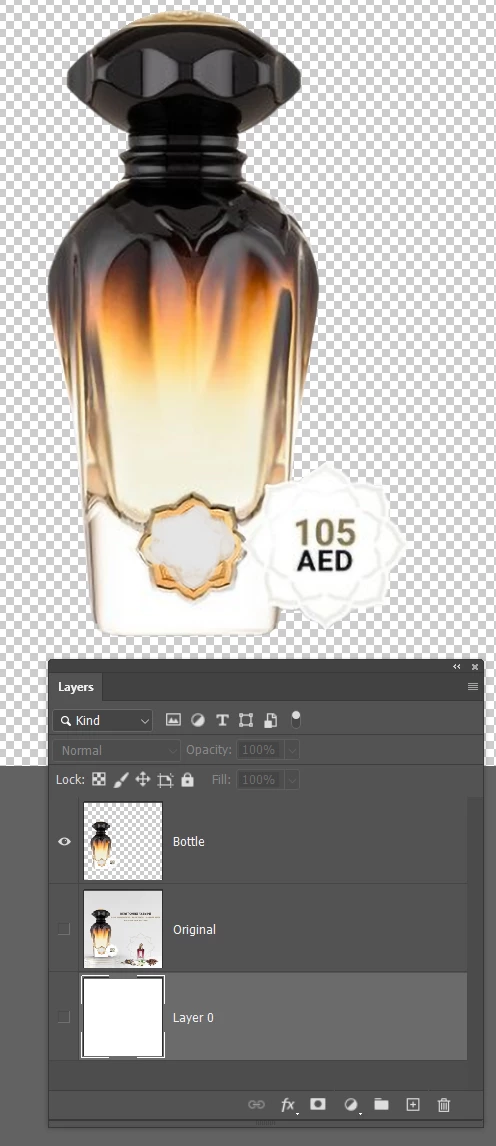
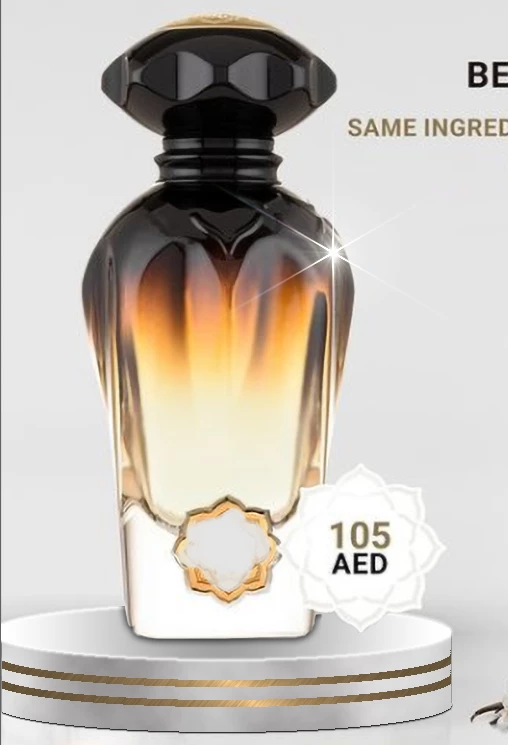
The first thing you need to do with almost any sort of composite using Photoshop is separate the image elements by selecting them, and copying to their own layer. In this case it is just the bottle.
If I was doing this for real, I would use the Pen tool, but for the sake of demonstration I used Select Subject, which got me remarkably close, and I cleaned it up using Quick Mask. About thirty seconds work!
We need to brake the base into separate parts, so we'll start with the top. Use the Elliptical Marquee tool to make an elliptical selection and fill with any colour on a new layer — I usually use grey. We just need this layer to give us a record of the shape. We are not worried about its colour at this stage.
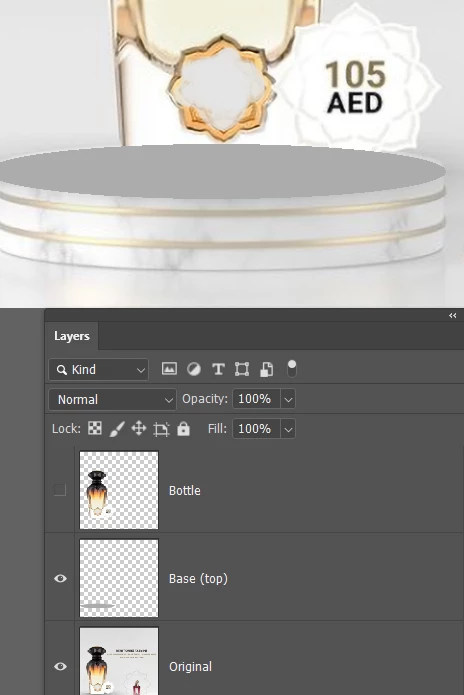
Copy the base (top) layer, and call the copy Base (bottom). Move it below the Base (top) layer in the layer stack, and use the move tool to move it down to wherever you want the lowwer edge of the base to be
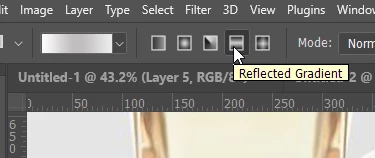
I'm going use Reflected for the base (bottom layer)
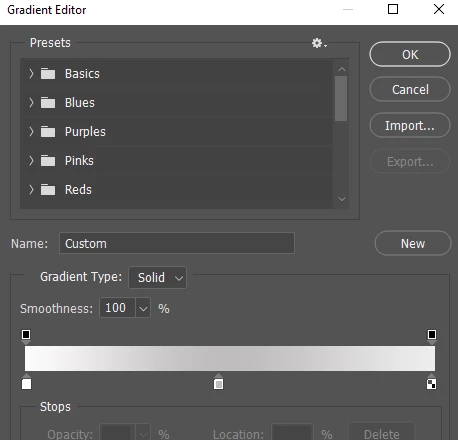
This can be a tiny bit confusing, so take your time. Don't worry about the boxes above the gradient, Drag the left side lower box to the middle, and double click it which opens the colour selector. Chose a nice grey.
Click below the gradient on the left which opens a new colour box. Double click it and make it white. If the right box is not allready white, make it so. Ok that.
Drag from the center of the base to the outside. Try it a few times to see what works best for you
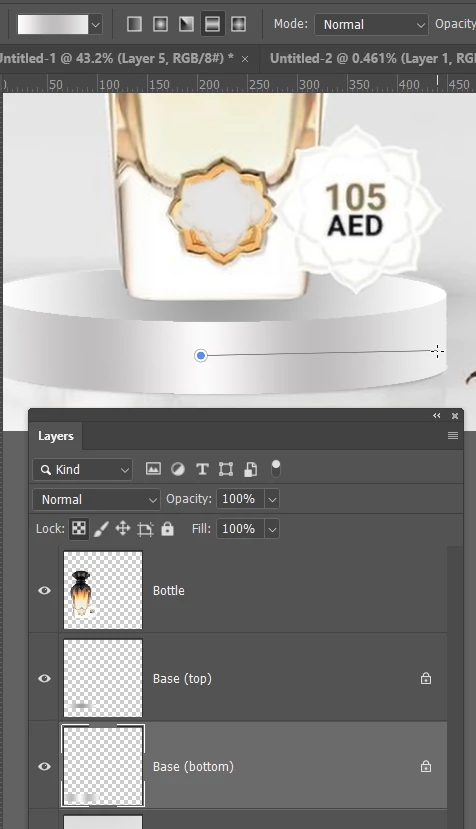
Make a new layer called Gold Band and place it above the base (top) layer
Ctrl click the base (top layer) which will load it as a selection.
Chose a nice bronze yellow as the forground colour, and go Edit > Stroke and make sure it is set to Outside
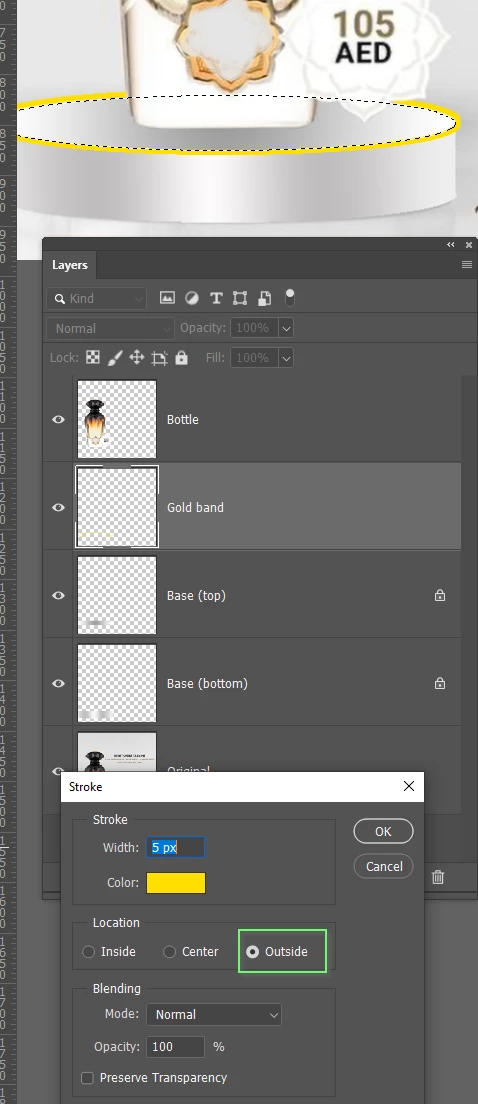
Ctrl click the base (bottom) layer to load as a selection. Invert the selection (Shift Ctrl i)
Delete the bit of gold band you don't want, and erase the top part of the band
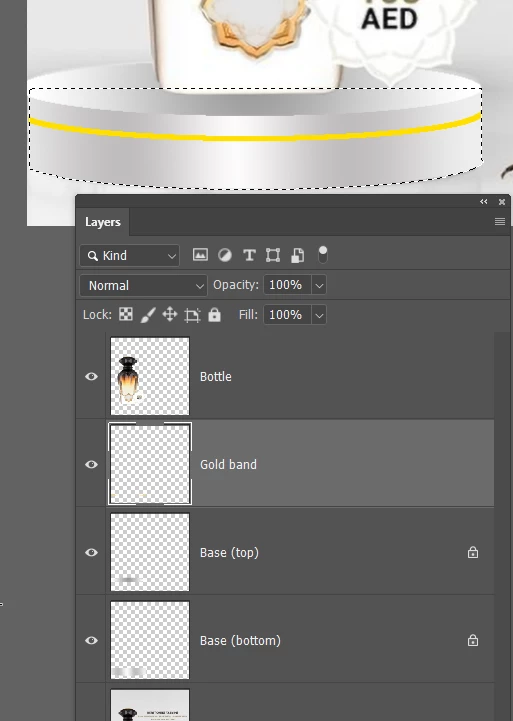
Copy the gold band and move into position
I have used Bevel and Embos to simulate a gold effect, but it is difficult with such fine lines and low res. If you are working with higher pixel counts you'll get away with it
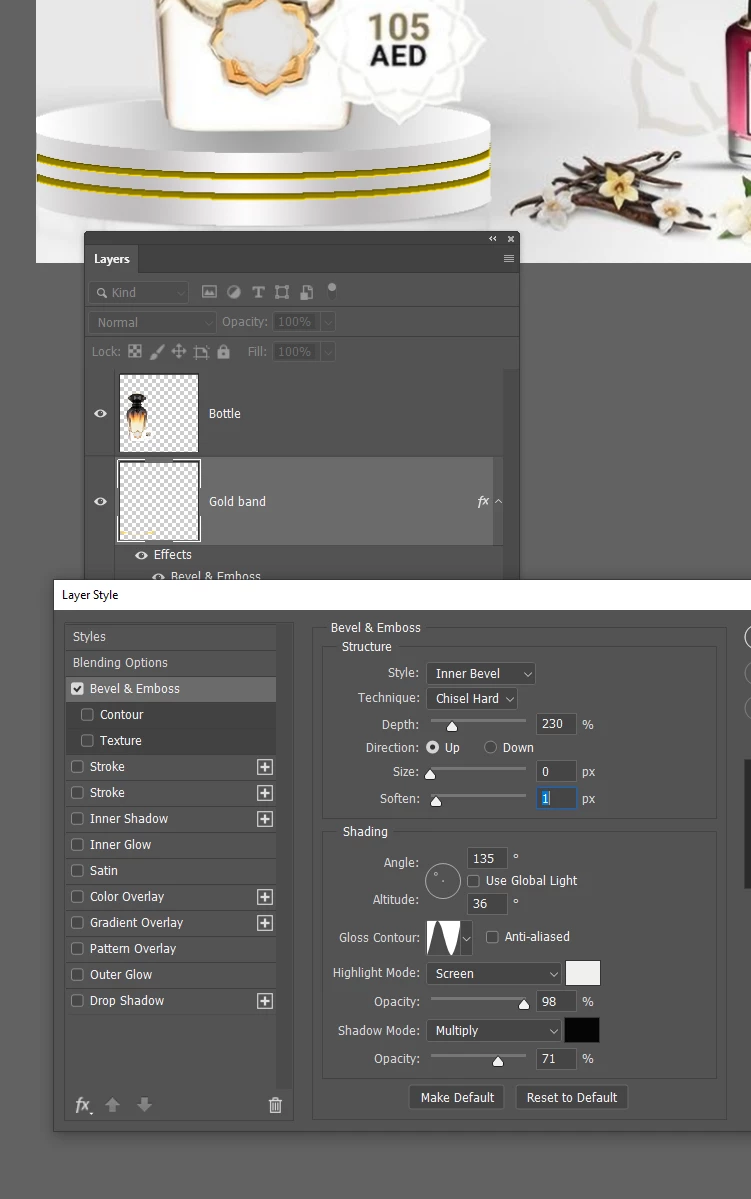
OK, I have been ast this for half an hour now, so please tell me you are going to try this.
You can add highlights and shadows and reflections to finish it off, but that'll have to be for another time.
Sign up
Already have an account? Login
To post, reply, or follow discussions, please sign in with your Adobe ID.
Sign inSign in to Adobe Community
To post, reply, or follow discussions, please sign in with your Adobe ID.
Sign inEnter your E-mail address. We'll send you an e-mail with instructions to reset your password.
 AdChoices