Participant
August 12, 2022
Question

how to edit (for eg. move or crop) a whole video layer rather than just one frame

  • August 12, 2022
  • 1 reply
  • 974 views

Hello,


I was trying to put two videos next to eachother on photoshop, but everytime i try to crop and move a video next to the other, I just apply the change to one frame of that video layer rather than the whole layer. Anyone knows how I could apply the change to the whole video layer?


My whole layer is selected and my timeline looks like this:
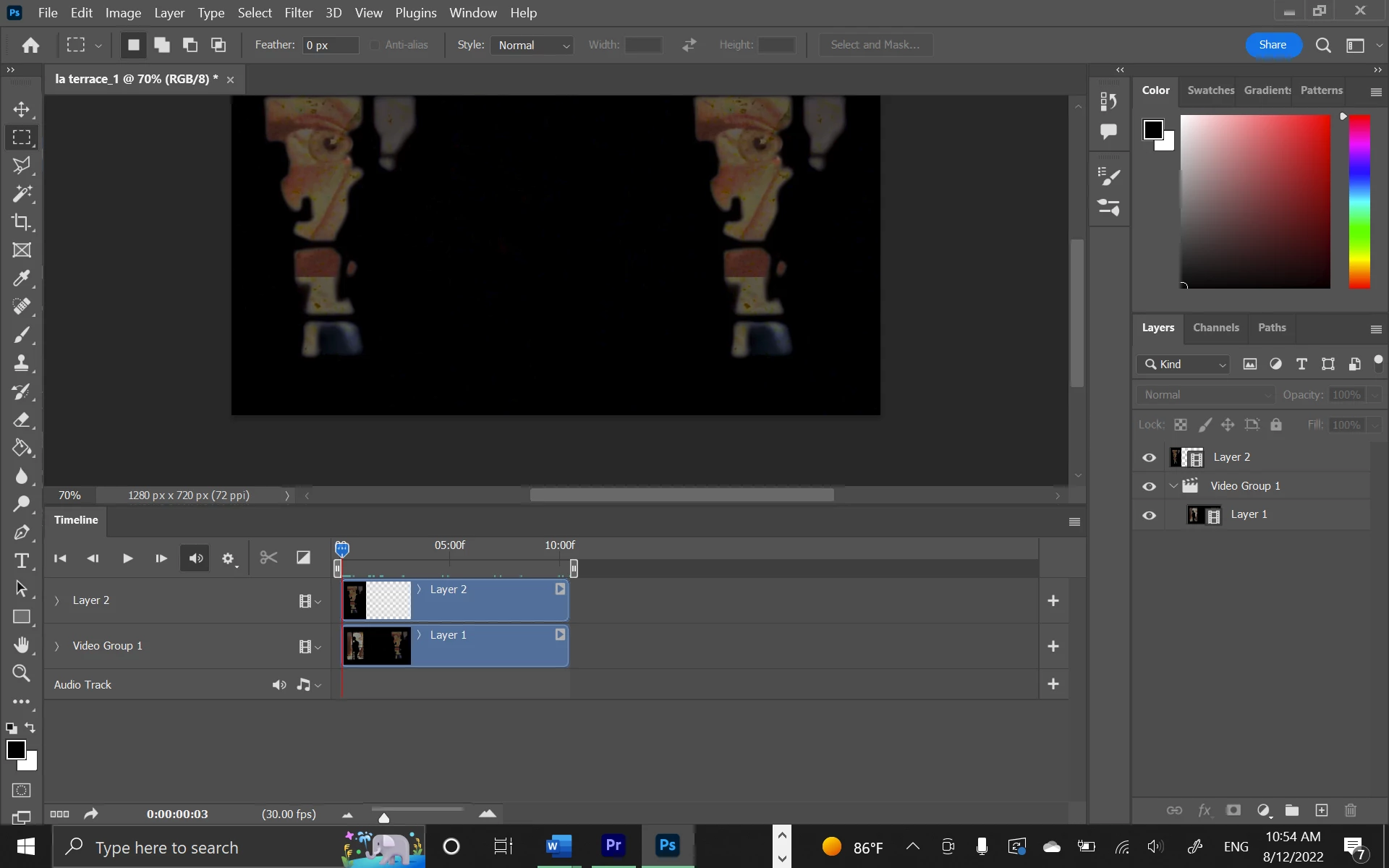
 

Thanks a lot in advance!

Laura


This topic has been closed for replies.

1 reply

davescm
Community Expert
Community Expert
August 12, 2022

Convert the video layers to smart objects then you can transform them as required (you can also keyframe the transform so the layers move, should you require that)

Dave

Participant
August 18, 2022

Hello, thanks a lot for your answer.


It says the smart object isn't directly editable and that I have to rasterize it before. If I ratserize the layer though it becomes an image rather than a video. Do you know how I might solve this ?


Thanks in advance,

Laura

davescm
Community Expert
Community Expert
August 18, 2022

You don't need to rasterize the smart object to transform it in the video timeline.

So take the video/video group layer - right click it and convert to smart object. Then, in the timeline, you should see the keyframe controls for transform.


Should you need to get back to the video layer, just double click the smart object (in the layers panel) and it will open in a separate window.


Dave