Participating Frequently
November 8, 2017
Answered

How to edit the text contents using smart object.

  • November 8, 2017
  • 1 reply
  • 22447 views

I want to know how to edit the text contents using smart object and
what I want to do is to edit just 1 letter of text content so in this case I'm not considering the way to transform whole text.

What I tried to edit the contents was to rasterize that layer but even after doing so
I was not able to revise text contents.

What I'm confused with is that after making the layer smart object, you lose the chance to edit the text contents

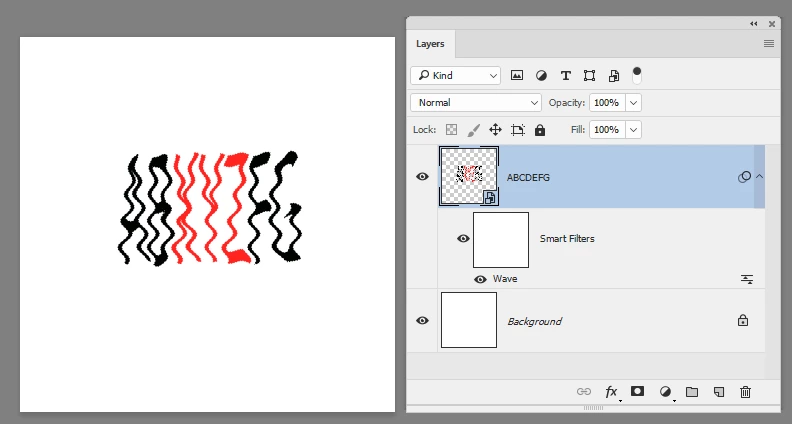
and also the icon T standing for text is gonna be changed into gray and white background icon like sample layer in this picture.
What does is stand for ?

Does it mean that background is transparent ?

Thank you in advance for your help.
This topic has been closed for replies.
Correct answer davescm

Hi

When you make any layer(s) into a smart object you now have a container that appears like a pixel layer in Photoshop but can at any time be reopened by double clicking on the thumbnail in the layers panel.

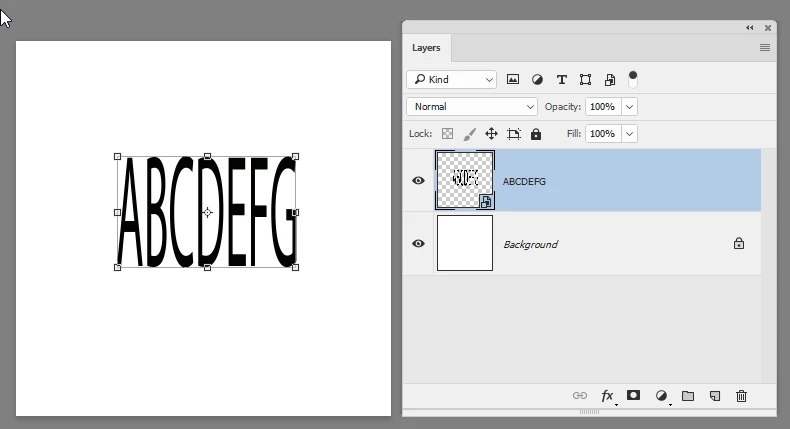
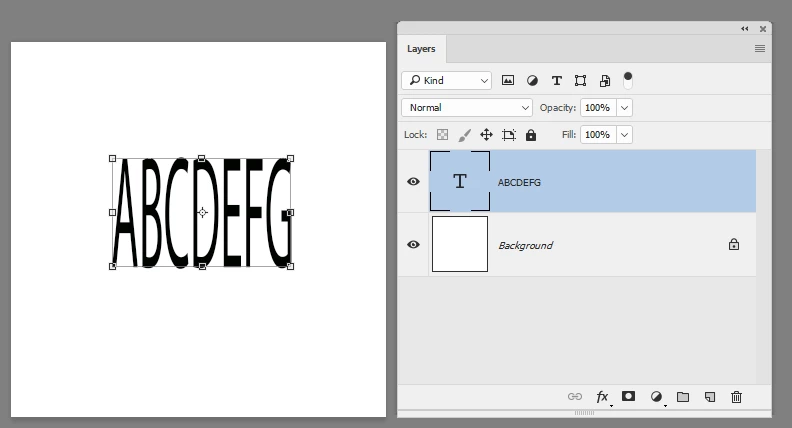
So for example I have a text layer :

I put it in a smart object so that I can apply a filter :

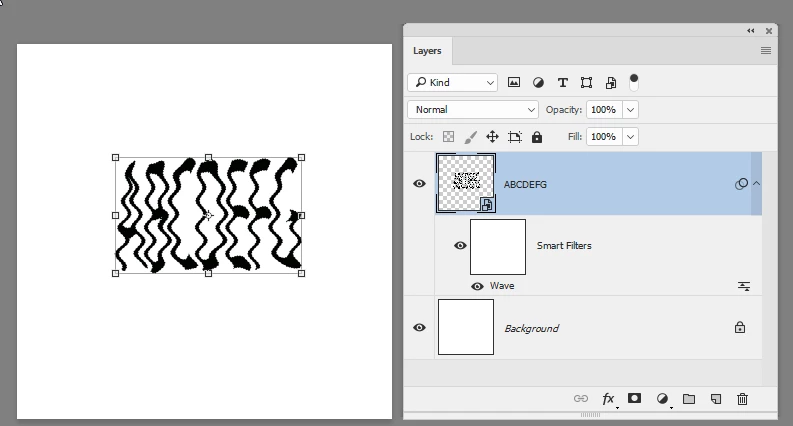
I apply my filter (I used wave for this demo):

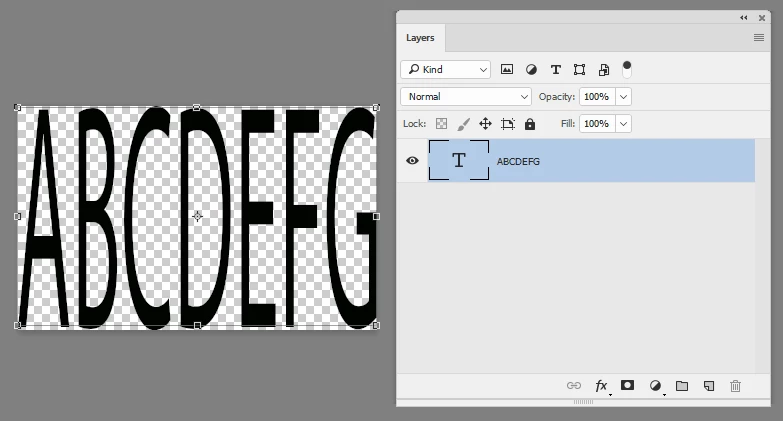
Now to edit the actual text content, I double click on the thumbnail and a psb document opens with the text content that I can edit:

So I edit by double clicking the "T" thumbnail which selects the text and switches to the text tool. Then I  close and save the psb file :

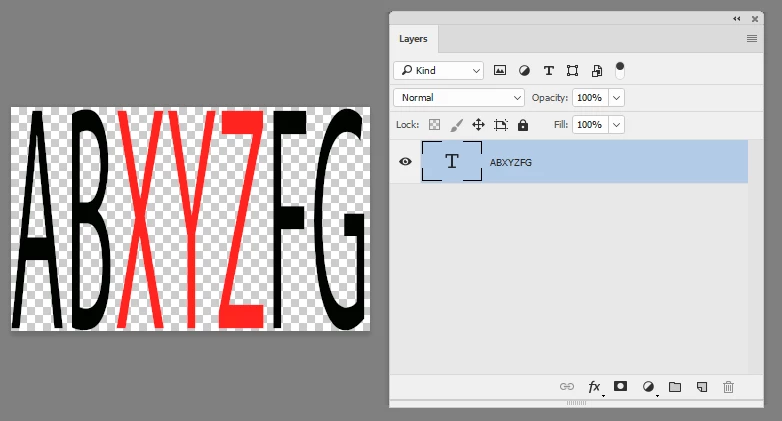
On saving and closing I return to my main document and the changes are shown in the smart object layer:

I hope that helps you

Dave

1 reply

davescm
davescmCorrect answer
Community Expert
November 8, 2017

Hi

When you make any layer(s) into a smart object you now have a container that appears like a pixel layer in Photoshop but can at any time be reopened by double clicking on the thumbnail in the layers panel.

So for example I have a text layer :

I put it in a smart object so that I can apply a filter :

I apply my filter (I used wave for this demo):

Now to edit the actual text content, I double click on the thumbnail and a psb document opens with the text content that I can edit:

So I edit by double clicking the "T" thumbnail which selects the text and switches to the text tool. Then I  close and save the psb file :

On saving and closing I return to my main document and the changes are shown in the smart object layer:

I hope that helps you

Dave

Participating Frequently
November 8, 2017

Thank you very much for your detailed tips Mr. Dave.
I've noticed that you gave me tips on my previous question as well.

I actually tried to edit it by double click on the icon but didn't know how to make text and background (white and gray part)bigger.
But finally I was able to know how to edit it.

To make bakground (white and gray part) bigger  → Crop tool
To change the text size → change the number in the following panel