
Participant
November 9, 2018
Question

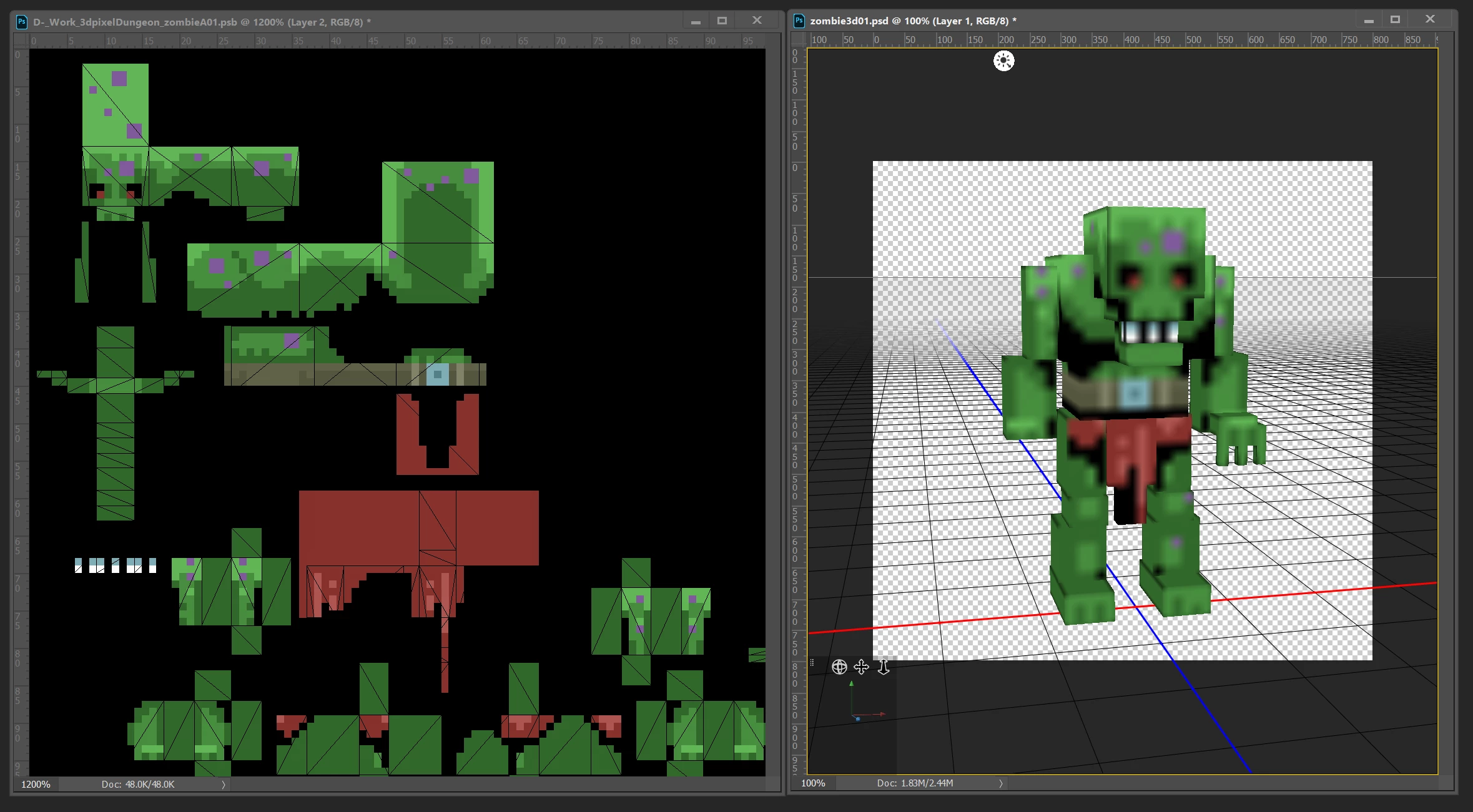
How to enable linear(point) texture filtering on 3D model while painting low-res textures in 3D mode?

  • November 9, 2018
  • 2 replies
  • 2563 views

Is there any way in Photoshop CC 2018 how to globally disable advanced texture filtering in 3d view while painting textures and set it to linear (or point)? For pixel art textures preparation, it is almost impossible to check the final result on a displayed 3D model. Used a bilinear or trilinear filter makes textures blurred.
    This topic has been closed for replies.

    2 replies

    Participant
    November 9, 2018

    Yes, I did exactly what you are suggesting. Converting a low-res texture to a smart object and scaling it then to 4096x4096 would help but then I don't have displayed 3d model wireframe in original texture which is making this process quite complicated and too much time consuming (while I need pixel perfect shapes).

    Participant
    November 9, 2018

    Ok, I have created two hotkey actions - one for enlarging an image and second one to shrinking it back to original resolution. The creation process could be a little bit faster now. Thank you very much with confirming me there is no way how to do it globally.

    davescm
    Community Expert
    Community Expert
    November 9, 2018

    Hi

    Yes that is what I was meaning in the workaround. Use the hi res example to check but revert to the the low res to work and draw. Note you only need an action to enlarge and check.  Then just use Ctrl Z (Undo) to revert to the original without introducing any new artifacts.

    Dave

    davescm
    Community Expert
    Community Expert
    November 9, 2018

    Hi

    You can't set that directly.

    What I would do as a workaround is - take your psb and resize it to 4096 x 4096 using nearest neighbour interpolation. Then check the model. The pixel art should look much sharper.

    Dave