gtsolid
Known Participant
September 26, 2021
Answered

How to enhance this photo

  • September 26, 2021
  • 9 replies
  • 1051 views

Hi,

A friend of mine passed me this picture and i notice a disappointing low quality area in the upper-right spot.

Do you have any suggestion about retouching in PS or for a better shot from the camera?

This topic has been closed for replies.
Correct answer mglush

Hi!


I have a couple of steps for you--but you need to remember that the light in the upper right corner is a sun flare, and it will be enhanced along with the rest of the photo. If you are not happy with the sky, then you can replace it when you're all done.


First, with your image open, dupliate the layer. Press Command-Shift-A to take the image into Camera RAW and slide the Dehaze filter all the way over to the right. You can also add a little black to increase the darks if you want, and play with someof the other sliders until you feel comfortable that you have matched the saturation of the other parts of the moruntain. Hit ok and leave Camera Raw
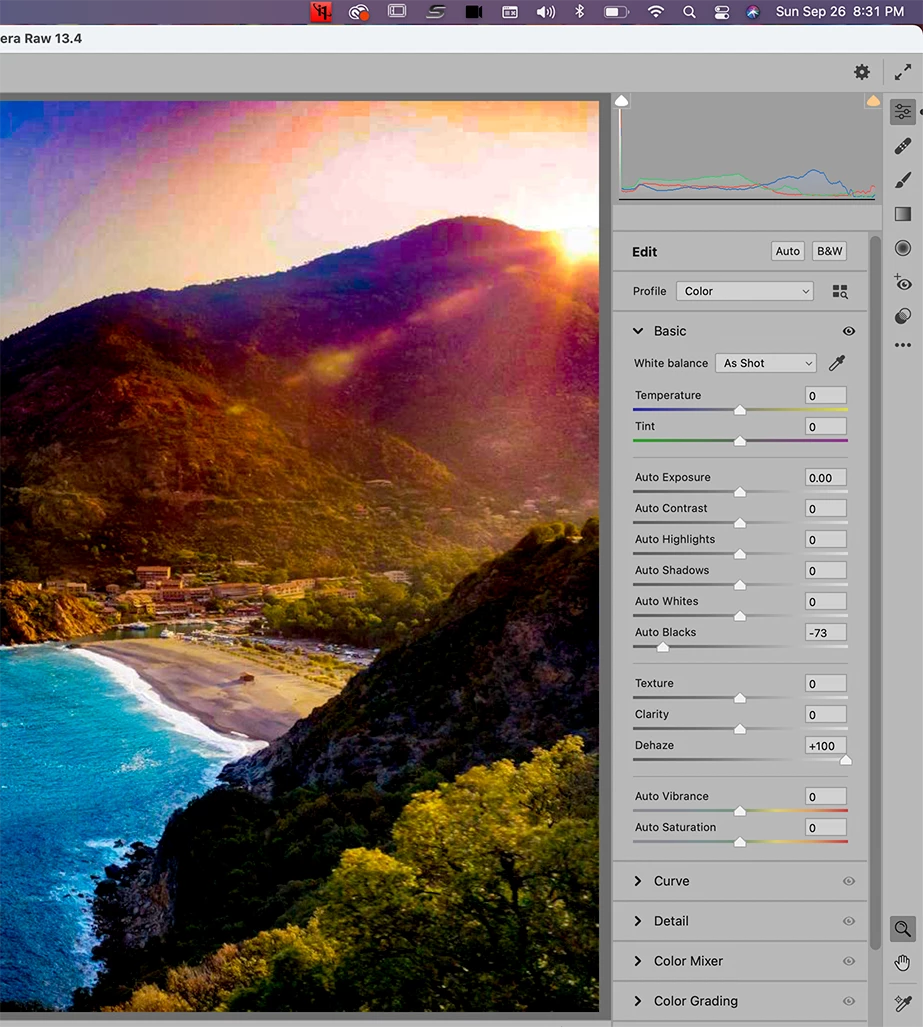


Next, Add a Layer Mask by holding down the Options key and pressing the Layer Mask Icon at the bottom of the Layer's Panel. This will create a mask that will hide the image. Use a very large, soft edge brush with the Foreground color set to white, and a lower opacity, and start painting in the area to darken it until you are satisfied.
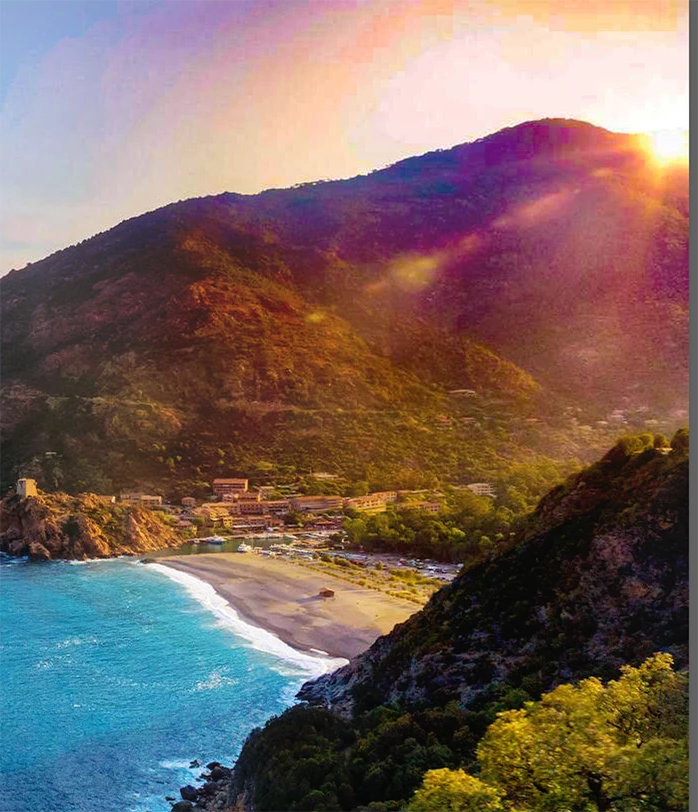


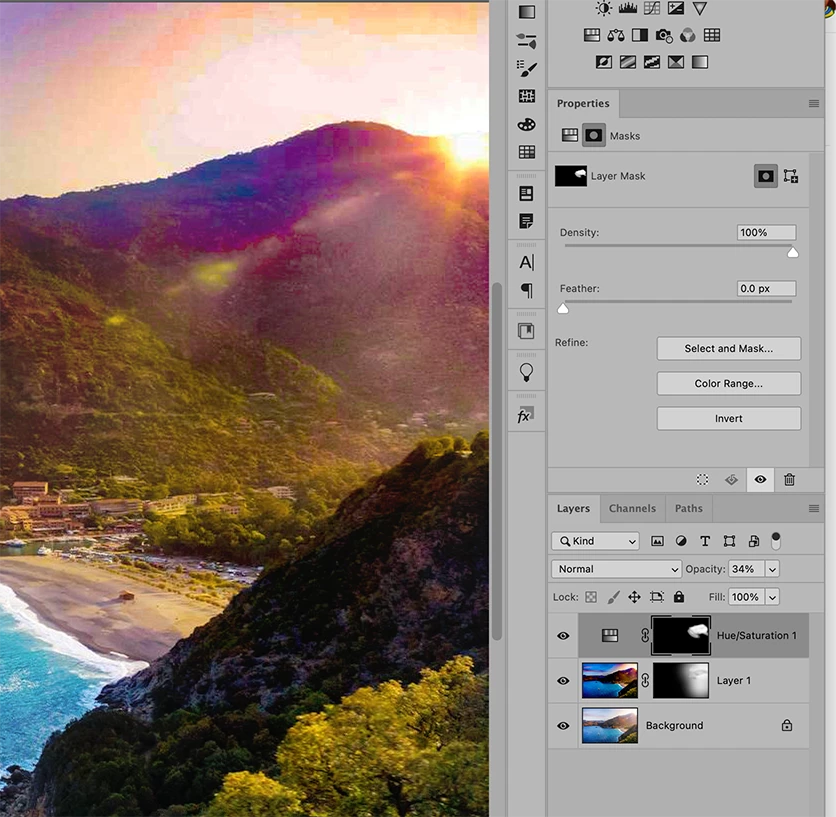
I have found that Dehaze warms up an image when I use it, so to change thr redish brown color, you can use an Adjustment Layer with Hue and Saturation to decrease the red. Add a Hue and Saturation Adjustment Layer and change the Master Drop down menu to Red and adjust the area so that the value of greenery matches the rest of the mourntain. 


Fill the existing Layer mask with black so that the image is hidden. Use your soft-edged brush at a low opacity to get ridd of the dark reddish brown color left from the Dehaze filter.
 

As I said before, trying to correct for a sun flare causes a whole new set of problems, but using Dehaze can be a really good option. Play with it and let us know if you have any questions.

Michelle


9 replies

Jumpenjax
Community Expert
Community Expert
March 23, 2024

I feel mglush has given great advice  .

Lee- Graphic Designer, Print Specialist, Photographer
Participant
March 20, 2024

Enhance the photo in any app like wink app and remine likes this your problem solved okay

didiermazier
Community Expert
Community Expert
September 27, 2021

I would use a two step trick

1 - Use Camera Raw (here as a filter) to dehaze at the max level

2- Mask this correction with a diagonal gradient

Not the best but seems to work for me

Community Expert
September 27, 2021

I took a very simplistic route - and hopefully it's ok for you. 

I've attached a PSD 

It might not be the best effort.

But hope it shows some of the technique to get you there.

mglush
Community Expert
mglushCommunity ExpertCorrect answer
Community Expert
September 27, 2021

Hi!


I have a couple of steps for you--but you need to remember that the light in the upper right corner is a sun flare, and it will be enhanced along with the rest of the photo. If you are not happy with the sky, then you can replace it when you're all done.


First, with your image open, dupliate the layer. Press Command-Shift-A to take the image into Camera RAW and slide the Dehaze filter all the way over to the right. You can also add a little black to increase the darks if you want, and play with someof the other sliders until you feel comfortable that you have matched the saturation of the other parts of the moruntain. Hit ok and leave Camera Raw


Next, Add a Layer Mask by holding down the Options key and pressing the Layer Mask Icon at the bottom of the Layer's Panel. This will create a mask that will hide the image. Use a very large, soft edge brush with the Foreground color set to white, and a lower opacity, and start painting in the area to darken it until you are satisfied.


I have found that Dehaze warms up an image when I use it, so to change thr redish brown color, you can use an Adjustment Layer with Hue and Saturation to decrease the red. Add a Hue and Saturation Adjustment Layer and change the Master Drop down menu to Red and adjust the area so that the value of greenery matches the rest of the mourntain. 


Fill the existing Layer mask with black so that the image is hidden. Use your soft-edged brush at a low opacity to get ridd of the dark reddish brown color left from the Dehaze filter.


As I said before, trying to correct for a sun flare causes a whole new set of problems, but using Dehaze can be a really good option. Play with it and let us know if you have any questions.

Michelle


War Unicorn
Community Expert
Community Expert
September 26, 2021

I have to be honest: I really like the sun flare in the corner.

Trevor.Dennis
Community Expert
Community Expert
March 23, 2024

I'm with you James.  There's nothing to fix.  That's what the sun setting behind distant mountains looks like. 


I guess you could ask what Gen Fill thinks it should look like.  Turns out that it takes a lot of energy to make this sort of rework, and that energy has to come from somewhere.  In this case it it used the top 500 feet of the mountain top.  It's that Conservation of energy thing.

D Fosse
Community Expert
Community Expert
September 26, 2021


Problem solved B-)


But seriously: this is impossible to fix without rebuilding that part of the image completely. The flare has wiped everything out, there is nothing to work with.


And all that said, flare isn't necessarily a bad thing. Often it can add atmosphere and light to an image that would otherwise be dead.

Jumpenjax
Community Expert
Community Expert
September 26, 2021

You can use Lightroom. Here is a link that helps explain the use in Lightroom.

https://youtu.be/5TjMn5aasd8

Lee- Graphic Designer, Print Specialist, Photographer
lambiloon
Community Expert
Community Expert
September 26, 2021

Hi this is due sun flare you can use dodge and burn tool to add drama to this picture or a new picture...regards

Ali Sajjad / Graphic Design Trainer / Freelancer / Adobe Certified Professional
