Inspiring
January 1, 2022
Answered

How to export 'Lighten Blending Mode' to Transparent PNG

  • January 1, 2022
  • 3 replies
  • 14328 views

Dear community, i'm still confuse how to export 'Lighten Blending Mode' to transparent PNG.

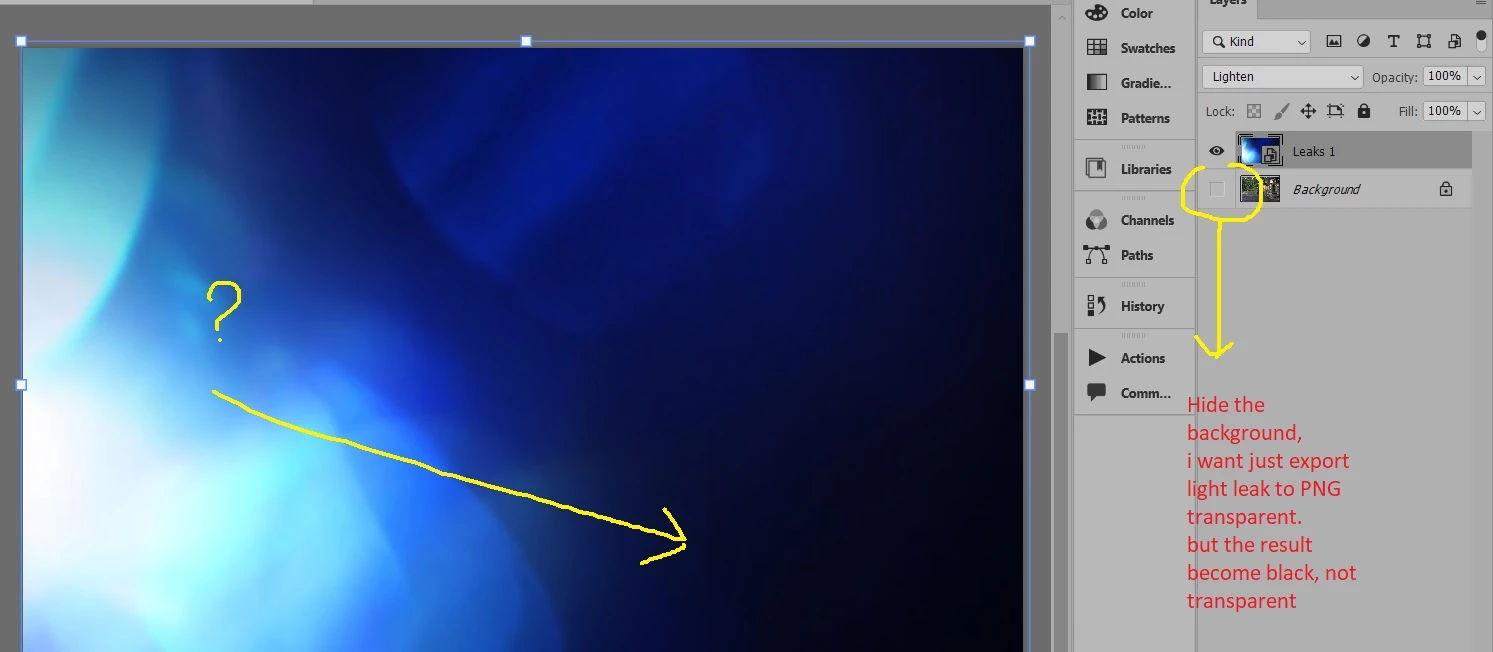
I have a light leaks image with black background like below :

Then for my layer panel, i have background image below this light leak image.

To make this light leak image transparent, i can use 'Lighten' blending mode, like below :
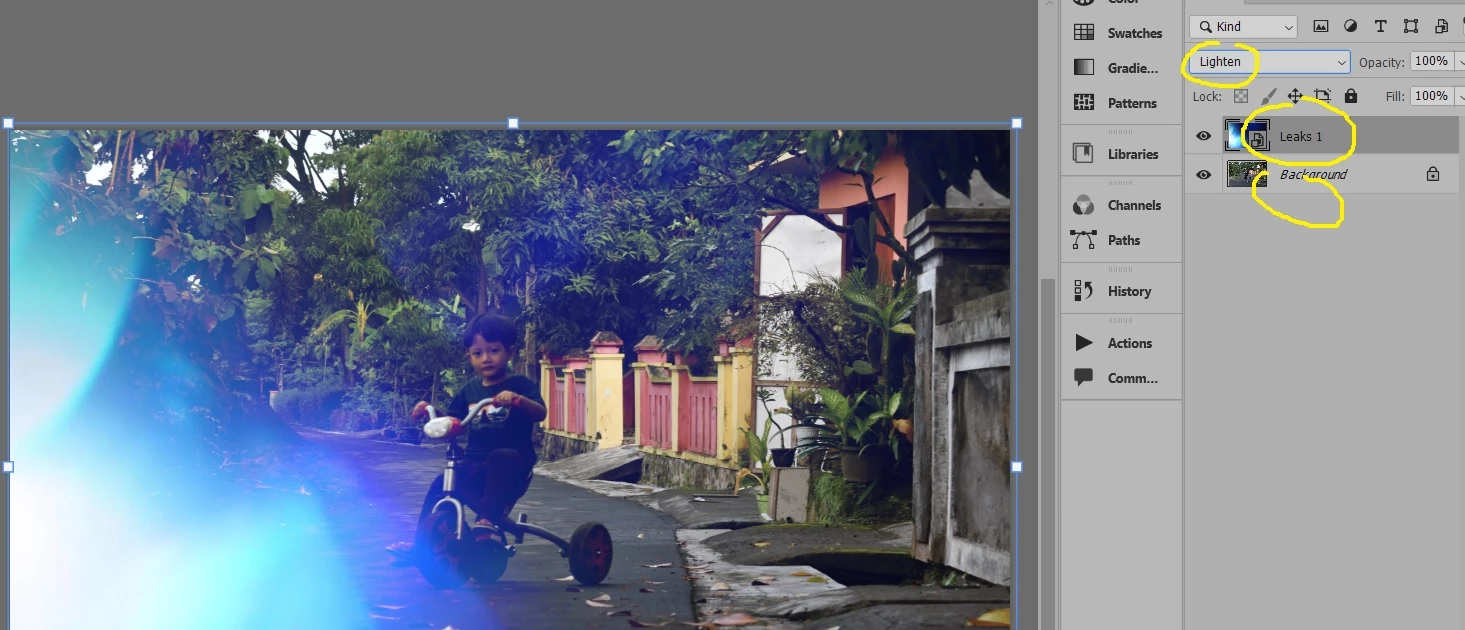
Now, the case is i want to hide the background photo and just want the transparent light leaks.

when i want to export just light light to transparent PNG, the background become black, not transparent
 

Correct answer davescm

Hi

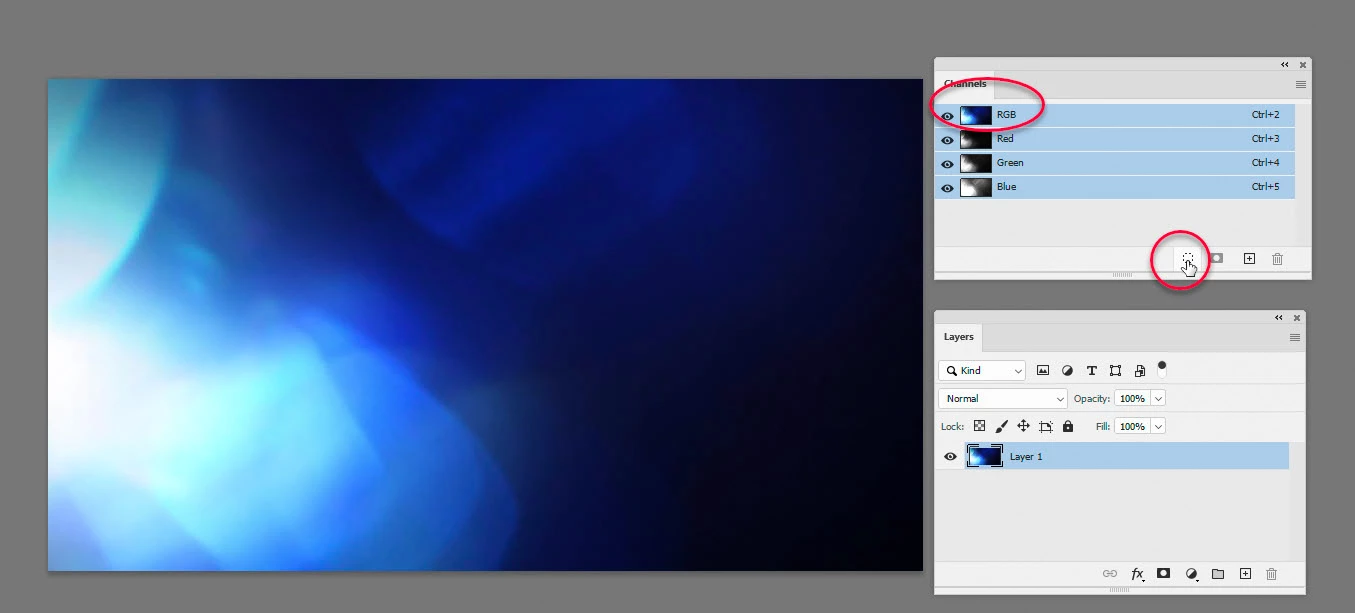
To add a mask to the layer based on its luminosity, just click on the RGB channel in the channels panel and then on the small dotted circle at the bottom of the channels panel which will load the channel as a selection.


Then go to the layers panel and use menu Layer > Layer Mask >Reveal selection


If you prefer you could use one of the single channels such as Red, Green or Blue as the basis for the mask. You can also click on the mask and adjust it using Image >Adjustments>Curves


Dave

3 replies

Chuck Uebele
Community Expert
Community Expert
January 1, 2022

This is something I suggest to the product manager of Photoshop, several years ago, and he liked the idea, but nothing has been done about it. I would suggest a post as a feature request that can be voted on. 

Inspiring
January 1, 2022

Thanks @Chuck Uebele ,give me a link and i will vote it.

######Raizen 7, 40Gb Ram, RTX 3060, Win 11 -- All of Software in the world are just tools. Buy it if it works for you :)
D Fosse
Community Expert
Community Expert
January 1, 2022

Dave is absolutely right, blend modes don't apply to single layers. It's the relationship, not the thing.


However, there is a nifty little workaround. Put a layer underneath and use "Blend If", splitting the black slider and moving the right fallof point all the way up.


Then hide the underlying layer and Export. Now the dark values are transparent, gradually going to opaque in higher values.


If the whole thing is a little too transparent, duplicate a couple of times. It works in Normal blend mode, but probably looks more natural in Lighten mode.


Inspiring
January 1, 2022

thanks so much @D Fosse , i have tried blendif (blending options) but this is not what i want,

######Raizen 7, 40Gb Ram, RTX 3060, Win 11 -- All of Software in the world are just tools. Buy it if it works for you :)
Inspiring
January 2, 2022

But for now, this trick can be solution

######Raizen 7, 40Gb Ram, RTX 3060, Win 11 -- All of Software in the world are just tools. Buy it if it works for you :)
davescm
Community Expert
Community Expert
January 1, 2022

A blend mode is an interaction between two layers so can't be exported as a single layer.


Instead you could make a mask from the luminosity of the light leak layer.

Dave

Inspiring
January 1, 2022

Thanks @davescm , but how can to do that? i can add mask, but i don't undestand how to mask from luminosity. Would you please add some example? thanks

######Raizen 7, 40Gb Ram, RTX 3060, Win 11 -- All of Software in the world are just tools. Buy it if it works for you :)
davescm
Community Expert
davescmCommunity ExpertCorrect answer
Community Expert
January 1, 2022

Hi

To add a mask to the layer based on its luminosity, just click on the RGB channel in the channels panel and then on the small dotted circle at the bottom of the channels panel which will load the channel as a selection.


Then go to the layers panel and use menu Layer > Layer Mask >Reveal selection


If you prefer you could use one of the single channels such as Red, Green or Blue as the basis for the mask. You can also click on the mask and adjust it using Image >Adjustments>Curves


Dave