Participant
April 14, 2020
Answered

How to export paths to AI in action / batch

  • April 14, 2020
  • 3 replies
  • 4717 views

Hi,


Ive recorded an action to export paths from adobe photoshop to Illustrator (ai files). It is working pretty well, but the action is exporting always to the exactly same filename. So if I use the action in batch mode for many files, I only get one ai file in the end because it is always overwriting the same file.


How can I set a dynamic filename for the export paths to illustrator function?


Any ideas?


Thanks alot!

This topic has been closed for replies.
Correct answer Stephen Marsh

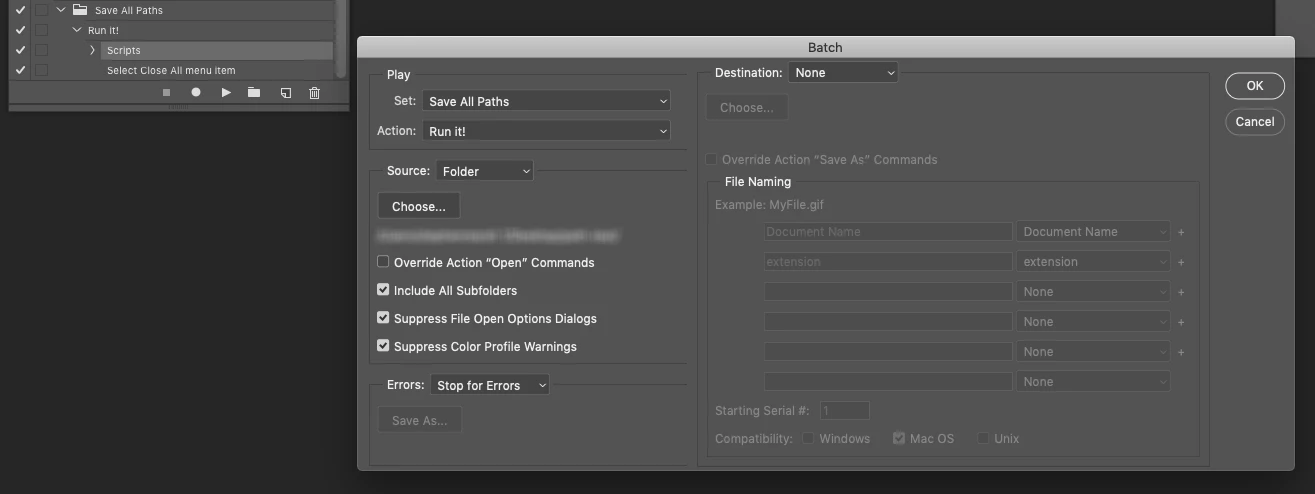
Try this script. It can be recorded as an action step and then used in File > Automate > Batch command. Files must be saved, exported files will be saved in the same folder as the original file using the same variable document name with suffix of "_Paths" and the ".ai" filename extension.


Such as:

Original Image Name.psd

Original Image Name_Paths.ai

(this suffix is easy to remove from the script if you don't like it)


Downloading and Installing Adobe Scripts


// Export All Paths to Illustrator Using Variable Document Name.jsx

#target photoshop

/*
Export all paths to Illustrator format using the current document name
This script is suitable for use in the File > Automate > Batch command
https://community.adobe.com/t5/photoshop/how-to-export-paths-to-ai-in-action-batch/m-p/11049923 
How to export paths to AI in action / batch
*/

/* Start Unsaved Document Error Check - Part A: Try */
unSaved();

function unSaved() {
    try {
        activeDocument.path;
        /* Finish Unsaved Document Error Check - Part A: Try */

        /* Main Code Start */

        /* Based on the following topic thread:
        https://community.adobe.com/t5/photoshop/exporting-all-paths-to-illustrator-error/m-p/8796143 */

        var doc = app.activeDocument;
        var docPath = doc.path;
        var docName = doc.name.replace(/\.[^\.]+$/, '');
        var newFile = File(docPath + '/' + docName + '_Paths' + '.ai');
        var expOptions = new ExportOptionsIllustrator;
        expOptions.path = IllustratorPathType.ALLPATHS;
        doc.exportDocument(newFile, ExportType.ILLUSTRATORPATHS, expOptions);
        // alert('All Photoshop paths have been exported as a single Illustrator file in:' + '\r' + docPath);

        /* Main Code Finish */

        /* Start Unsaved Document Error Check - Part B: Catch */
    } catch (err) {
        alert('An image must be both open and/or saved before running this script!')
    }
}
/* Finish Unsaved Document Error Check - Part B : Catch */



3 replies

Stephen Marsh
Community Expert
Stephen MarshCommunity ExpertCorrect answer
Community Expert
April 15, 2020

Try this script. It can be recorded as an action step and then used in File > Automate > Batch command. Files must be saved, exported files will be saved in the same folder as the original file using the same variable document name with suffix of "_Paths" and the ".ai" filename extension.


Such as:

Original Image Name.psd

Original Image Name_Paths.ai

(this suffix is easy to remove from the script if you don't like it)


Downloading and Installing Adobe Scripts


// Export All Paths to Illustrator Using Variable Document Name.jsx

#target photoshop

/*
Export all paths to Illustrator format using the current document name
This script is suitable for use in the File > Automate > Batch command
https://community.adobe.com/t5/photoshop/how-to-export-paths-to-ai-in-action-batch/m-p/11049923 
How to export paths to AI in action / batch
*/

/* Start Unsaved Document Error Check - Part A: Try */
unSaved();

function unSaved() {
    try {
        activeDocument.path;
        /* Finish Unsaved Document Error Check - Part A: Try */

        /* Main Code Start */

        /* Based on the following topic thread:
        https://community.adobe.com/t5/photoshop/exporting-all-paths-to-illustrator-error/m-p/8796143 */

        var doc = app.activeDocument;
        var docPath = doc.path;
        var docName = doc.name.replace(/\.[^\.]+$/, '');
        var newFile = File(docPath + '/' + docName + '_Paths' + '.ai');
        var expOptions = new ExportOptionsIllustrator;
        expOptions.path = IllustratorPathType.ALLPATHS;
        doc.exportDocument(newFile, ExportType.ILLUSTRATORPATHS, expOptions);
        // alert('All Photoshop paths have been exported as a single Illustrator file in:' + '\r' + docPath);

        /* Main Code Finish */

        /* Start Unsaved Document Error Check - Part B: Catch */
    } catch (err) {
        alert('An image must be both open and/or saved before running this script!')
    }
}
/* Finish Unsaved Document Error Check - Part B : Catch */


Participating Frequently
December 11, 2021

I'm using Illustrator 2020 and there is no File > Automate > Batch menu. instead I try File > Scripts > Other Script and import your code (saved as .jsx file). Then I get a msgbox alert "An image must be both open and/or saved before running this script!" (which I have opened my ai files already.)


I run the same file in Apple Script Editor using javascript and get the same result. what did I do wrong?

Stephen Marsh
Community Expert
Community Expert
December 11, 2021

This is not an Illustrator script, it is a JavaScript for Photoshop. The clue is here:


#target photoshop


By itself, the script will save the vector paths of the file open in Photoshop . It can also be run on a batch of raster files to save out the vector paths for multiple files (if the script is recorded into an action and run as a batch action). 


So what you are doing wrong is using it in Illustrator, which does not have the same menus, nor does it use the same DOM code as the script is for Photoshop.

Stephen Marsh
Community Expert
Community Expert
April 15, 2020

This is due to how the action records the export, I don't believe that you have any control over this with an action. 


It is probably scriptable using exportDocument with ExportOptionsIllustrator and appropriate properties, variables etc.


I'll see if I have time to come up with something later.

JJMack
Community Expert
Community Expert
April 14, 2020

If you have a problem with an action you want help with  you need to post the Action's  ActionSet.atn file so we can see exactly how he action has been created.  


It sound like you are using a save as step and have recorded a file name into the action step.  You should not record a name you should just let Photoshop default to the current  document's name.

JJMack
Stephen Marsh
Community Expert
Community Expert
April 15, 2020

Unlike saving a file, exporting the paths always seems to hard-code the same document name: