Inspiring
January 3, 2017
Answered

How to fill a background

  • January 3, 2017
  • 4 replies
  • 1152 views

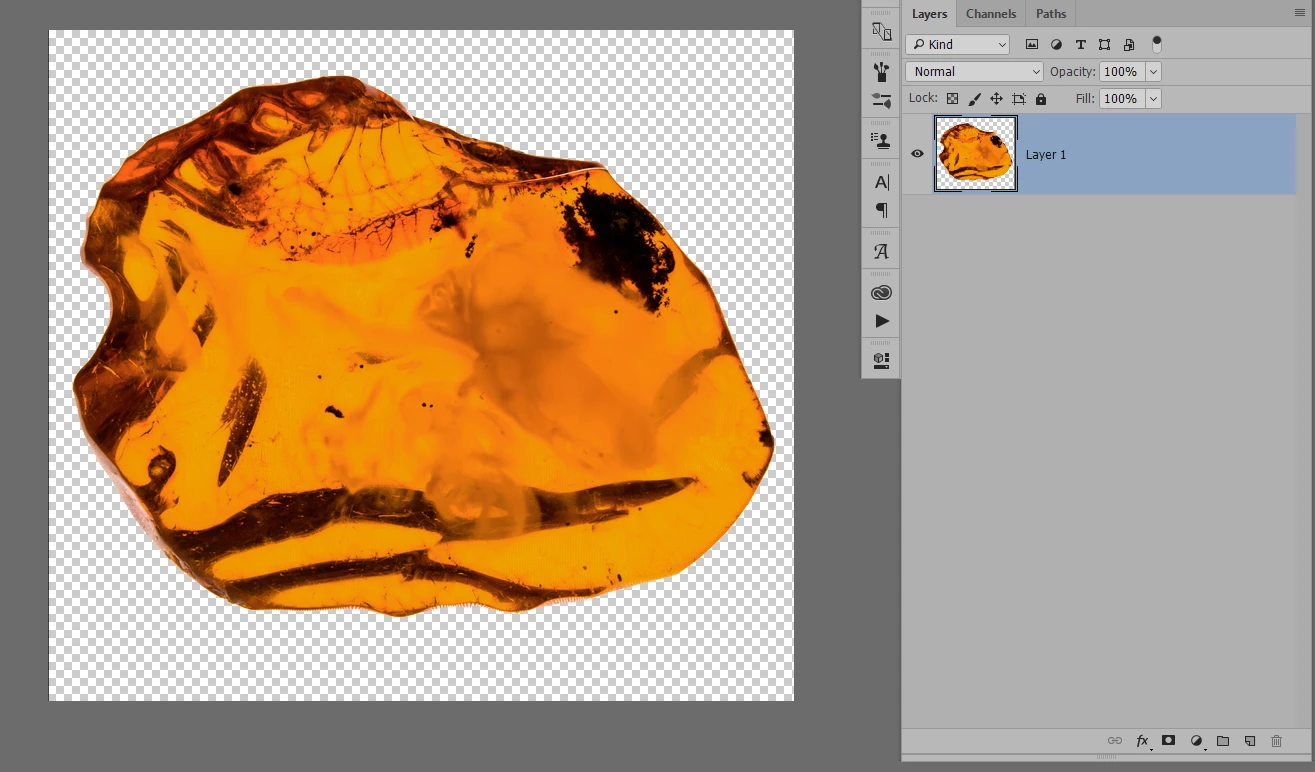
Here's a screenshot of what I would call an "incomplete" background: after cropping to get the right proportions there are some areas that are transparent. What would be the quickest way to fix that so that the background is all one color - perhaps even not white? I know I could select the central image and move it into a new file that has the background I want, but I'm wondering what other ways there are to accomplish the same end result.

    This topic has been closed for replies.
    Correct answer Mohammad.Harb

    you need to isolate the cut the object from the background first,

    there are many ways to delete the White background :

    1- use the Quick selection Tool , then refine the edges using  select -> select and Mask ( or refine edges if you are not on the latest CC 2017 )  then you may press the delete button or use the layer mask

    2- select -> color Range ,  select the white

    3- use the magic wand

    once you have the Transparent background, you can use any background color by creating a New solid Fill

    below are screenshots to demonstrate that :

    4 replies

    mytaxsite
    Inspiring
    January 3, 2017

    Does something like this help:

    The way I did is to first delete the white background using Magic Wand and then create a new Layer and move it at the bottom of the pile and use Fill Layer feature on this new layer to create a new color for your background.

    Hope you get the idea.

    Mohammad.Harb
    Community Expert
    Mohammad.HarbCommunity ExpertCorrect answer
    Community Expert
    January 3, 2017

    you need to isolate the cut the object from the background first,

    there are many ways to delete the White background :

    1- use the Quick selection Tool , then refine the edges using  select -> select and Mask ( or refine edges if you are not on the latest CC 2017 )  then you may press the delete button or use the layer mask

    2- select -> color Range ,  select the white

    3- use the magic wand

    once you have the Transparent background, you can use any background color by creating a New solid Fill

    below are screenshots to demonstrate that :

    c.pfaffenbichler
    Community Expert
    Community Expert
    January 3, 2017

    If you want to change the background you could go the other way around:

    Add the appropriate Layer Mask to the Layer (maybe based on the blue Channel or use whatever fitting Selection Tool you are comfortable with) and add a Solid Color Layer (Layer > New Fill Layer > Solid Color) behind it.

    c.pfaffenbichler
    Community Expert
    Community Expert
    January 3, 2017

    Edit > Fill and set to White and Mode: Behind.