Inspiring
December 15, 2021
Answered

How to fix not match gradient overlay

  • December 15, 2021
  • 5 replies
  • 1476 views

I have created a gradient overlay like this below image.
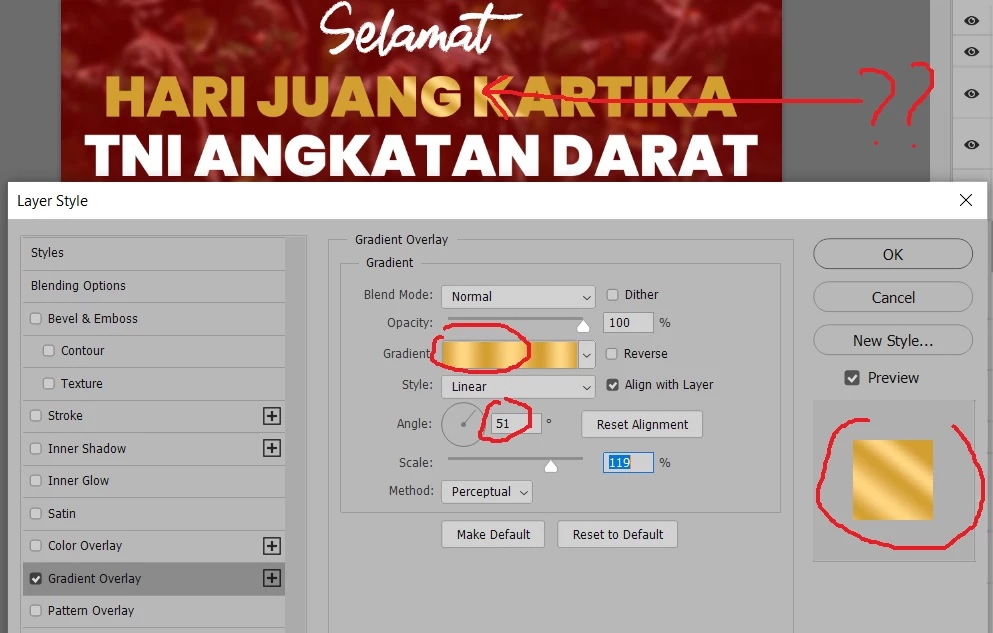
My setting look fine. When i see the preview rectange, the gradient is great and look like what i want.

But when i see preview in realtime, or when i click OK the gradient look like not match.

How to fix this? thanks?
This topic has been closed for replies.
Correct answer Jeff Arola

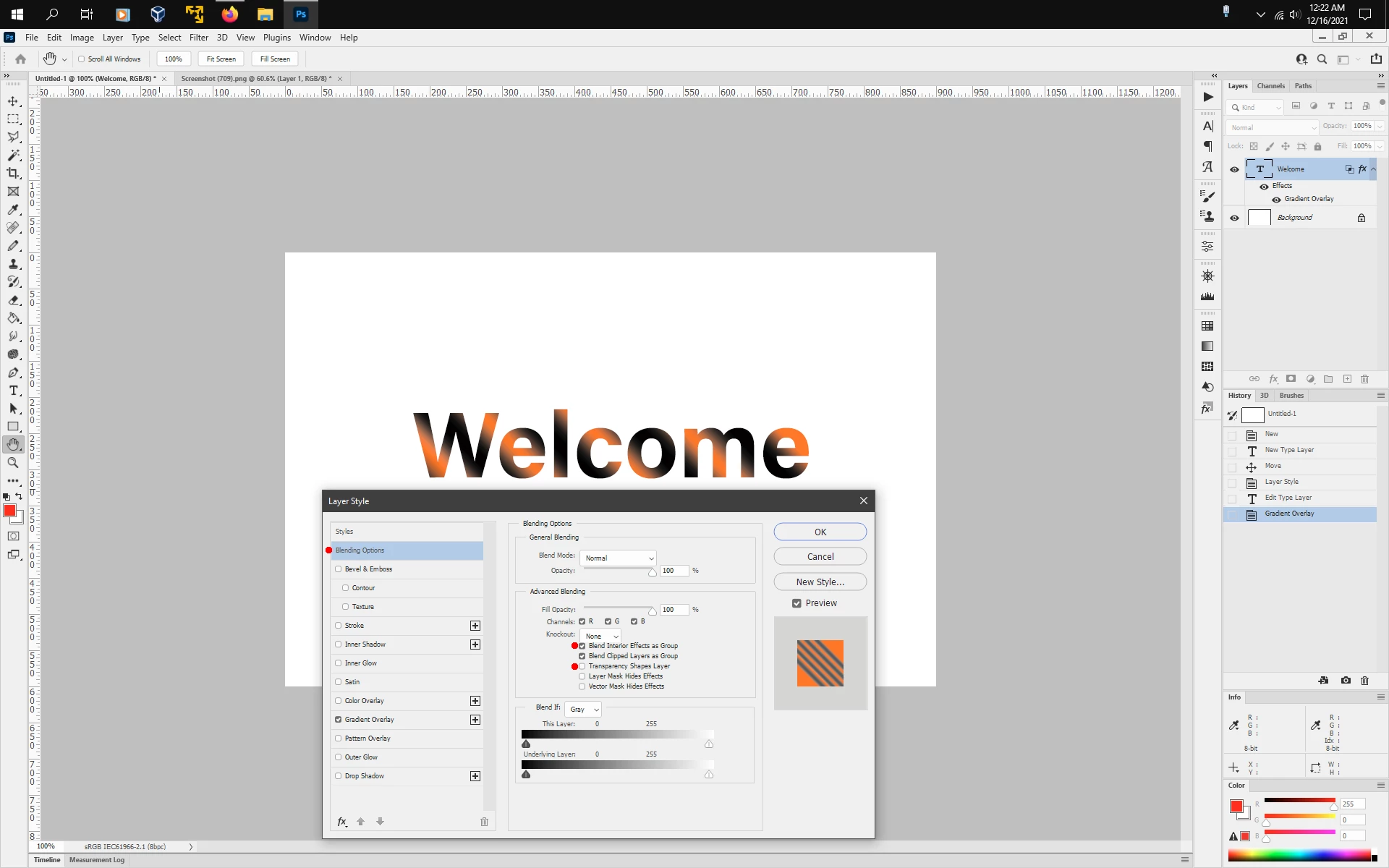
Go to the Blending Options and check Blend Interior Effects as Group and uncheck Transparency Shapes Layer


or instead in the Gradient Overlay options uncheck Align with Layer


5 replies

Inspiring
December 16, 2021

hi @mglush @Bojan Živković11378569 @didiermazier , here is what i my problem :

Video :

######Raizen 7, 40Gb Ram, RTX 3060, Win 11 -- All of Software in the world are just tools. Buy it if it works for you :)
Jeff Arola
Community Expert
Jeff ArolaCommunity ExpertCorrect answer
Community Expert
December 16, 2021

Go to the Blending Options and check Blend Interior Effects as Group and uncheck Transparency Shapes Layer


or instead in the Gradient Overlay options uncheck Align with Layer


Inspiring
December 16, 2021

@Jeff Arolathanks so much jeff. Solved

######Raizen 7, 40Gb Ram, RTX 3060, Win 11 -- All of Software in the world are just tools. Buy it if it works for you :)
didiermazier
Community Expert
Community Expert
December 15, 2021

I think you should try to edit the gradient. Double click on the thumbnail.

It will show you in real time the effect on the text and you could adjust to the wanted effect


Inspiring
December 15, 2021

Thanks @Bojan Živković11378569  and @mglush , sorry for not compplete explanation.

What i expect is like below :

not like below :

Gradient oerlay should fill all of the text.

I created a text , adding gradient overlay from layer style (fx button of layer panel) and i want all text (1 line) full of gradient)

Setting 0 degree of angle can make amazing gradient like below :

but setting 45 degree of angle make ugly gradient like below :

How to make gradient fill full of text ? thanks


######Raizen 7, 40Gb Ram, RTX 3060, Win 11 -- All of Software in the world are just tools. Buy it if it works for you :)
Bojan Živković11378569
Community Expert
Community Expert
December 15, 2021

I would try to create new raster layer with gradient then to clip it to Type layer and try to rotate gradient layer, if I can understand what you want in first place.

Inspiring
December 15, 2021

Thanks @Bojan Živković11378569 , your trick work as an alternative solution.

but the gradient overlay should work as it named. Why setting 45 degree of angle doesn't work.

🙂

######Raizen 7, 40Gb Ram, RTX 3060, Win 11 -- All of Software in the world are just tools. Buy it if it works for you :)
mglush
Community Expert
Community Expert
December 15, 2021

Are you trying to drag your gradient across all of your type, or each letter separately? How are you creating the gradient in the type--with a layer mask, or in a selection? As Bojan mentioned below, it would be really helpful to know exactly what you are expecting the gradient to look like when you are finished.

Michelle


Bojan Živković11378569
Community Expert
Community Expert
December 15, 2021

What is expected result, is that problem? Gradient is not acting as expevted or something else? And by the way, which version of Photoshop?