
Participating Frequently
February 25, 2017
Question

How to frame an image in Photoshop

  • February 25, 2017
  • 3 replies
  • 1976 views

Hello

I have just started with Adobe Creative Suite.  I have Photoshop, Lightroom and Bridge.

I have used Photoshop in the past, but this new Photoshop seems quite different.

My question is:

How can I add a frame/border to an image.

With the old Photoshop, there was a menu with a gallery of frames/borders, I am not sure what they were called.

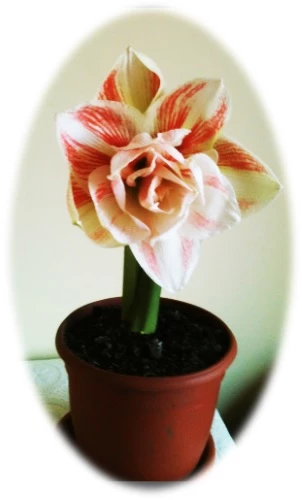
I am referring to the image being framed with effects such as: soft edge oval; metal frame; bevel rectangle etc.  I have shown 2 examples of what I mean.
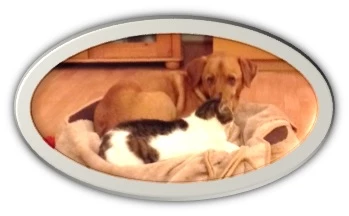
Does anyone know where this is now please.

Thank you.
    This topic has been closed for replies.

    3 replies

    Legend
    February 25, 2017

    Yes, I'd say you are right. Photoshop is the full professional tool and most people need training to use it effectively. But Photoshop Elements is more for occasional users, who don't have time to spend learning. So a lot is left out and some things are easier in Elements. But in full Photoshop much more is possible!

    Participating Frequently
    February 25, 2017

    Yes, that is what I am finding.  I have bought a book called Photoshop CC and Lightroom by Stephen Laskevitch, that I am finding helpful.  Photoshop does much more than I really need, but it is quite fun and interesting learning new techniques. 

    Thanks again for your help.

    Trevor.Dennis
    Community Expert
    Community Expert
    February 25, 2017

    To demonstrate how you can design your own frames, if you add a stroked ellipse above the images layer, then you can experiment with layer styles to give what you want.  The first example below sim,play adds a yellow color overlay, a drop shadow, and most importantly, a Bevel & Emboss.

    The second example is slightly more complicated.  I placed a wood texture layer at the top of the stack, but to make the layer styles work, we need to cut out just the bit we want by using a layer mask.  I did this by turning off the image and wood layers but leaving the Stroked Ellipse layer turned on.  That gave us the mask we needed in the Channels panel.

    Ctrl clicking the channel loads the selection, so then turn the image and wood layers back on > select the wood layer, and add a layer mask.  You'll need to invert the mask with Ctrl i.

    You can then play with layer styles on the wood layer.

    Note that with the gold effect above I used a W shaped Gloss Contour in Bevel & Emboss, but we need a straight line curve for the wood layer.

    Participating Frequently
    February 25, 2017

    Hello Trevor

    Thank you for this information.  I will try this out.

    I wonder why Photoshop abandoned the gallery of frames.

    Mary

    cinziamarotta
    Participating Frequently
    February 25, 2017

    Hi,

    perhaps you are looking for the ACTIONS panel:

    You can also use layer styles to get those results:

    Participating Frequently
    February 25, 2017

    Hello cinziamarotta

    Thank you for this information.  I will work on it.

    I wonder why Photoshop abandoned the very easy way of having a gallery of frames?

    Mary

    Legend
    February 25, 2017

    I may be wrong but I wonder if you were using Photoshop Elements before Rather than Photoshop.