
Inspiring
January 20, 2024
Answered

How to get chamfer corners in PS

  • January 20, 2024
  • 4 replies
  • 2213 views

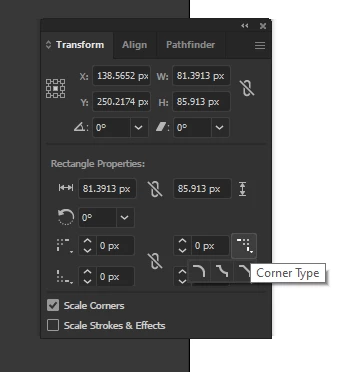
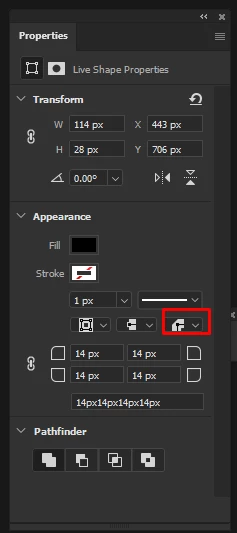
Hi forum, is there an equivalent in PS to get Corner type like in Illustrator? I notice in PS there is an option to round off the corners, but I also would like to know if there's an option about making the corners of a shape chamfer or inverted round.


Thank you


Correct answer Myra Ferguson

Hi Claire!

Is it possible for this to work as a frame in photoshop after making it in illustrator and pasting it into photoshop?

Thank you!


You can bring Illustrator content into Photoshop by copying and pasting, using either of the File > Place options, or adding the frame to a CC Library and dragging it out from that CC Library to your canvas in Photoshop.


If you make the shape of the frame that you want in Illustrator, you can fill it in (so it's solid) and use it as a Clipping Mask in Photoshop. Place the shape below your image layer, right-click on the image layer, and select Create Clipping Mask.

4 replies

Legend
July 31, 2025

There is a somewhat clunky and PITA way to get cutout rounded corner paths in Photoshop if you don't have Illustrator.


Draw your rectangle as a path. To make things easier, set the edges to a specific coordinates.

Next, draw a circle (or other shape) with the radius that you want your inner corner to be. Option/Alt drag this to each corner of the rectangle path. With the path select tool active, set the operation to Subtract Front Shape. Then Merge Shape Components. This will cut out each corner. (See screenshots.)


I just did this quick and dirty and didn't bother with guides or precise placement which you should do.


Jeff Arola
Community Expert
Community Expert
April 18, 2025
Trevor.Dennis
Community Expert
Community Expert
April 18, 2025

This is clunky, and only works with squares and not rectangles.


Set Rectangular Shape tool to Path, and drag out a path while holding down Shift to force a square.

Copy the path by dragging to the New Path icon.

Use Free Transform to rotate the copy by 45°

Use Direct Selection tool to copy the rotated path's points, and paste to the original path.

With the points still active, use FT again to give the required chamfer size.

Set Path Operations to Intersect.


Merge Shape Components and you are done.


You can turn the path into a shape layer.  Layer > New Fill Layer > Solid Color


Myra Ferguson
Community Expert
Community Expert
January 20, 2024

When you make a rectangle with the Rectangle tool, you can set the corner in the Properties panel (Window > Properties).

Participant
April 17, 2025

The answer provided does not work when working with thin lines. Is there a way to switch the corner type to chamfer?

Participant
July 30, 2025

Hi @Emery22439463vbrw, the easiest way to add chamfered corners is to use Adobe Illustrator, which has built-in tools specifically for customizing corner styles. Once you're happy with the shape, you can easily copy and paste it into Photoshop. If Illustrator isn’t available, you can still achieve a similar effect directly in Photoshop. Try creating a rounded rectangle shape (using either Shape or Path mode), then use the Convert Point Tool to manually adjust or remove the corner curves. It takes a few more steps, but it should work! ^CH


Hi Claire!

Is it possible for this to work as a frame in photoshop after making it in illustrator and pasting it into photoshop?

Thank you!