
How to keep pattern sizes CC2017
I very often work on composites, and then have a fixed size it all needs to fit into, like 512x512.
My usual workflow is:
1. open downloaded texture
2. use filters, layers and masks to fix it.
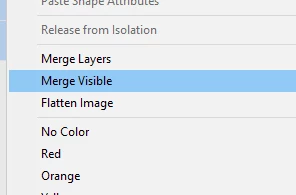
3. merge layers
4. move to the 512x512 "paper"
5. go on to the next texture, do the same thing over.
6. merge the composite 512x512
7. then I often make a bigger paper and move the finished composite over there and duplicate it to see if it's tiling.
When I'm happy with the new texture I save it as jpg for my blog and dds for the program I'm using it in.
This has turned out to be a problem. Because when I set the size of my 512x512 pattern first, it won't stick there. The other textures I use in the composite sticks outside the box, even when I merge the layers.
Is this a feature I can easily remove, and let the set pattern size be fixed, or should I change the way I do things? I have seen tutorials and read the new feature notes, but English is not my native language, my program is in Norwegian, and frankly somewhere on the way I don't really understand where I should go with my questions. I'm used to reading English though, it might just be an information overload thing.
If you can link me to a tutorial for a new way to do things that would be nice as well.
If someone can tell me how to make English my Adobe standard language all over, that would be awesome.
 AdChoices