Known Participant
February 27, 2017
Answered

How to make a landscape picture into portrait

  • February 27, 2017
  • 1 reply
  • 54108 views

I have just started to use a trail copy of Photoshop cc  (Novice for sure)  I set myself a simple task so I thought to change a landscape picture into portrait. Many hours later after watching multiple video's I have not been able to do this. Can anyone tell me in simple terms how this can be done. Very much appreciated  Alex

[Moved from the non-support, general, all-of-Adobe forums Lounge to a product-specific support forum - moderator]

This topic has been closed for replies.
Correct answer davescm

Hi Dave I really appreciate your interest in my problem. Unfortunately I do not have a usable solution to my question yet. I have been trying out Photoshop cc under a one week trial. I have used most of the time just trying to get this one function to work. It feels like I have been dropped into a 103 level course without having taken the 101 and 102 courses :-).

I would have thought changing a photo from Landscape to portrait would be a very fundamental requirement in photo manipulation. Any other suggestions ?.

I have actually spent several hour online with Adobe support and even they did not seem to know how to do what I am requesting.  


Hi Alex

You still didn't post an image so that we could give you specifics so I'll demonstrate with one of mine. I will have shown two methods below. Which is best - depends on the image:

Method 1.  If you start with a landscape and want no distortion then you will need to crop.

So starting with this (which is in a 3:2 ratio) :
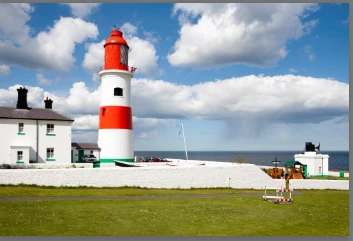
Select the crop tool and enter the ratio you require in the options bar - I will choose 2:3


Note by leaving "Delete Cropped Pixels" unchecked , I can go back an re-crop later if required
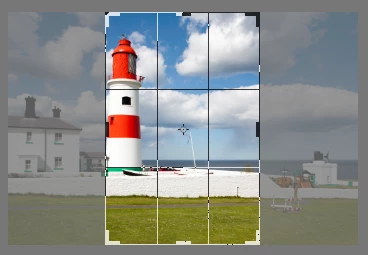
Now drag the crop area till You get the crop you want :
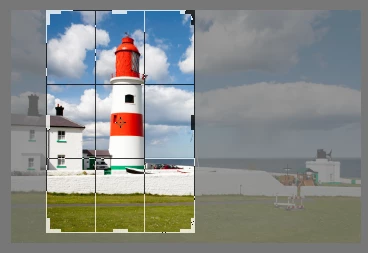
Then hit enter or click on the tick in the options bar
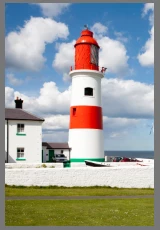
Job done.

Method 2. : If you can accept some distortion then you could try this.
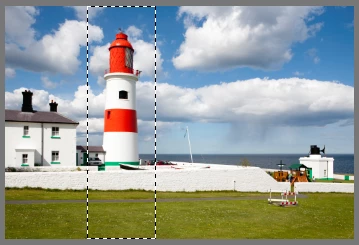
Make a selection round the area that should not be distorted and in the channels panel save selection as channel.
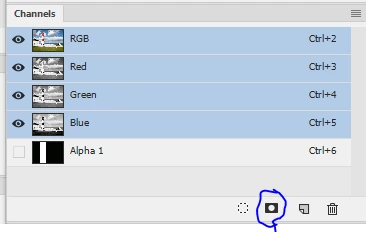
Now select all the go to Edit - Content Aware Scale and in the options bar set protect to Alpha 1 (or the name of the channel that was created in the previous step)

Now drag the handles to scale the image and the area you protected will not distort but the rest will
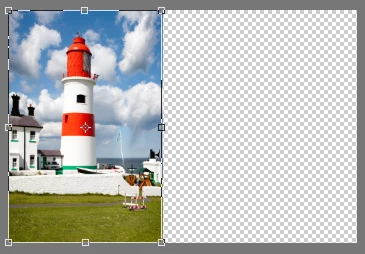
Once happy press enter or click on the tick symbol

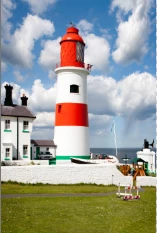
Finally you can crop away the empty space
I hope that helps you

Dave

1 reply

Szalam
Community Expert
Community Expert
February 27, 2017

The crop tool lets you choose any sort of size ratio you want. It would let you clip out a portion of your photo, thus getting a portrait-oriented photo out of a landscape-oriented photos..

Could you show us the image your trying to work with?

Known Participant
February 27, 2017

Hi Szalam, wow that was a fast response. I have attached the photo I have

been working with as you requested. My end goal was to print this photo as

a portrait 5 x 7 with minimal distortion.

Thanks very much for talking an interest Very Best Regards Alex

davescm
Community Expert
Community Expert
March 1, 2017

Hi Alex

You still didn't post an image so that we could give you specifics so I'll demonstrate with one of mine. I will have shown two methods below. Which is best - depends on the image:

Method 1.  If you start with a landscape and want no distortion then you will need to crop.

So starting with this (which is in a 3:2 ratio) :

Select the crop tool and enter the ratio you require in the options bar - I will choose 2:3

Note by leaving "Delete Cropped Pixels" unchecked , I can go back an re-crop later if required

Now drag the crop area till You get the crop you want :

Then hit enter or click on the tick in the options bar

Job done.

Method 2. : If you can accept some distortion then you could try this.
Make a selection round the area that should not be distorted and in the channels panel save selection as channel.

Now select all the go to Edit - Content Aware Scale and in the options bar set protect to Alpha 1 (or the name of the channel that was created in the previous step)

Now drag the handles to scale the image and the area you protected will not distort but the rest will

Once happy press enter or click on the tick symbol

Finally you can crop away the empty space

I hope that helps you

Dave


Hi Alex

Saw your PM and the video you linked.

The video shows the method I used in the last post (method two - Content Aware Scale) only instead of dragging inward to "squash the image" the presenter dragged outward to "stretch" the image.  Both of these introduce distortion. The picture in the video demo was picked carefully so that distortion does not show - it had large plain areas.

When you change orientation from landscape to portrait you have a choice.

1. No distortion in which case you must crop out some of the existing picture -  or add in pixels to cover blank areas that you add to the top and bottom.

2. With distortion - which is what transform and content aware scale do ( as I showed in the last post you can protect some areas).

That said you can combine the two methods and also fill in some blank areas:

Starting with the same picture as before :

I'll start with a content ware scale (method two in last post) but not as extreme as previously:

Then a crop to 2:3 ratio,  but this time leaving some blank space at the top:

Finally I select that blank space at the top and go to Edit - Fill  and under contents set Content Aware

Photoshop fills the area based on the contents around it

That final pick has distortion on the wall and house and has pixels added at the top  - but the key subject, the lighthouse, was protected throughout

Dave