Known Participant
March 22, 2021
Question

How to make a pre existing image into a seamless repeat pattern in photoshop?

  • March 22, 2021
  • 3 replies
  • 5260 views

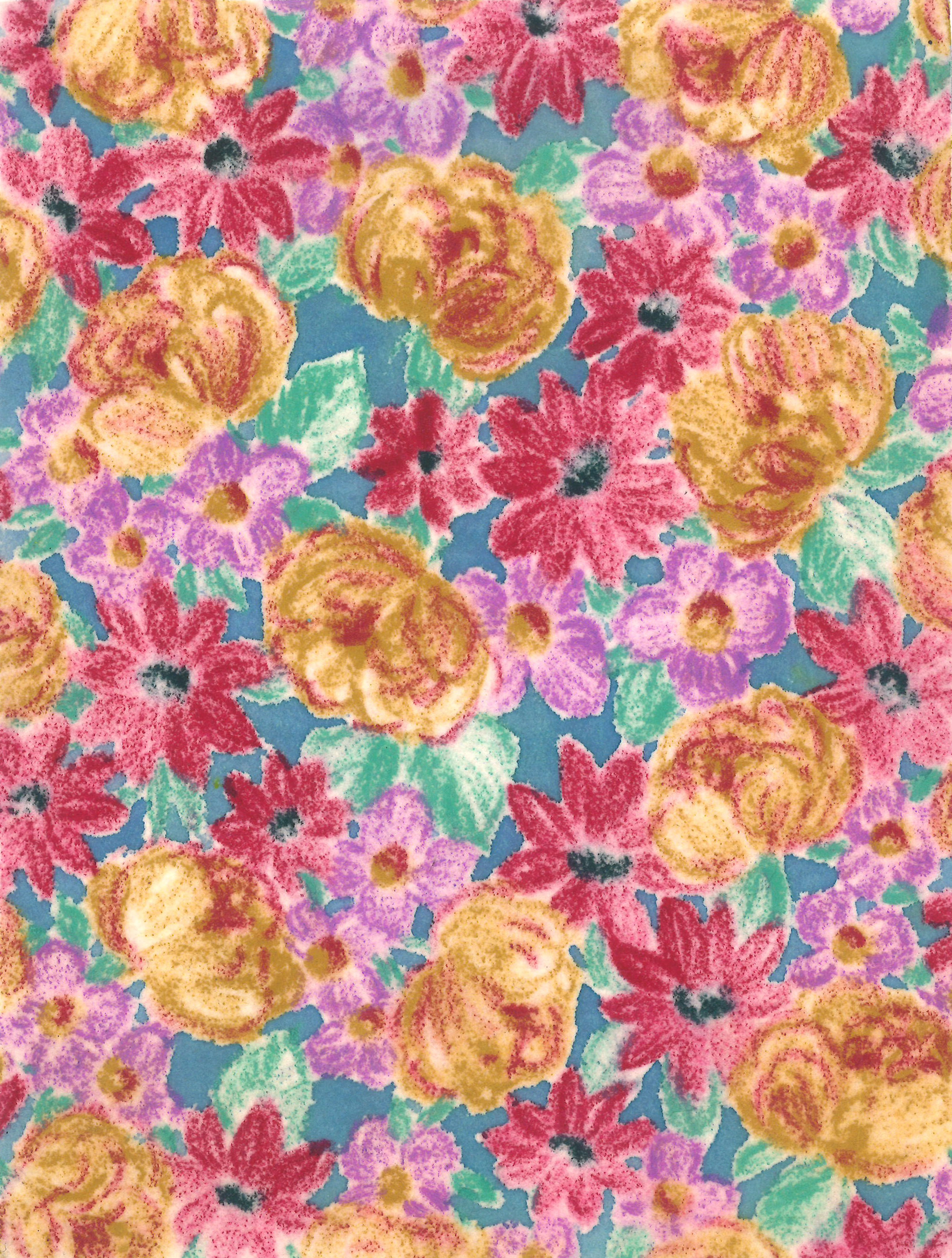
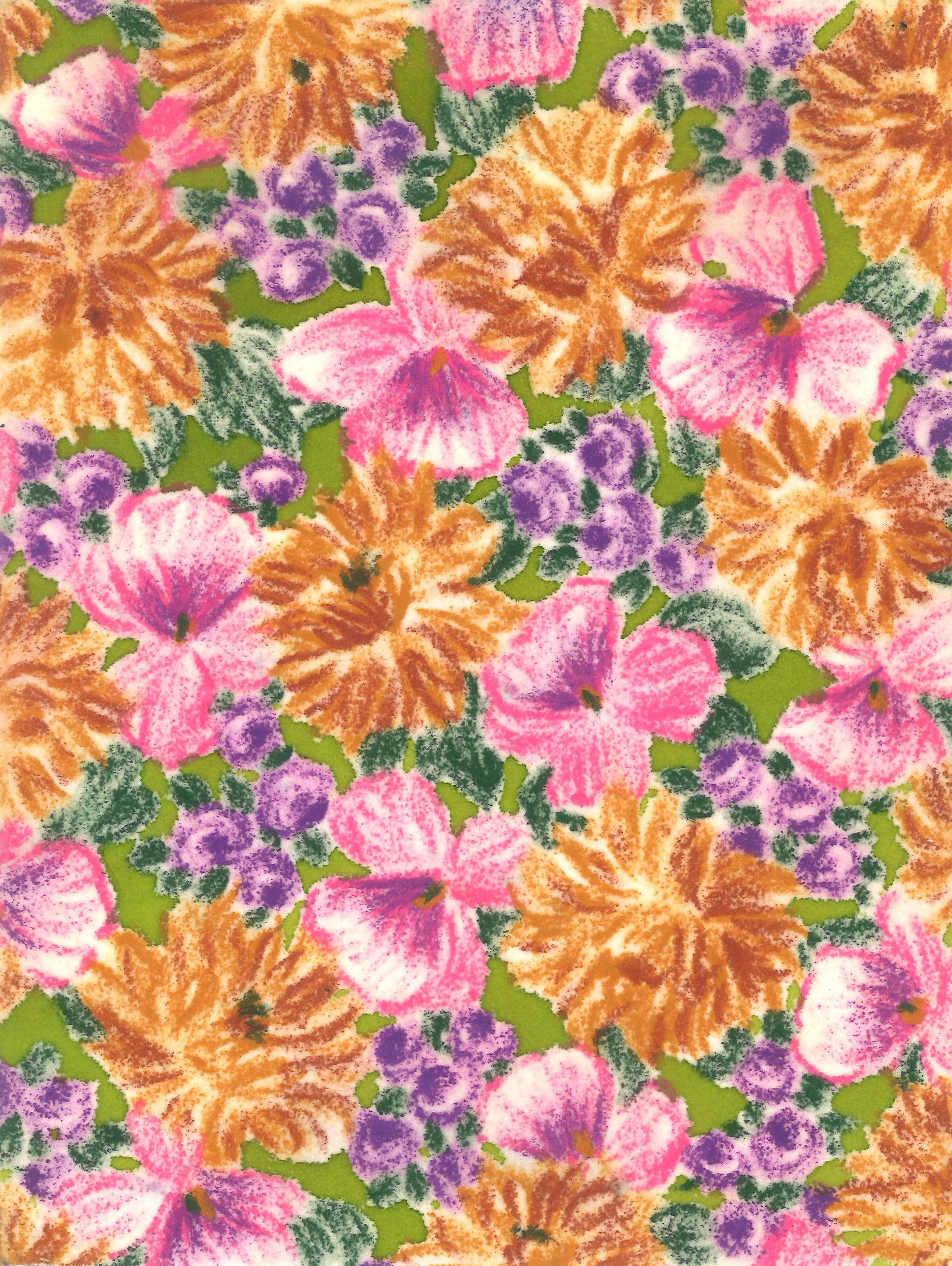
I have a swatch of fabric that needs to be repeated infinitely onto a roll of fabric.


It is an organic pre existing design of which I only have a small sample of, I have the task of creating a seamless repeat pattern but cannot match up the edges no matter which way I try.


I have tried the offset feature and lots of copy and pasting elements and blending it in but cannot figure out how to make it flow into the next tile no matter what I try! 


Thank you so much in advance x


This topic has been closed for replies.

3 replies

c.pfaffenbichler
Community Expert
Community Expert
March 23, 2021

I am sorry, it had slipped my mind that recently View > Pattern Preview has been introduced. 

Known Participant
March 23, 2021

Ooh this looks really helpful thank you! So would you just copy the individual elements and try to recreate the pattern to match up? Because the only thing is, when I do that it still doesn't translate or align to the next tile (e.g. pink flower needs to flow to purple flowers but there is the brown flower next)

So essentially it's kind of just creating more problems?

I suppose I was wondering if there's a quick formula that might help that I didn't know about but I think the nature of the pattern being so random creates a lot of problems...


Thank you anyway for taking the time to help! x

c.pfaffenbichler
Community Expert
Community Expert
March 24, 2021

Amazing, thank you so much!


I will try the offset filter and add in each element manually... One last question if you don't mind! 

How do you figure out the dimensions of the offset filter? I'm not sure which way to drag the sliders in the image attached..


And lastly with your image, you had half the pink flower on one side and half on the opposite, was that done automatically with the offset filter or did you work it out yourself? 


Sorry for all the questions thank you sooo much!!


If the flower is on the left side the horizontal offset needs to be the exact pixel width of the image. 

For those on the top the vertical offset needs to be the exact pixel height of the image. 

If you put them on the right or bottom edge the values need to be negative. 


Norman Sanders
Legend
March 22, 2021

s

Step-and-repeat cannot be used because the opposite edges of the art are not identical or createa complete object. 

Instead, the following technique is an option.

Duplicate the image, Edit > Tramsform > Flip Horizontal. Position alongside the original image. Then dupe that layer and repeat the process of copy, flip, position.

After completing a row, composite it to a single layer, dupe the layer and Edit > Transform > Flip Vertical. Then dupe that layer and repeat the process of copy, flip, position.


c.pfaffenbichler
Community Expert
Community Expert
March 22, 2021

I expect you need to extend the canvas and clip out (and possibly paint) individual elements to cover up the seams. 

Known Participant
March 22, 2021

Hi! Thank you so much for taking the time to reply to this!

I tried that with 4 tiles and filled in the seams in the centre but then still faced the same problem with the outer edges of those 4 tiles combined?


Am I doing something wrong?


Thank you again x

c.pfaffenbichler
Community Expert
Community Expert
March 22, 2021

»Am I doing something wrong?«

No, those just need to match up, too, so: more work. 

You could work with Smart Objects and either patch them manually or convert the whole bunch to a Smart Object again (of the same pixel dimensions as the original) and apply offset again etc.