
Participant
June 20, 2021
Answered

How to make the background behind a logo darker but transparent

  • June 20, 2021
  • 3 replies
  • 1833 views

I have a logo I have added to an image as a layer. I feel the logo blends in too much with the background so want to make the area around the logo slightly darker but transparent.


Everything I have found mentions how to make the background of typed text darker but not an image added on top of another image.


Anyone know how I would go about doing this?
This topic has been closed for replies.
Correct answer JJMack

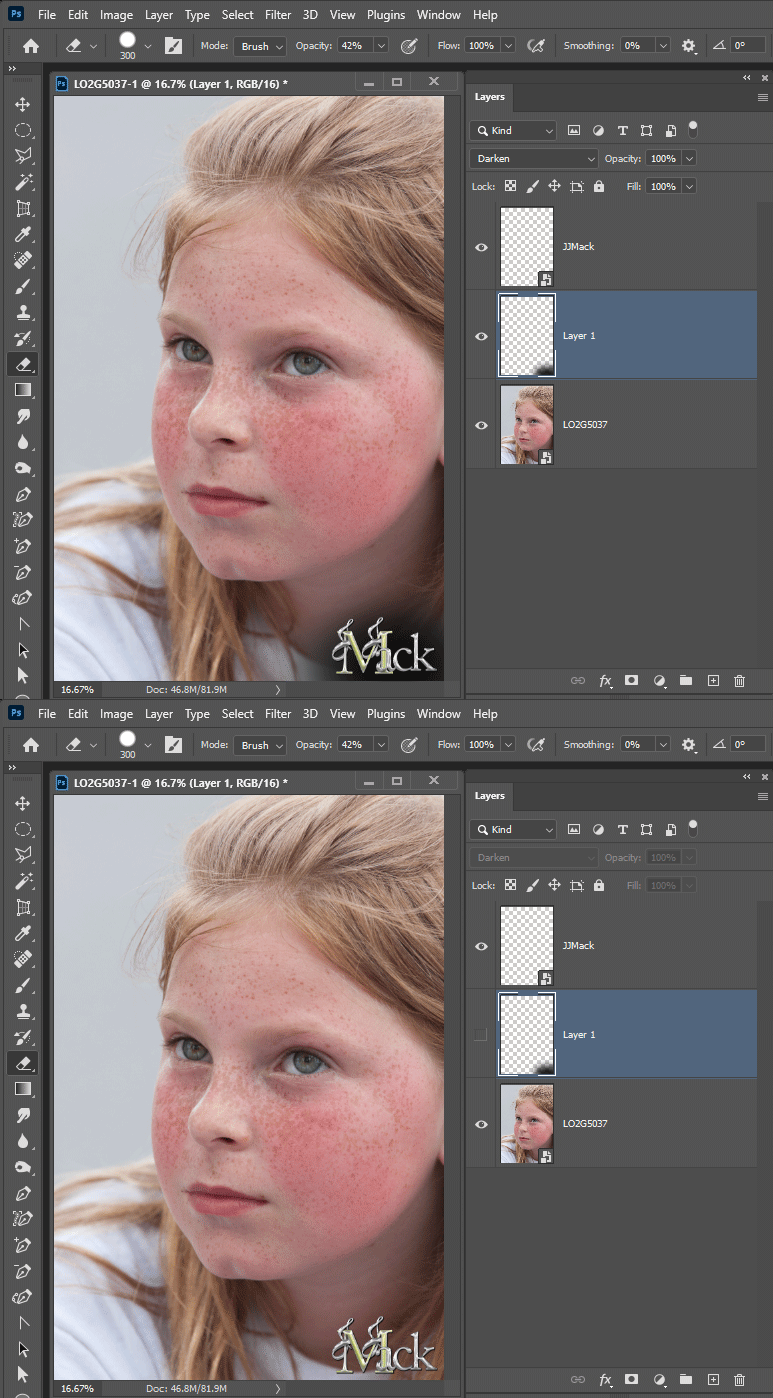
Add a layer between the background and logos lyer to add some contrast. Adjust its opacity to suite.

3 replies

Eugenio.NYC
Participating Frequently
June 20, 2021

What about a simple drop shadow? from the layer panel, and you have many contros to expand and change the effect


JJMack
Community Expert
JJMackCommunity ExpertCorrect answer
Community Expert
June 20, 2021

Add a layer between the background and logos lyer to add some contrast. Adjust its opacity to suite.

JJMack
D Fosse
Community Expert
Community Expert
June 20, 2021

If I read this correctly, you want to make the background darker in a small area surrounding the logo. You do that with an adjustment layer, masked to the required area. Use a soft brush for the masking.


If on the other hand you need this to affect the logo itself, you do the same thing, but with the adjustment layer clipped to the logo layer, so that it doesn't affect the underlying layers. You can still use masks to affect only parts of the logo.