Inspiring
May 9, 2017
Answered

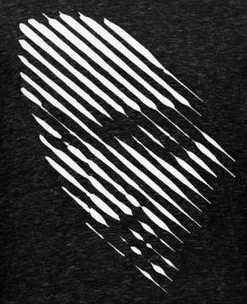
How to make this effect in Illustrator or Photoshop?
  • May 9, 2017
  • 6 replies
  • 1432 views

    This topic has been closed for replies.
    Correct answer Norman Sanders

    1. Open 72 ppi file

    2. Image > Mode > Grayscale
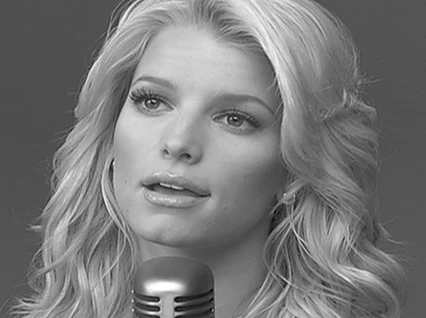
    3. Image > Adjustments > Curves. Increase Contrast
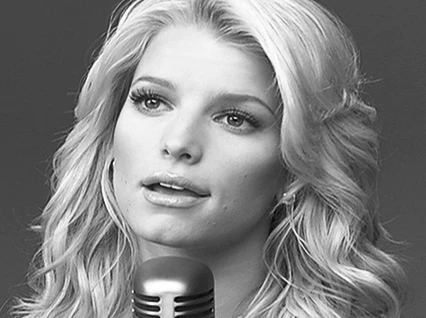
    4. Image > Mode> Bitmap  1000 ppi   Halftone Screen

    5. In drop-down screen menu that follows: Frequency 53, Angle 45 degrees, Shape: line, OK
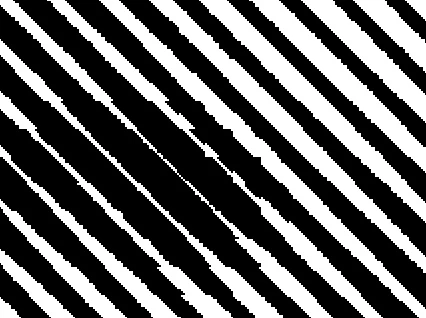
    6. Image > Mode > Grayscale  Size ratio: 1

    7. Cmd + to enlarge the view several times to 200%

    8. Filter > Blur > Gaussian Blur 2.8 pixels
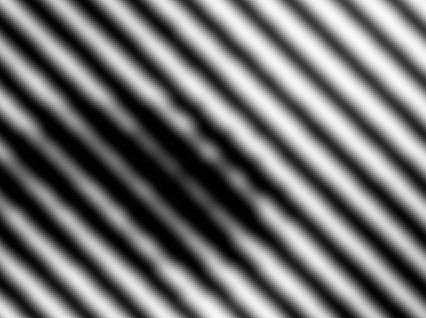
    9. Filter > Sharpen > Unsharp Mask. Amount 167, Radius 131.6, Threshold 0
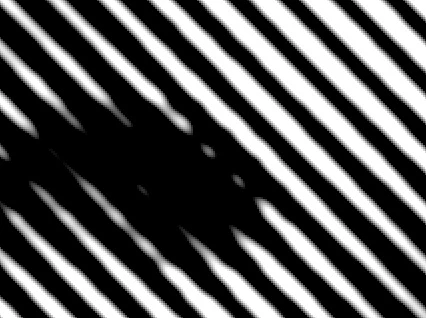
    10. Cmd - to reduce view  and screen grab
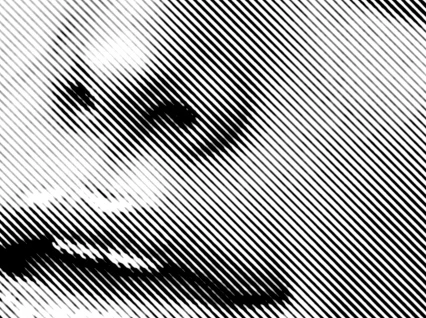
    I believe if you Google  Diagonal Line Halftone  you may find a a plugin that will do the job more efficiently, as well.

    6 replies

    Norman Sanders
    Norman SandersCorrect answer
    Legend
    May 9, 2017

    1. Open 72 ppi file

    2. Image > Mode > Grayscale

    3. Image > Adjustments > Curves. Increase Contrast

    4. Image > Mode> Bitmap  1000 ppi   Halftone Screen

    5. In drop-down screen menu that follows: Frequency 53, Angle 45 degrees, Shape: line, OK

    6. Image > Mode > Grayscale  Size ratio: 1

    7. Cmd + to enlarge the view several times to 200%

    8. Filter > Blur > Gaussian Blur 2.8 pixels

    9. Filter > Sharpen > Unsharp Mask. Amount 167, Radius 131.6, Threshold 0

    10. Cmd - to reduce view  and screen grab
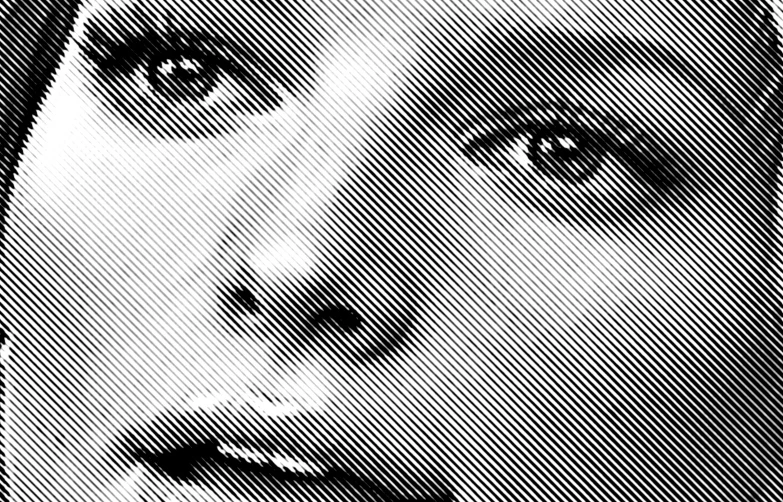
    I believe if you Google  Diagonal Line Halftone  you may find a a plugin that will do the job more efficiently, as well.

    c.pfaffenbichler
    Community Expert
    Community Expert
    May 10, 2017

    I still think the Hard Mix-approach has advantages with more immediate editability.

    It does result in hard-edged imagery, but to force anti-aliasing one can work at double-resolution (in a Smart Object preferably) and downsample.

    And to soften the results one can Blur the image itself.

    Edit: And one can go »wild« with the Patterns …

    davescm
    Community Expert
    Community Expert
    May 9, 2017

    Hi

    I had a close look at that image and it looks like the white lines are wider where the image is whiter. So:

    Take an image (I used my avatar) - darken the surround add a black and white layer a heavy curves adjustment to increase contrast and a layer with plain black and white stripes

    Put all that in a smart object and apply a gaussian blur filter (this is what will widen the brighter lines)  then add a threshold layer on top

    Result :

    I hop that helps you

    Dave

    JJMack
    Community Expert
    Community Expert
    May 9, 2017

    There is no one way do something like that

    With Photoshop you use layers to make a composite image.

    For something like you showed do something like this

    Start by making a new document with a black background you add noise to

    Place in an image as a smart object layer size and position it over the background layer

    Add a temp Black layer on top

    Paint with a white use a spatter brush paint diagonal sloppy lines

    Select that layer's white area.

    Delete the temp layer or turn off its visibility.

    Add the selection to the placed image layer as a layer mask

    Add a BW adjustment layer on top

    Work on the layer mask to help with the composition

    JJMack
    c.pfaffenbichler
    Community Expert
    Community Expert
    May 9, 2017

    Make a neutral burred line pattern and set it to Blend Mode Hard Mix atop a b/w image.

    Edit:

    By blurring the image one can influence the detail that is being maintained.

    JJMack
    Community Expert
    Community Expert
    May 9, 2017

    I'm not about to make a video for you or search for one for you.  If you want a video tutorial you should search the web for one yourself. Join Lynda.com they may have the tutorials you want.

    JJMack
    slam629Author
    Inspiring
    May 9, 2017

    I just wanted to say you to explain your words because aren't clear. I've already joined Lynda. Thank you. 

    JJMack
    Community Expert
    Community Expert
    May 9, 2017

    Add a BW adjustment layer with an active selection so a layer mask will be added no matter how the adjustment panel flyout menu items are set.  That will get around Adobe's CS4 bug.

    JJMack
    slam629Author
    Inspiring
    May 9, 2017

    Could you link a video about please ?