gjowen2255
Participant
February 5, 2018
Answered

How to make this scoreboard?

  • February 5, 2018
  • 4 replies
  • 2317 views

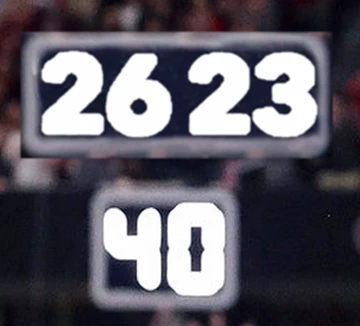
All I want to do is make the score 26 - 23 at the top look out of focus like the 40 at the bottom, how would I do that? Thanks


k0rb9Ak.jpg

    This topic has been closed for replies.
    Correct answer Norman Sanders

    1. Use the Rectangular Marquee tool to Select, then place 2623 including its outer frame on a separate Layer

    2. Turn off the eye on the Background layer

    3. Choose the Magic Wand, with Contiguous Unchecked in the Options bar. Tolerance: 16

    4. Choose Select > Modify > Expand and expand about 14 pixels

    5. Edit > Fill and fill with the Foreground color after setting it to the same white as in 40

    6. Deselect the marching ants

    7. Turn on the eye of the Background layer and return to the 2623 layer

    8. Filter > Blur > Gaussian Blur and blur approx 3.2 pixels to match the 40

    NOTE: Alter the Expand  and the Blur amounts as you see fit.

    4 replies

    Norman Sanders
    Legend
    February 5, 2018

    If the solution I offered answered your question please mark it correct to signal responders to move on to other inquiries. Thanks.  

    Norman Sanders
    Norman SandersCorrect answer
    Legend
    February 5, 2018

    1. Use the Rectangular Marquee tool to Select, then place 2623 including its outer frame on a separate Layer

    2. Turn off the eye on the Background layer

    3. Choose the Magic Wand, with Contiguous Unchecked in the Options bar. Tolerance: 16

    4. Choose Select > Modify > Expand and expand about 14 pixels

    5. Edit > Fill and fill with the Foreground color after setting it to the same white as in 40

    6. Deselect the marching ants

    7. Turn on the eye of the Background layer and return to the 2623 layer

    8. Filter > Blur > Gaussian Blur and blur approx 3.2 pixels to match the 40

    NOTE: Alter the Expand  and the Blur amounts as you see fit.

    gjowen2255
    Participant
    February 5, 2018

    Thanks

    Abambo
    Community Expert
    Community Expert
    February 5, 2018
    1. Get the adequate fonts
    2. Select the original score stables (eg with the lasso)
    3. Create a new layer, fill the layer with a corresponding colour. Add the grain, to make it look like in the picture.
    4. Use the type tool to add the new scores.
    5. add the effects, like blur etc.
    ABAMBO | Hard- and Software Engineer | Photographer
    gjowen2255
    Participant
    February 5, 2018

    Thanks, this is where I'm at so far, is there a way to make the text brighter like the '40' below?

    Nancy OShea
    Community Expert
    Community Expert
    February 5, 2018

    That's not the same font.  It's not even close.

    Nancy O'Shea— Product User & Community Expert
    Chuck Uebele
    Community Expert
    Community Expert
    February 5, 2018

    You should start with the same type of font like the ones on this link. Then use gaussian blur.

    Techno > LCD fonts | dafont.com