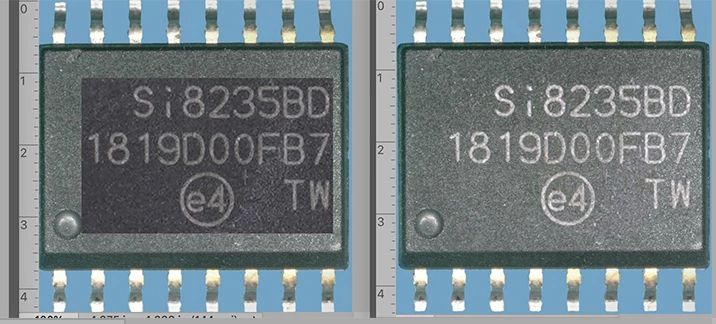
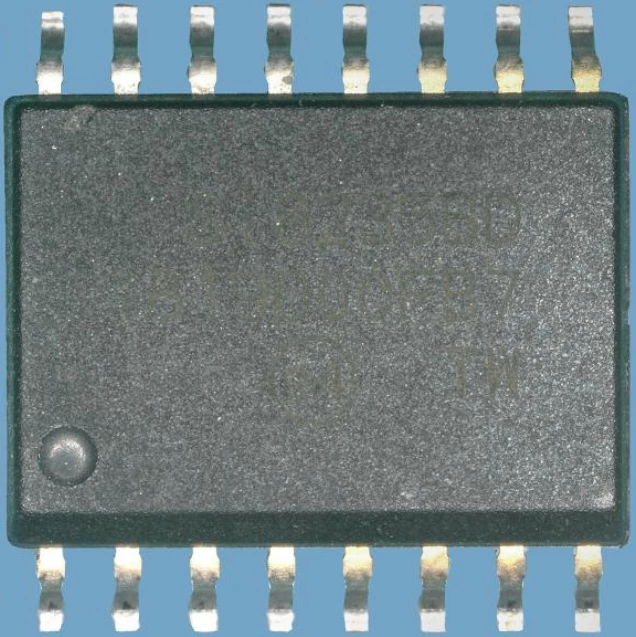
From the B channel of the seemingly monotone file surface area it is apparent that the numbers already appear but are not sufficiently intense to recover with sufficient fidelity. In that case you might use this two step procedure to provide an authentic result with control of the surface-to-number contast.
Step 1. Use the Blend If command to eliminate the dark area surrounding the numbers in the top layer.
Step 2. Use Curves to choose the contrast that suits you.
Step 1.
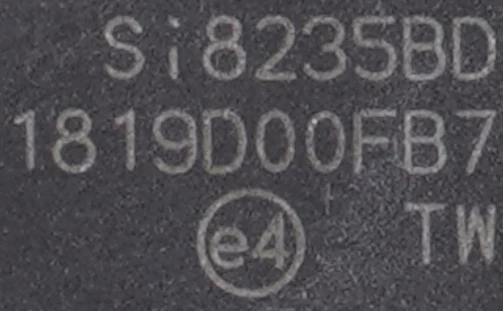
Open the smooth surface file. Add the number file as a Layer above it. (I chose to not alter its size for this exercise.)
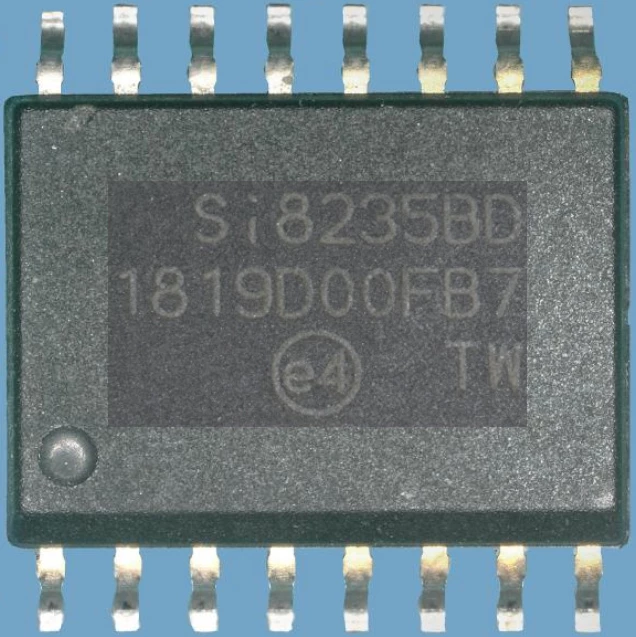
Choose Blend If and move the top left slider until the dark area surrounding the numbers disappears and click ok. (It is not a delicate move.)
Step 2.
Choose Curves and slide the highlight end point of the curve horizontally to produce the degree of surface-to-number contrast that suits you. Flatten the image.

 AdChoices