Participant
June 19, 2018
Answered

How to *properly* replace colors? (Color replacement tool color too "desaturated")

  • June 19, 2018
  • 3 replies
  • 3012 views

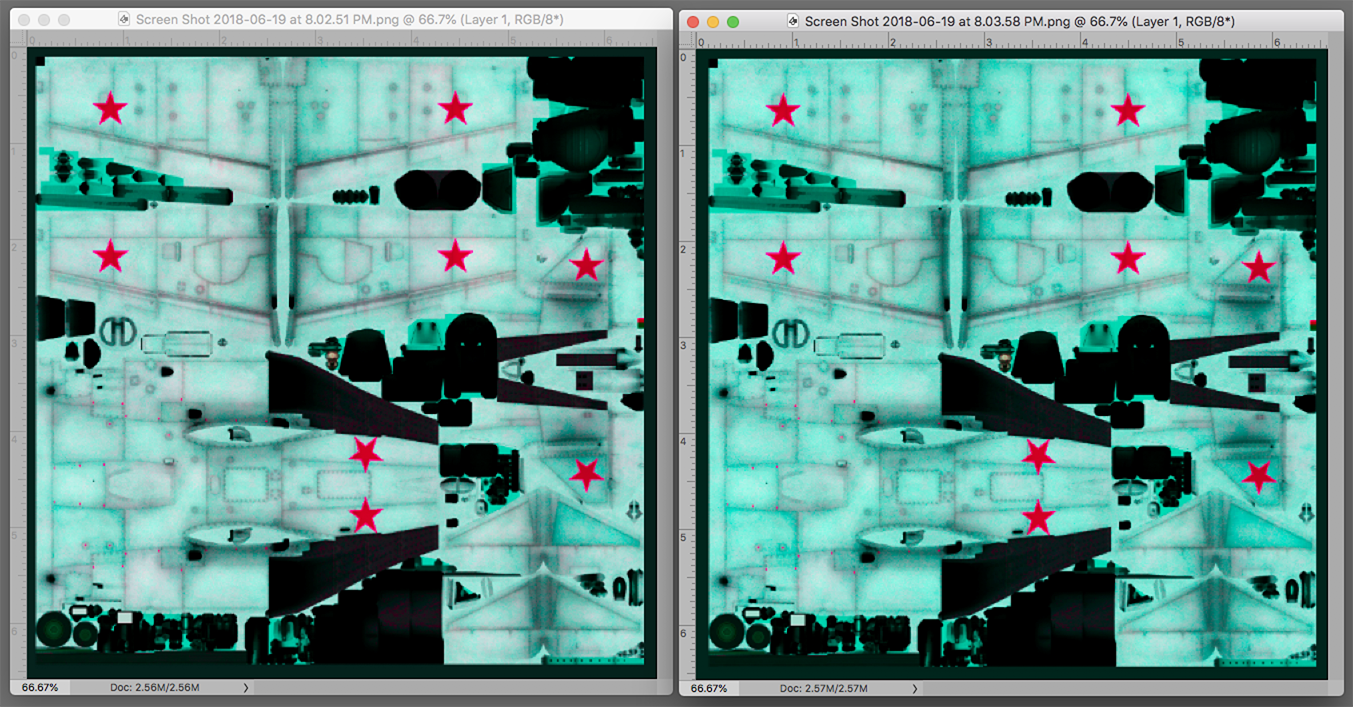
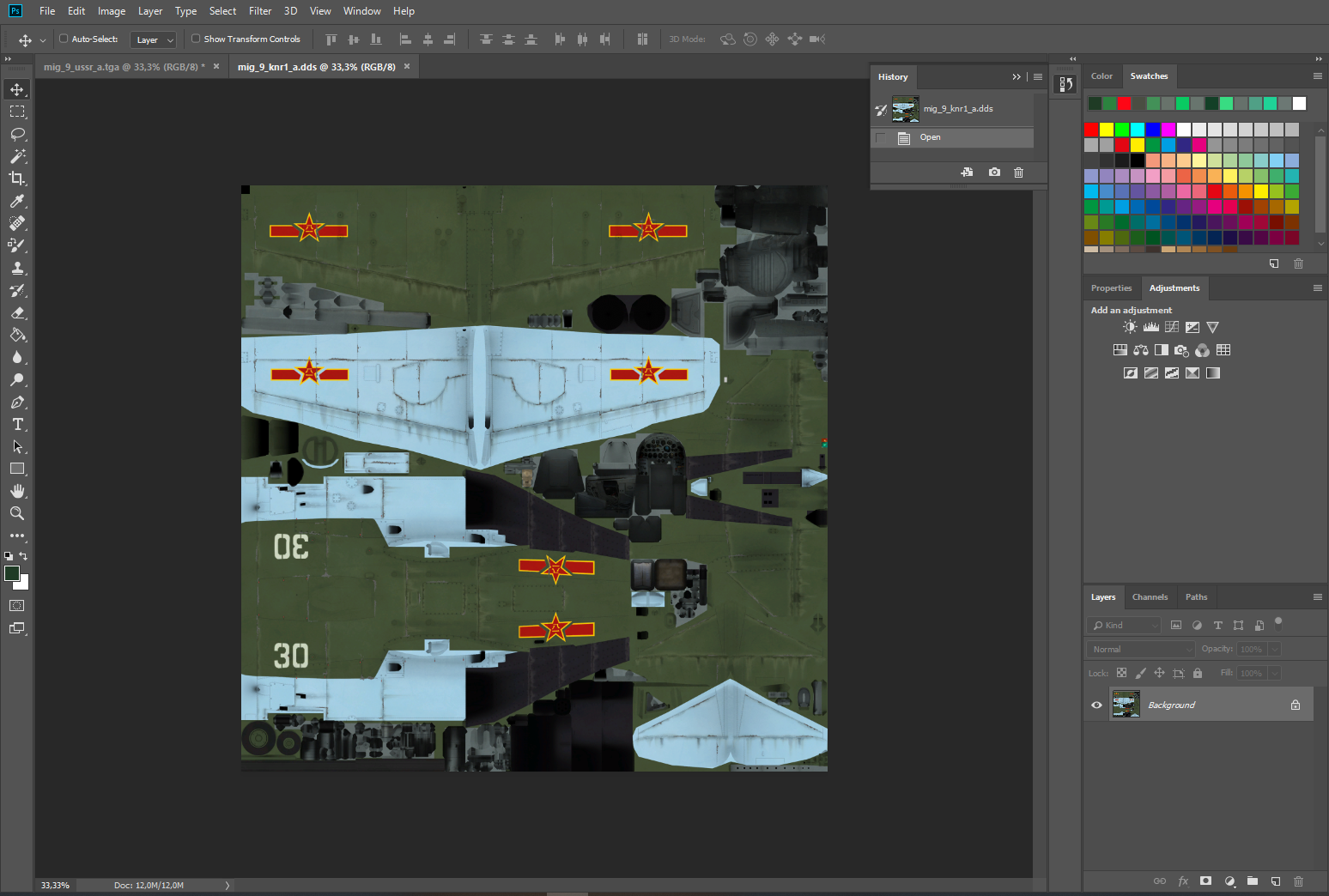
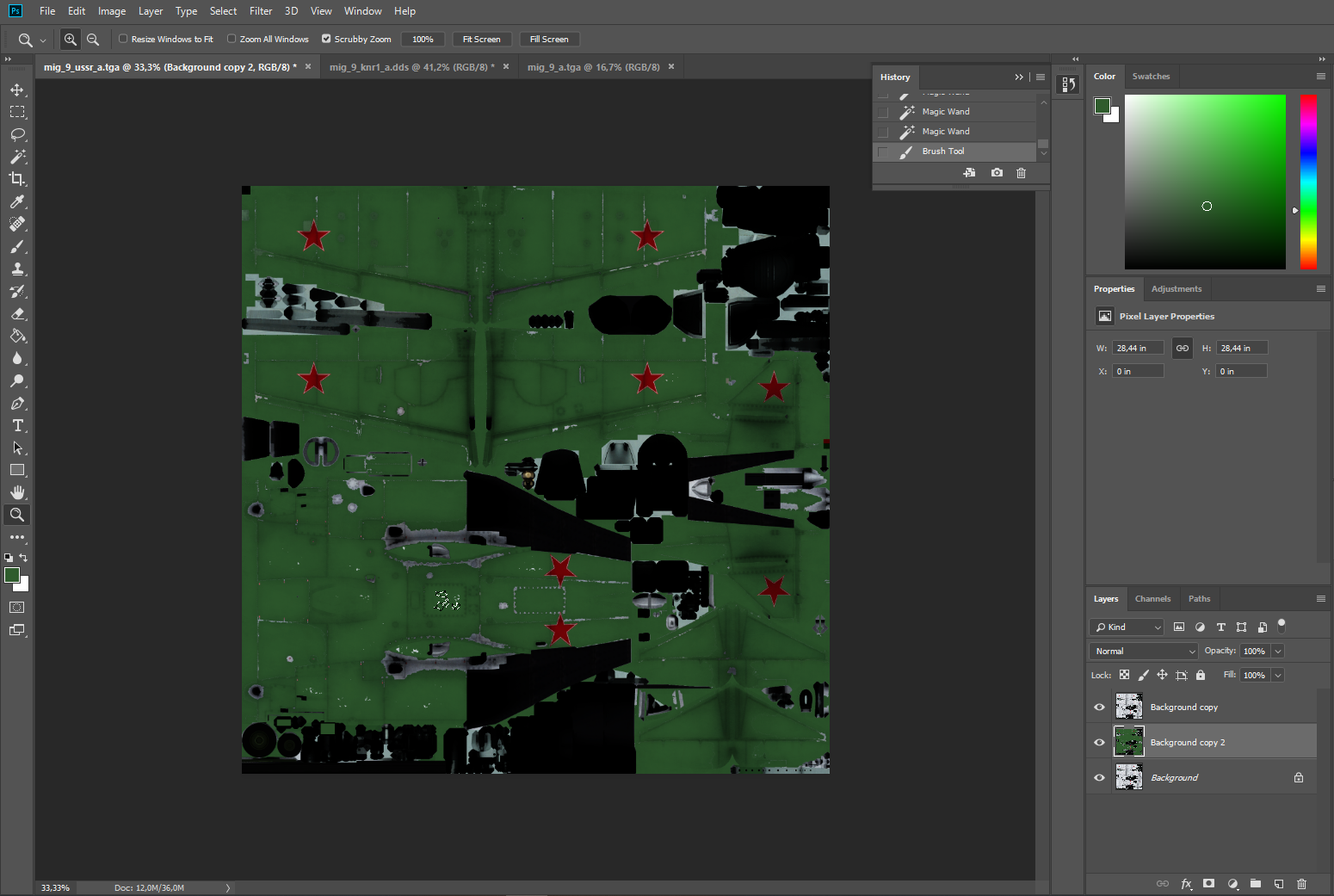
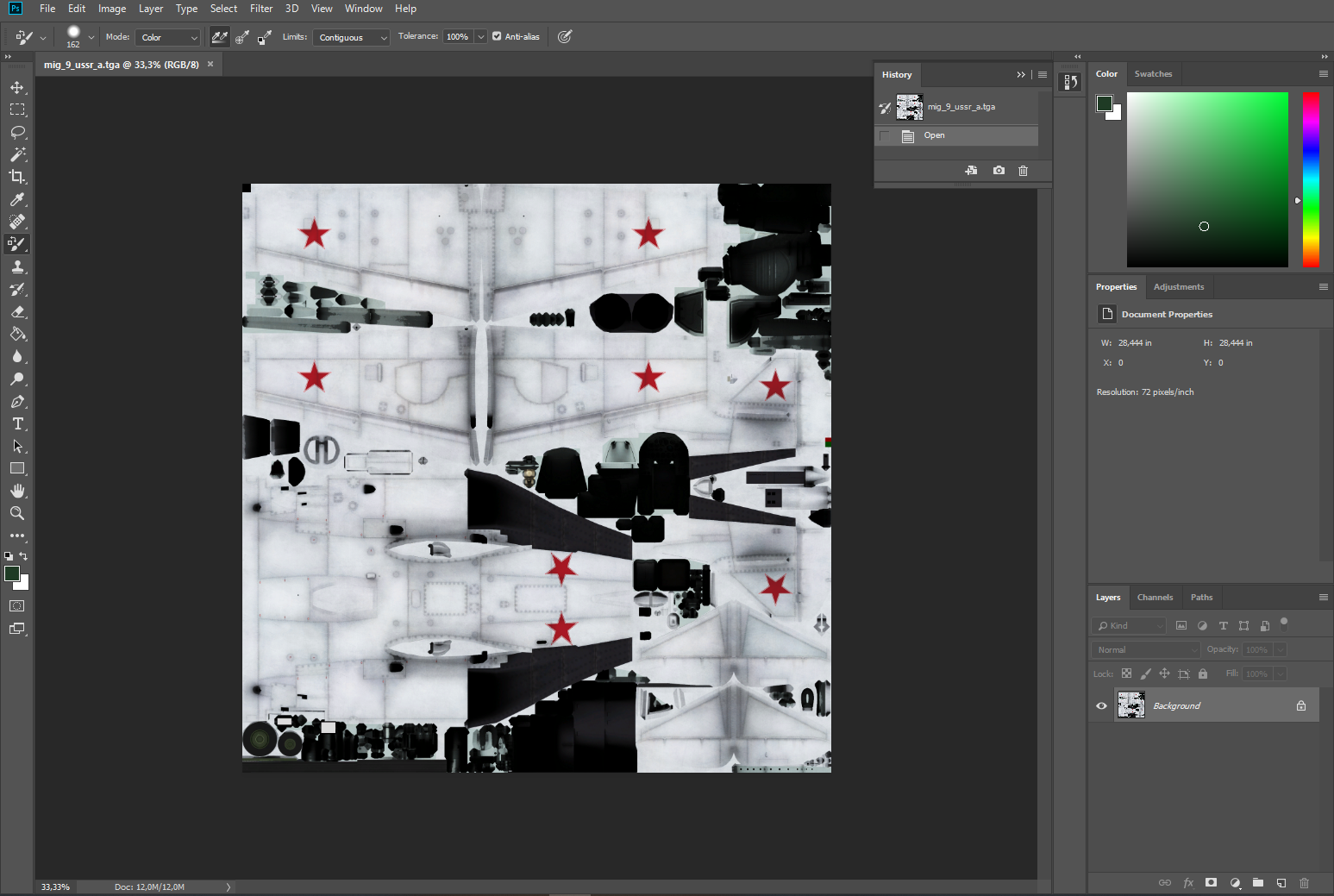
I am right now editing the textures of an aircraft in a game, i want to make a new "camo" for the aircraft, ofcourse while still keeping the shading. Ofcourse the ideal tool to use for this would be the color replacement tool, it changes colors while still keeping the shading, now the problem is when i use the color replacement tool on the textures, the color comes off as too "desaturated", in other words, i want the color replacement to be more saturated, it's kind of hard to explain but just look at the images below and you will probably see what i mean.

The textures before using the color replacement tool:
The textures after using the color replacement tool:
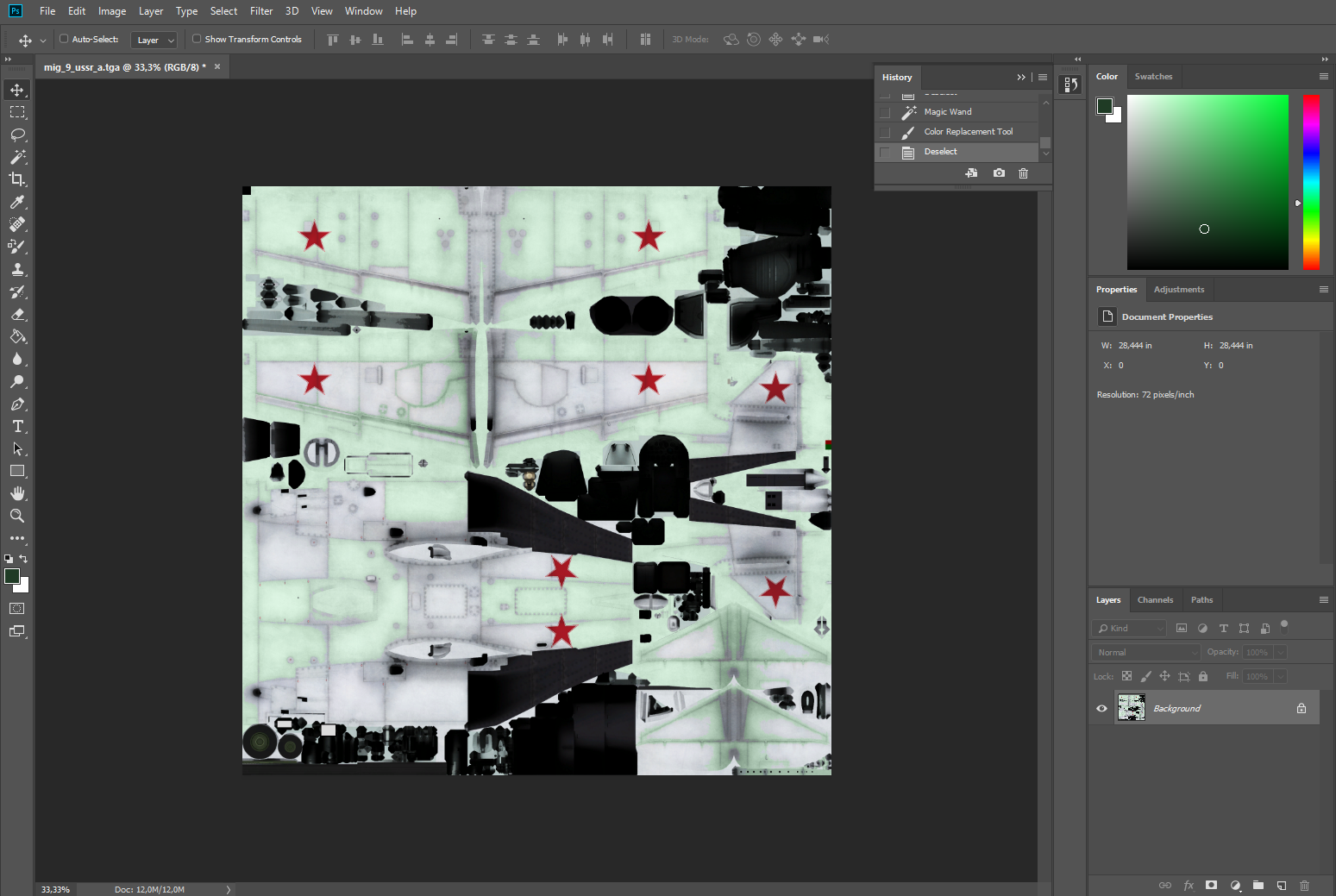
See what i mean with the color replacement being too "desaturated"? The color replacement is too desaturated for my tastes. How can i make the color replacement more saturated like in this picture?

This topic has been closed for replies.
Correct answer sharp_hands16B8

You could simply keep your image map with it's shading on that image layer. Change your image layer's blend mode to Overlay or Multiply. Create a new layer below the shaded layer and paint your solid color you want on it. You should still have your shading above and your color underneath. This is how comic book artists work when they start "flatting" in color to keep the shades on the ink layer above.

3 replies

sharp_hands16B8
Community Expert
Community Expert
June 20, 2018

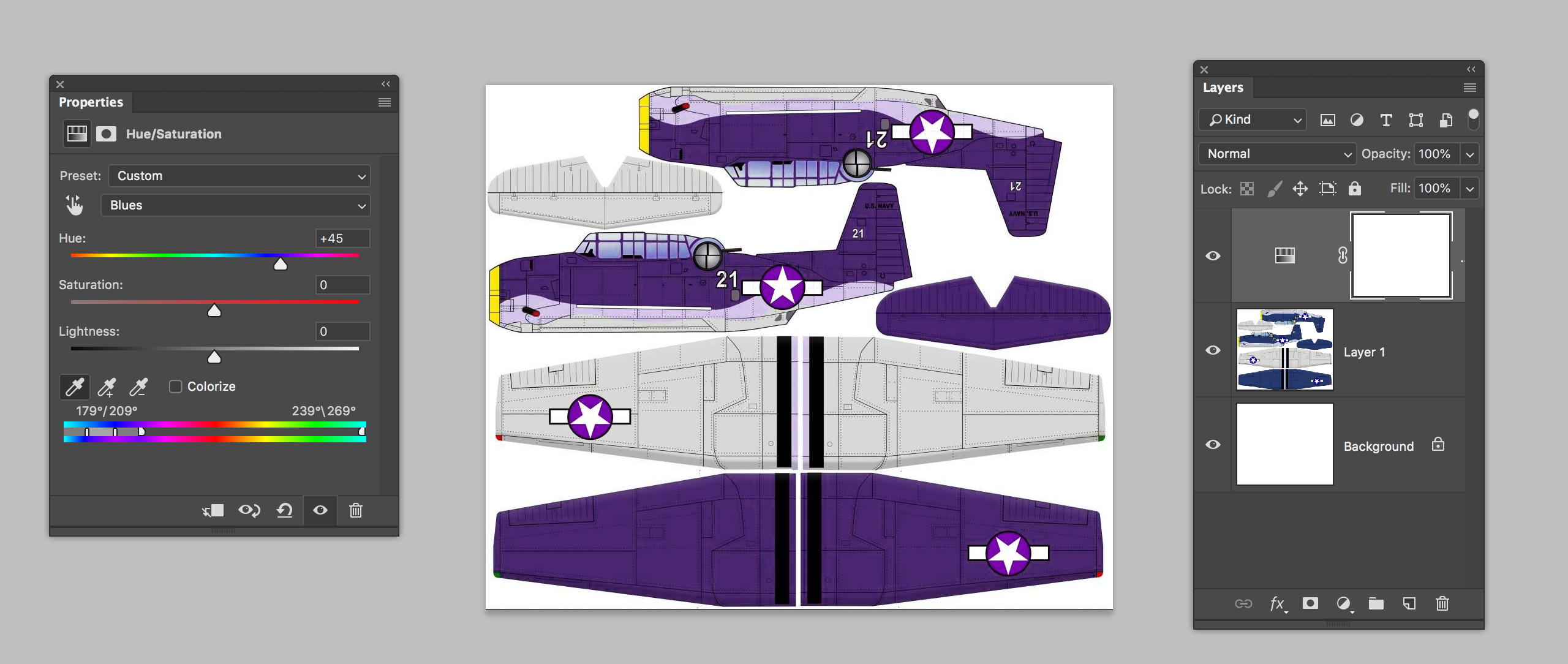
If you add a Hue & Saturation adjustment layer above your image layer. You can then isolate the color you want to adjust. For example in this screenshot, the plane was originally a mix of blue, gray, and yellow. From the pull down menu in Hue and Sat I changed the MASTER menu to BLUES. Now, anytime I move the hue slider, it adjusts any color that falls into the blue spectrum. So I can easily change the color to purple, I can increase/decrease it's saturation, and also adjust lightness if needed. But the yellow nose color, and gray of the image is unaffected.

This is an alternate way to make the edit, rather than the flatting technique I mentioned earlier. Although for what you are trying to make, I still think the flatting with the outline/shade layer above would work better.

Participant
June 20, 2018

Yeah thanks, i will try this too soon when i can and tell you if it works.

sharp_hands16B8
Community Expert
sharp_hands16B8Community ExpertCorrect answer
Community Expert
June 20, 2018

You could simply keep your image map with it's shading on that image layer. Change your image layer's blend mode to Overlay or Multiply. Create a new layer below the shaded layer and paint your solid color you want on it. You should still have your shading above and your color underneath. This is how comic book artists work when they start "flatting" in color to keep the shades on the ink layer above.

Participant
June 20, 2018

Now that you mention this, you are infact probably correct! I haven't actually tried this yet but i will soon, but i'm pretty sure that this is infact the answer i was looking for, i will try this out soon and tell you if it works.

Norman Sanders
Legend
June 20, 2018

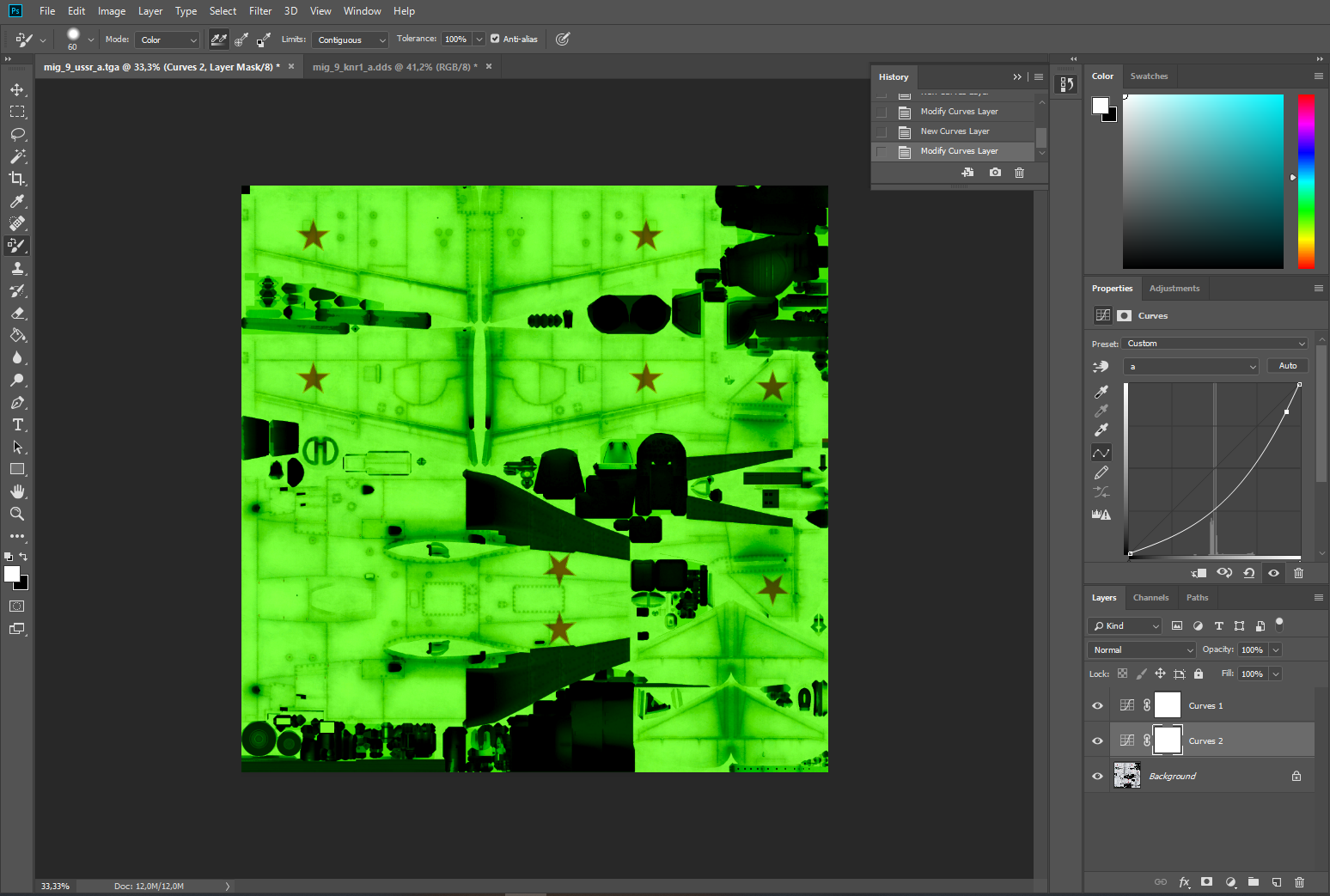
The Mode that provides the unique option of altering color and saturation without affecting tonal range and local contrast is Lab Color Mode. These versions of were created by changing only the  "a"  Channel in Curves. Greater or lesser saturation is available without affecting the modeling. Greater tonal modeling and contrast is controlled by the Lightness channel. These samples are provided for demo purposes only. You will probably choose to begin with a less electric color.

Participant
June 20, 2018

Thanks for the answer! I have tried out the Lab Color mode now and it actually works pretty good, however, it doesn't exactly do what i want to do. It does it's job but it's maybe not what i'm looking for, see this picture:

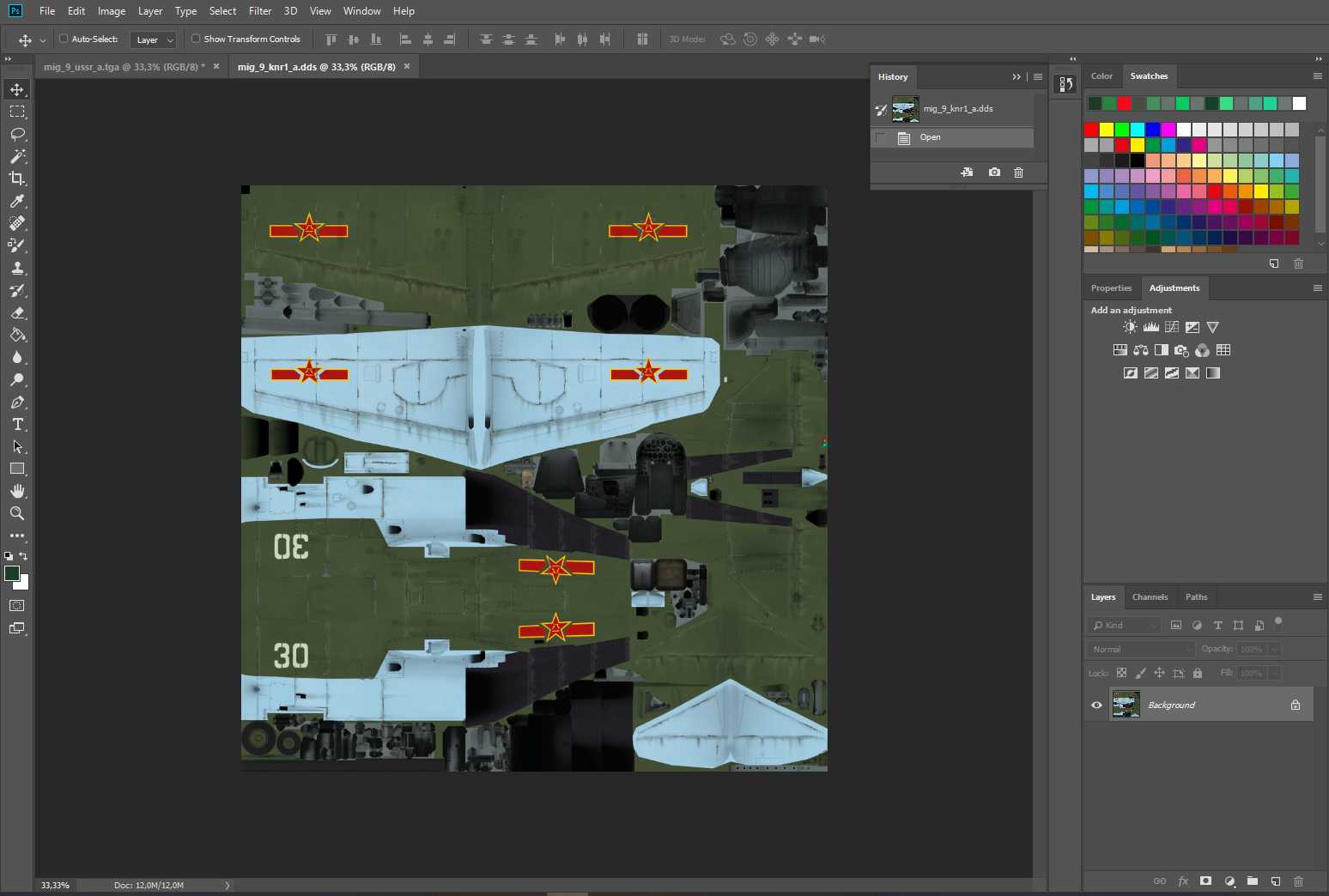
The colors are infact alot more saturated now and overall better, however it's not exactly what i want, i want the colors to be more like in this picture here:

And in this picture here: