
Known Participant
June 6, 2023
Question

How To Put In A Sunset Effect

  • June 6, 2023
  • 4 replies
  • 8258 views

Hi guys!

I use Photoshop CC on my Windows 10 laptop, but I'm not sure as to whether this is the appropriate forum for my query.


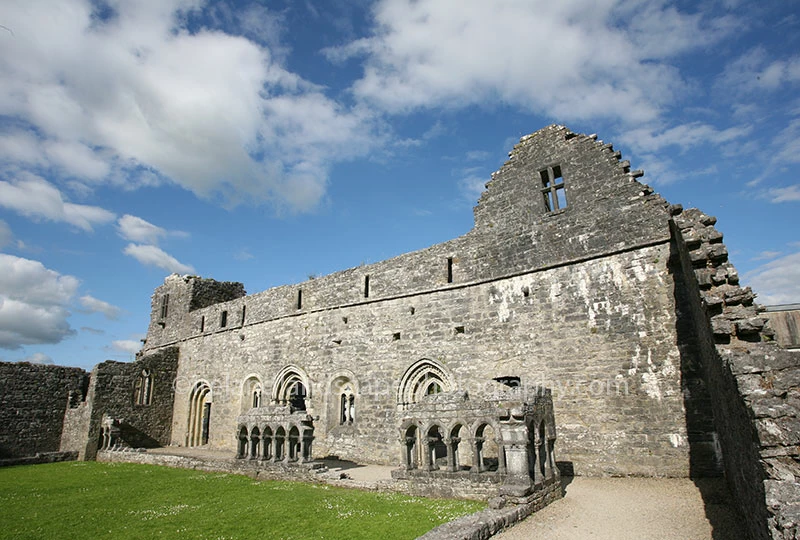
I'm aware that straightening etc needs to be done on this image, but I was wondering if it is possibe to put in an orange glow on the walls as if the sun was just setting behind me? I'd need a more yellow colour on the grass too. Any advice appreciated.
4 replies

Trevor.Dennis
Community Expert
Community Expert
June 7, 2023

I don't know if you realise this, but Edit > Replace Sky also tweeks the foreground to show a hint of sky colour.

Known Participant
June 7, 2023
Thanks for that Trevor. I didn’t know that. 😀
Conrad_C
Community Expert
Community Expert
June 7, 2023

Trevor is correct: Because Sky Replacement auto-generates new layers for the different things it does, you could skip the step I suggested about selecting the building.


Also, the Foreground Color layer created by Sky Replacement is not the only way to control that. You can also do it while you are still in Sky Replacement: If you expand the Foreground Adjustments options, the Color Adjustment slider lets you control how much of the new sunset image color is applied to the foreground. This slider becomes the Foreground Color curves adjustment layer after you click OK.


And the nice thing about Color Adjustment is that you don’t have to figure out a color that’s consistent with the sky. Sky Replacement does it for you, basing it on the sky image you chose. If you don’t agree with that color, just alter it later in the Foreground Color layer it produces.


Zesty_wanderlust15A7
Known Participant
June 6, 2023

This is simply a warmer White Balance via ACR plugin, but I excluded the sky from it.

Known Participant
June 23, 2023

Hi Signfeld!

That looks great. Is that Adobe Camera RAW? I've just been trying the White Balance and colour temperature, but am unable to get the orange colouration on it.


Known Participant
June 23, 2023

Hi guys!

I'm hoping to put an orange colouration on the wall here to mimic a golden hour effect. I'd like to try out this video, but was wondering how to do it in Photoshop CC 2023?


[Mod: Thread locked, because double posting]

[Fot further discussions please see here: https://community.adobe.com/t5/photoshop-ecosystem-discussions/how-to-put-in-a-sunset-effect/m-p/13887055#M740234


Conrad_C
Community Expert
Community Expert
June 6, 2023

I just tried the Object Selection Tool on your image, and it instantly recognized the sky, building, and grass as separate objects. So it should be easy for you to select and mask out each one, so that you can quickly add separate color effects to the building walls and sky if you want, using separate adjustment layers.


Of course the sky can easily be replaced with a sunset using Edit > Sky Replacement, without having to select anything first.


Example steps:

To edit the sky, choose Edit > Sky Replacement, and choose a sunset or import one.

To edit the wall color, select the building or a wall with the Object Selection tool, then use the Adjustments panel to add a new adjustment layer or preset. If you add an adjustment layer while a selection is active, the selection becomes a mask for that layer.

To edit the grass, repeat the step for the wall.

Known Participant
June 6, 2023
Thanks Conrad!😃
J E L
Community Expert
Community Expert
June 6, 2023

Hi @Tallmanirl, there are several ways to go about this. One very quick way is to apply one of the options in the Adjustments presets panel. You can then make further adjustments on the curves layer and the layer mask by brushing the effect away on the sky, for instance. I'm sure others will have more suggestions for you!


Known Participant
June 6, 2023

Thanks JEL!