
Participating Frequently
February 22, 2020
Answered

How to "unlock" the filling tool?

  • February 22, 2020
  • 2 replies
  • 2359 views

Hello


I am currently learning Adobe Photoshop CC with the Adobe Tutorials on their website but somehow I can't move on.

My goal is to select an area, create a new layer for it and fill it with a colour.

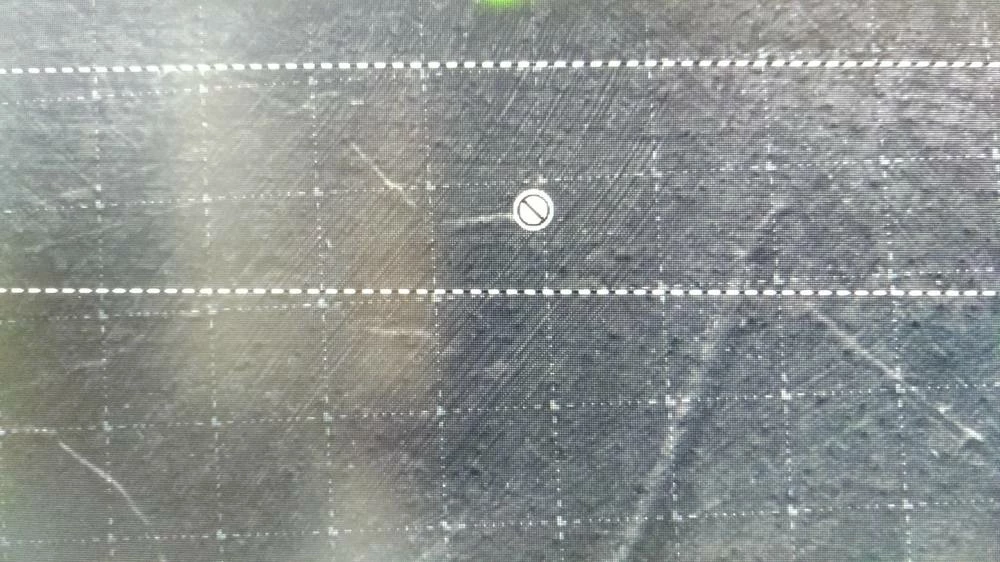
Somehow the last step is not working because I get this here instead of the bucket:


Thanks!

This topic has been closed for replies.
Correct answer davescm

You are not using the paint bucket tool , you are using the 3D material drop tool which is used on 3D objects.

Go to the tool bar, click and hold and then choose the paint bucket tool.


Dave

2 replies

davescm
Community Expert
davescmCommunity ExpertCorrect answer
Community Expert
February 23, 2020

You are not using the paint bucket tool , you are using the 3D material drop tool which is used on 3D objects.

Go to the tool bar, click and hold and then choose the paint bucket tool.


Dave

Hippo_=)Author
Participating Frequently
February 23, 2020

Thank you! I didn't even notice! Do you know how to remove the 3D Bucket and put the "real" bucket tool there? It somehow disappears after using it.

davescm
Community Expert
Community Expert
February 23, 2020

Do you mean this? 


That's it. Click and you will see teh workspaces in use and available

Dave

February 22, 2020

Hi

It would be better if you posted a screenshot of Photoshop interface with all the pertinent panels opened like this

When you made the selection did you hit Ctrl + J to copy it to a new layer and select that layer, without seeing your layers panel it's hard to help

Hippo_=)Author
Participating Frequently
February 22, 2020


I tried it with a new picture it doesn't work 😞

February 22, 2020

You're making a selection on a layer without any pixels, you need to select the background layer, make your selection hit Ctrl + J to copy it to a new layer and then you should be able to use the fill command