
Mohammad Modassir
Inspiring
March 17, 2017
Question

How to recreate this heart in 3d shape?

  • March 17, 2017
  • 2 replies
  • 1711 views

Hi,

How can I make the red pearls large, and the green pearls also large, while the white pearls and the black pearl keep a medium size?

Assume this heart-necklas as rotate 90 degree clockwise:
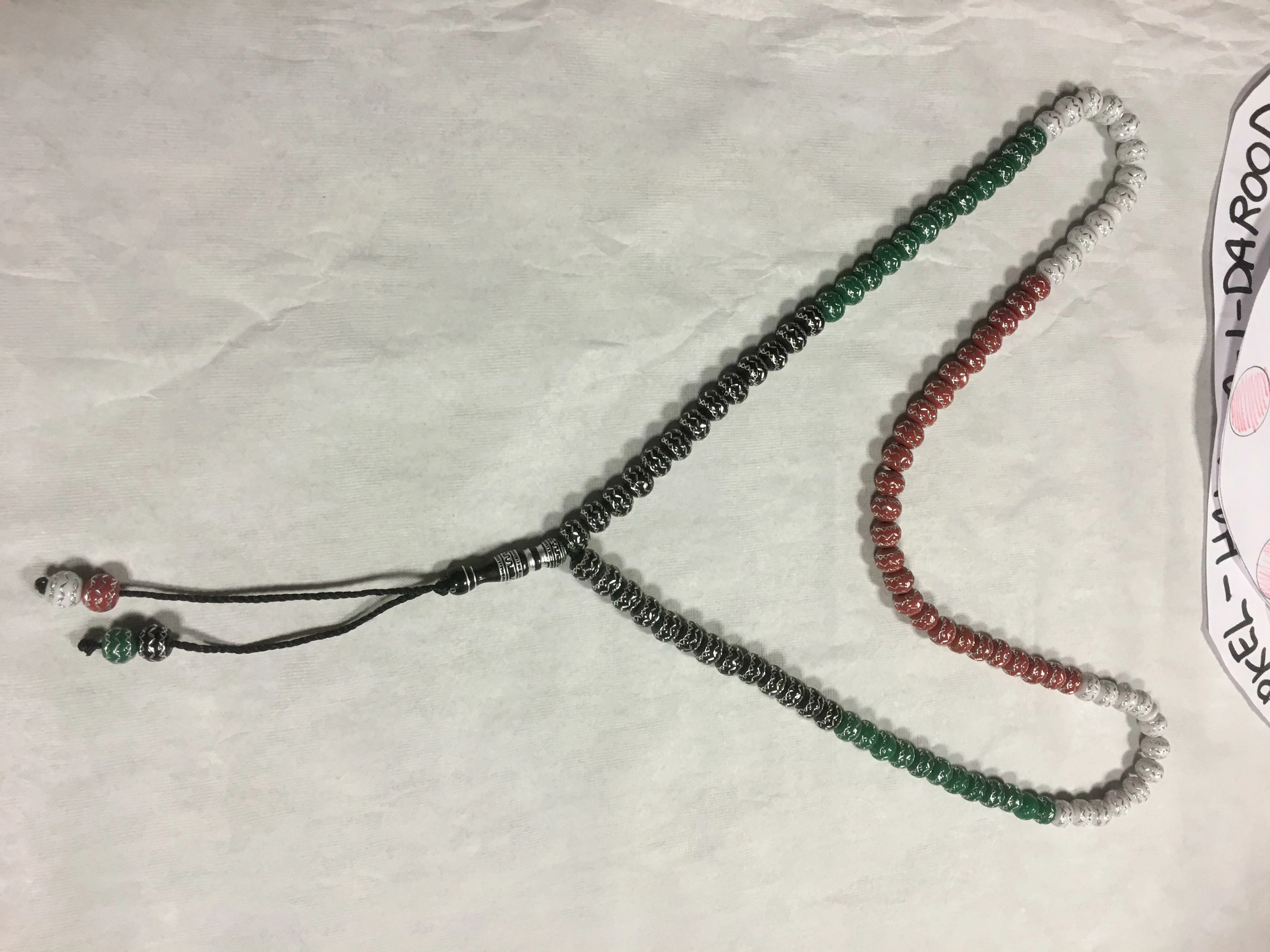
Now, how do I give make this heart-pearls the same form as this 3D below?
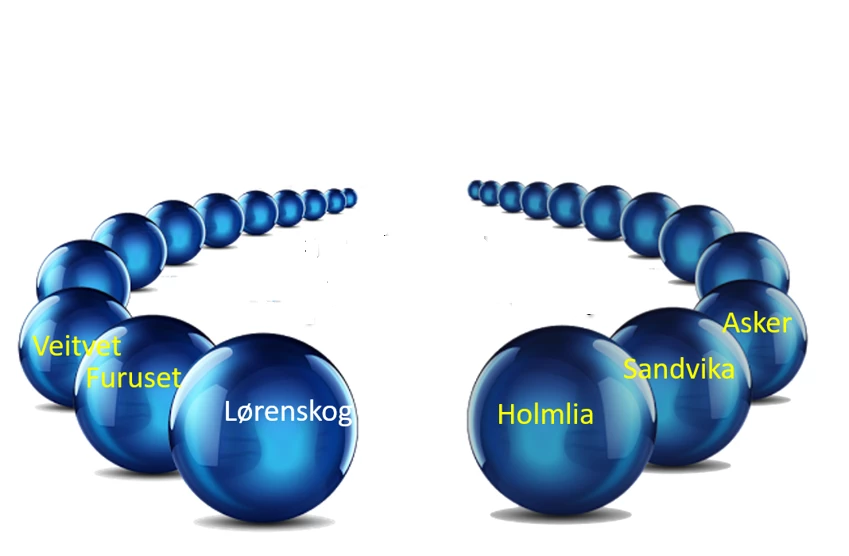
Would be very grateful of any help.

Kind, Modassir

This topic has been closed for replies.

2 replies

postrophe
Inspiring
March 18, 2017

Hi

You may find some tutorial searching Google for : Photoshop, how to create a pearl necklace in 3D

Pierre

davescm
Community Expert
Community Expert
March 18, 2017

If you really want to do this in 3D:

Create a pearl shape in 3D (use Mesh from Preset - 3d Sphere) and paint on the model (3D Paint on target texture) to give it its texture. Use the diffuse and shine

Duplicate the 3D layer and alter the texture as required.

Repeat

Merge the 3D layers and move each of the pearls in the 3D space

Render 3D layer

I hope that helps you

Dave

Mohammad Modassir
Inspiring
March 18, 2017

Can’t I just use som sphere from google with color red, blu and white, and change the size from large to medium and from medium to small, so I don't need to use 3D at all?

Relatert bilde

Bilderesultat for green sphereBilderesultat for white sphere

...if so, then any idéas on how the form of the chain which connects them, should look like?

Would appreciate your reply...

Kind, Modassir

davescm
Community Expert
Community Expert
March 18, 2017

How exactly do I give them shading to make them look convincing?

Would appreciate your reply.

Kind, Modassir


Hi

I had a few minutes this morning so a short “tutorial” might help you and give you an idea how to use the 3D tools in Photoshop to do this.

1. Open a document and use 3D – New Mesh from layer – Mesh Preset - Sphere

2. In properties click on the Diffuse Material and Edit Textureto give it a very slight colour (just paint on the texture with a brush)

3. Increase the shine and reflection values 

4. Scale the sphere down then move it down to the “ground"

5. Right click right on the object in the 3D panel and choose “Duplicate object”. I moved the
duplicate then added another …and another – .....

Keep repeating :

6. On a new layer use the shape tool to create a path as below :

7. In the 3D panel, make an extrusion from the workpath and then in properties reduce the extrusion depth and increase the bevel

8. Select all the materials for the object (front, extrusion back etc) in the 3D panel and set the material to gold

9. Duplicate the object then move and rotate it so that it links with the first

10. In the layers panel select the layer with the “pearls” and the layer with the link

Go to menu 3D and select Merge 3D layers

11. Now scale and move the links and position instead of the first pearl (just turn off visibility of the first pearl by clicking the eye symbol
in the 3D panel)

12. Add a color Fill layer in the layers panel

13. In the 3D panel make a 3D postcard from that color fill layer. Rotate and move it so it
is on the ground.

Use 3D Merge 3D layers to merge that with the main 3D layer.

13.Finally – position your camera view,  and lights (I used two infinite lights on as a main light and the second as a fill) to cast some shadows and reflections then use 3D-Render 3D layer to render it

I hope that starts you off with some ideas

Dave