amyloudo
Participant
June 25, 2018
Answered

How to remove a white background with a transparent image

  • June 25, 2018
  • 3 replies
  • 3202 views

Hi potential life savers!

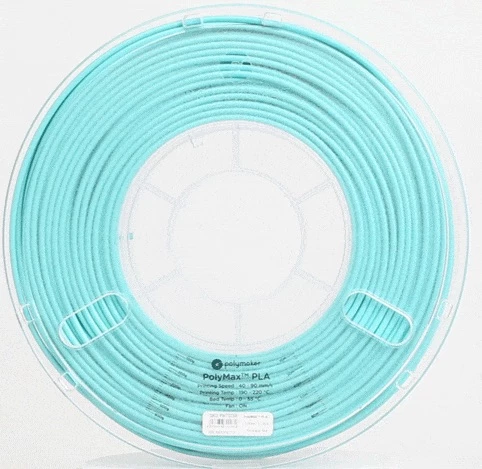
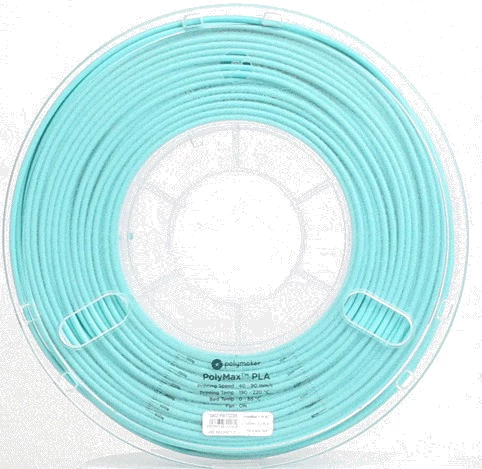
I am trying to remove the off white background but am having trouble avoiding also removing the transparent parts of the image. This is a spool with a clear case and whenever I go to use the magic eraser tool or the magic wand tool, the transparent parts of the image also get selected. I've also tried editing the image's brightness, contrast, saturation etc but it makes the clear case start to disappear. I know I could use the background eraser tool but I'd rather not have to erase it by hand since this is actually 1 out of 32 frames of a gif.

If anyone has any suggestions or general tips about editing colors for a gif that would be great! Thanks!
This topic has been closed for replies.
Correct answer Norman Sanders

Place a blank layer below the image layer and Fill with white

Return to the image layer, double click on the layer in the Layers panel to bring up Layer Style

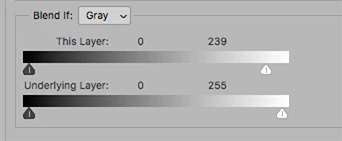
At the bottom of the Layer Style panel is the Blend If section.

Slowly move the top right slider to the left as shown here:

Flatten the image. The lower left corner may require some brush work, or circle applied as a mask, but the core of the object will not be compromised. When satisfied, change bottom layer to transparent. Depending upon the content of the 32 frames, the same Blend If and Mask may may be sed on each.

3 replies

Community Expert
June 25, 2018

With the shape being pretty simple I would just use the ellipse tool set to path,  and tweak the anchor points to match the shape,  then go to paths and set the path to be a selection, and I'd just copy and past, so its on a different layer,  then do the ellipse thing on the center circle to delete the white out of the center after setting it to selection.  But that's how I would tackle it.  That's the magic about Photoshop, there's a lot of different ways to achieve the same effect.  So you can go with what you think works best for you.

Norman Sanders
Norman SandersCorrect answer
Legend
June 25, 2018

Place a blank layer below the image layer and Fill with white

Return to the image layer, double click on the layer in the Layers panel to bring up Layer Style

At the bottom of the Layer Style panel is the Blend If section.

Slowly move the top right slider to the left as shown here:

Flatten the image. The lower left corner may require some brush work, or circle applied as a mask, but the core of the object will not be compromised. When satisfied, change bottom layer to transparent. Depending upon the content of the 32 frames, the same Blend If and Mask may may be sed on each.

tmyusuf74
Inspiring
June 25, 2018

You have to resort to the advanced method here. It is not possible to extract the background by the tools you have described. I would like to tell you to try Color Rang in this matter. You can find a way through this link. ... [link removed]