
Known Participant
March 5, 2022
Answered

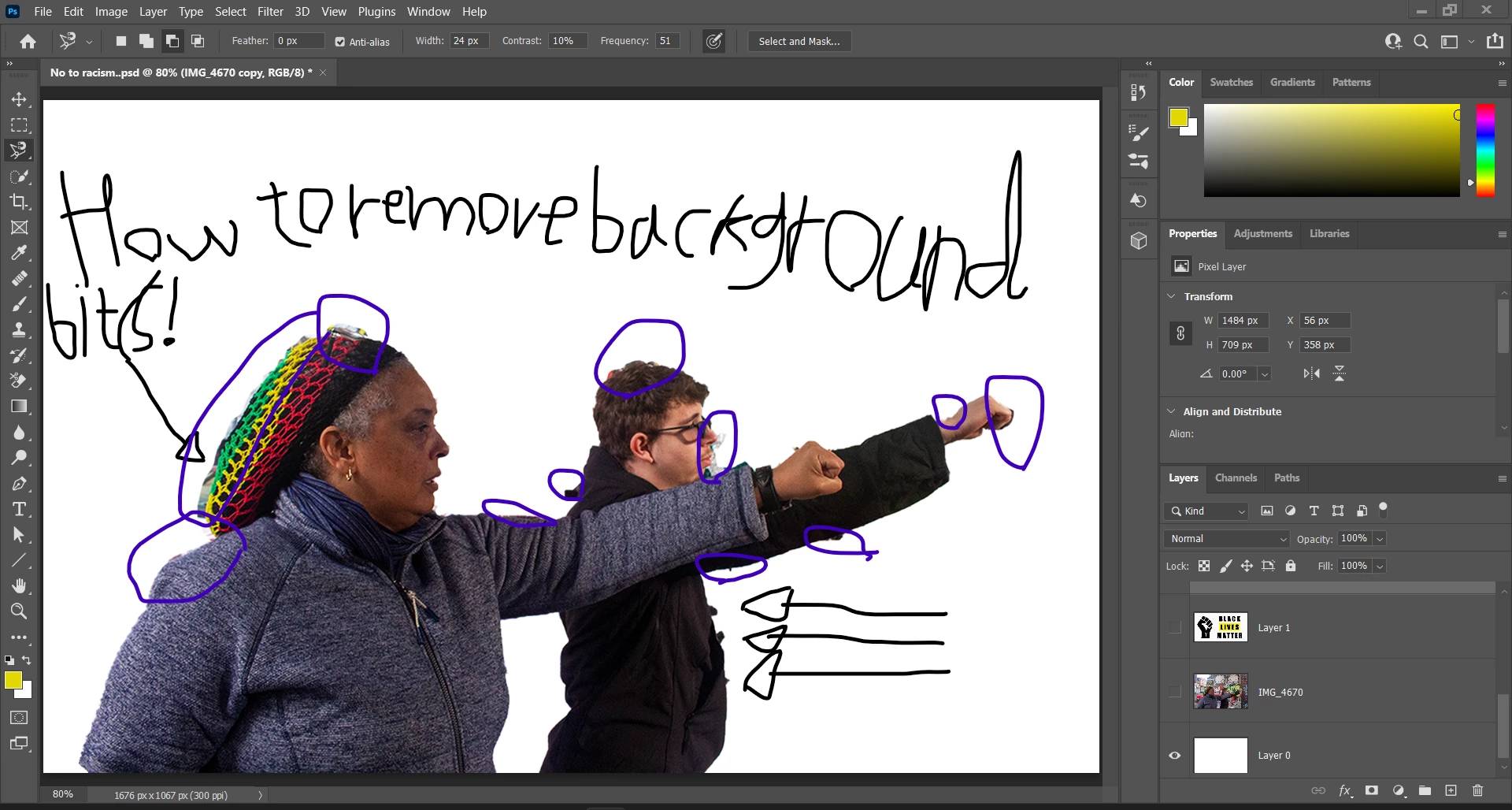
How to remove background bits for Adobe photoshop 2021?

  • March 5, 2022
  • 2 replies
  • 454 views

There are some background bits on my two friends so how can I remove these background bits? Therefore, can someone tell me how to do it properly rather than taking 4 hours to remove these background bits?
This topic has been closed for replies.
Correct answer davescm

Use a mask and paint it white where you want the layer to show and black where you do not. With a bit of practice it is fairly quick to work around the selection you show. For hair you might want to try refine edge in the select and mask workspace - but is best kept for hair and fur type edges rather than smooth edges.


Dave

2 replies

Trevor.Dennis
Community Expert
Community Expert
March 7, 2022

Rather than us reinvent the wheel writing a tutorial just for you, it would be much better for you to use Discover.  Click on the magnifying glass icon in the top right corner which will open the Discover panel.  Type Layert Mask into the search box, and chose one or more of the tutorials.  If you get stuck on a particular point, byt all means come back and ask.


davescm
Community Expert
davescmCommunity ExpertCorrect answer
Community Expert
March 5, 2022

Use a mask and paint it white where you want the layer to show and black where you do not. With a bit of practice it is fairly quick to work around the selection you show. For hair you might want to try refine edge in the select and mask workspace - but is best kept for hair and fur type edges rather than smooth edges.


Dave

Known Participant
March 6, 2022

How can I use these tools?

jane-e
Community Expert
Community Expert
March 7, 2022

@Mohammad Dawood. wrote:

"How can I use these tools?"


"Use a mask and paint it white where you want the layer to show and black where you do not."

https://helpx.adobe.com/photoshop/how-to/layer-mask.html

https://helpx.adobe.com/photoshop/using/masking-layers.html

  1. Select the image layer
  2. Click the Layer Mask button at the bottom of the Layers panel
  3. Select the Brush tool "B"
  4. Set options for the Brush tool in the options bar (size; hardness)
  5. Set the Foreground and Background swatches to pure white and black "D"
  6. Paint with white or black on the mask (not the image)


"For hair you might want to try refine edge in the select and mask workspace"

From the Select menu, choose Select and Mask.

https://helpx.adobe.com/photoshop/using/select-mask.html


Jane