
Known Participant
June 21, 2021
Answered

How to remove beard shadow?

  • June 21, 2021
  • 3 replies
  • 5868 views

How can I COMPLETELY remove the beard shadow? I know that this image has a very low resolution but it is only a test one...
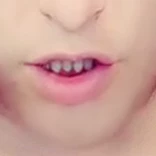
I have already tried with gaussian blur but it simply makes it larger (even if less intense).

I am searching for a fast and not too manual solution (I have to repeat this on many images).


Thanks to all will reply to me!

Correct answer Chuck Uebele

If it's just the color you want to eliminate, you can try several things:

You can try using the brush tools with the correct color, and paint over the area, with the brushes blend mode set to color.


Or you can use color range. Set you eyedropper sampler to 1x1 pixel. Zoom into the pixel level and using the color range feature, select the pixels that are the most green or offensive color - sample several. Set the fuzziness to adjust the area. Th en use either a hue/saturation or curves adjustment layer to shift the color to your liking. You might want to also use modify feather to soften the selection and do several smaller selections and build up the correction.

3 replies

j_will_iAuthor
Known Participant
June 29, 2021

Thanks, for the replies, I will use both

Norman Sanders
Legend
June 22, 2021

The sample is truly too small to work with. With that as the limitation, consider changing the mode to Lab Color. Duplicate the layer and make a rectangular edge-to-edge soft edged selection from the bottom of the nose to the botttom of the image. Choose the middle of the chin as the aim point in Curves and work in only the Lightness (L) channel. Reduce its intensity with a small vertical move as shown above or even greater. (Use your keyboard North/South arrow keys) I did not add a mask to reduce the intensity of the lips' redness and at the left to the value in the bottom layer but would seriously consider it, depending upon the rest of the face. Return mode to RGB.


(FWIW: The green you mentiioned is an illustion. In Lab's channels, your original color in the beard is a9 b15.  There is no minus value in either channel (minus in  a=green, minus in b= blue). 

Chuck Uebele
Community Expert
Community Expert
June 22, 2021

There are lots of tutorials on this, like:


https://m.youtube.com/watch?v=Mca_wS2TWfw

j_will_iAuthor
Known Participant
June 22, 2021

Thank but this is not what I am asking, I have already watched many videos like this: as you can see from my image I am already at the level of result purposed by this tutorial.


I am talking about completely removing that green shadow without altering the shape of the face.

Chuck Uebele
Community Expert
Chuck UebeleCommunity ExpertCorrect answer
Community Expert
June 22, 2021

If it's just the color you want to eliminate, you can try several things:

You can try using the brush tools with the correct color, and paint over the area, with the brushes blend mode set to color.


Or you can use color range. Set you eyedropper sampler to 1x1 pixel. Zoom into the pixel level and using the color range feature, select the pixels that are the most green or offensive color - sample several. Set the fuzziness to adjust the area. Th en use either a hue/saturation or curves adjustment layer to shift the color to your liking. You might want to also use modify feather to soften the selection and do several smaller selections and build up the correction.