

SaKnoi
Participant
March 8, 2020
Answered

How to remove/detect lone pixels?

  • March 8, 2020
  • 3 replies
  • 2995 views

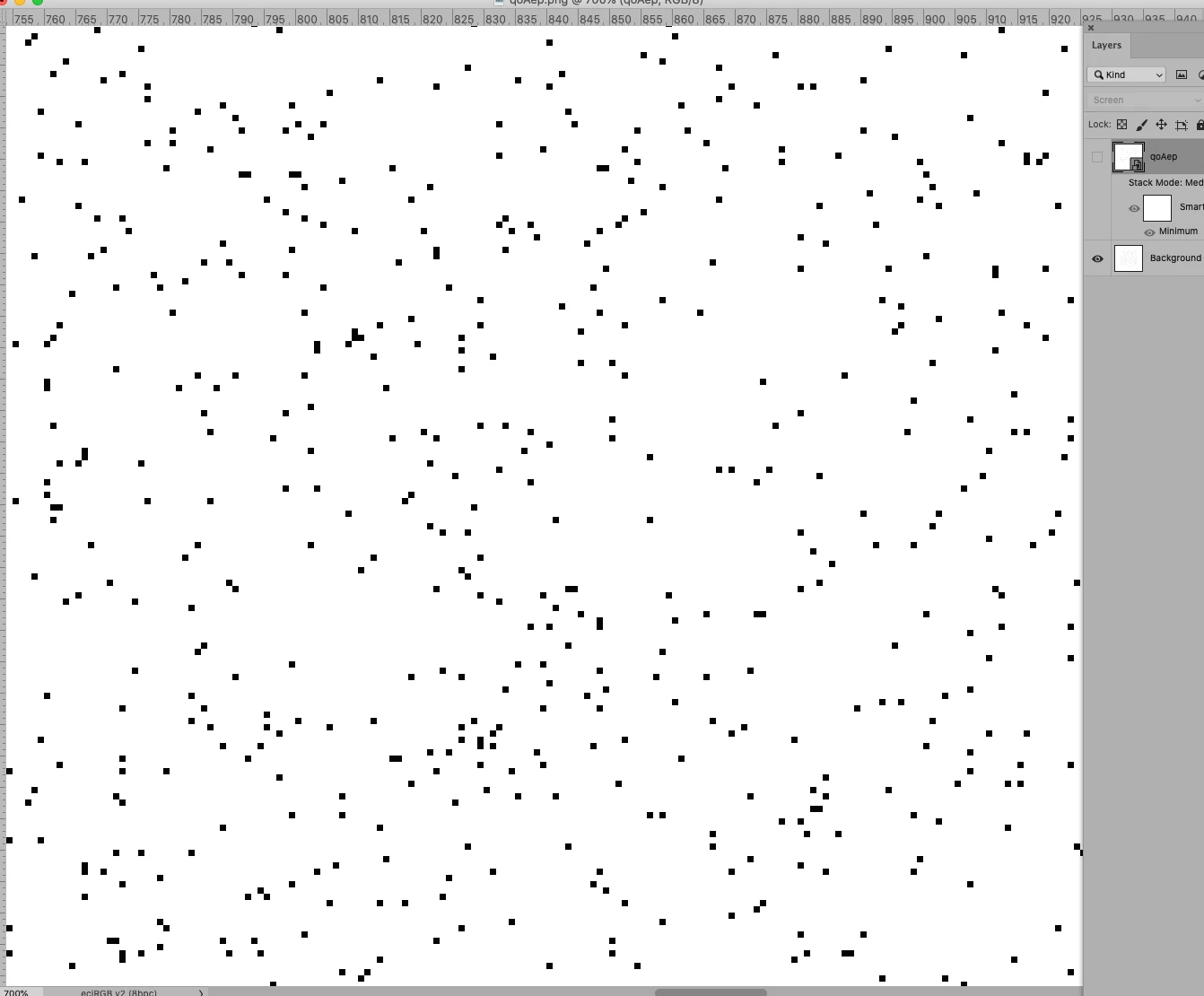
I'm trying to find pixels which are next to others, and removing pixels with no neighbours seems to be the best solution. Is it possible to either delete lone pixels/highlight continuous runs of pixels using some function?

This topic has been closed for replies.
Correct answer c.pfaffenbichler

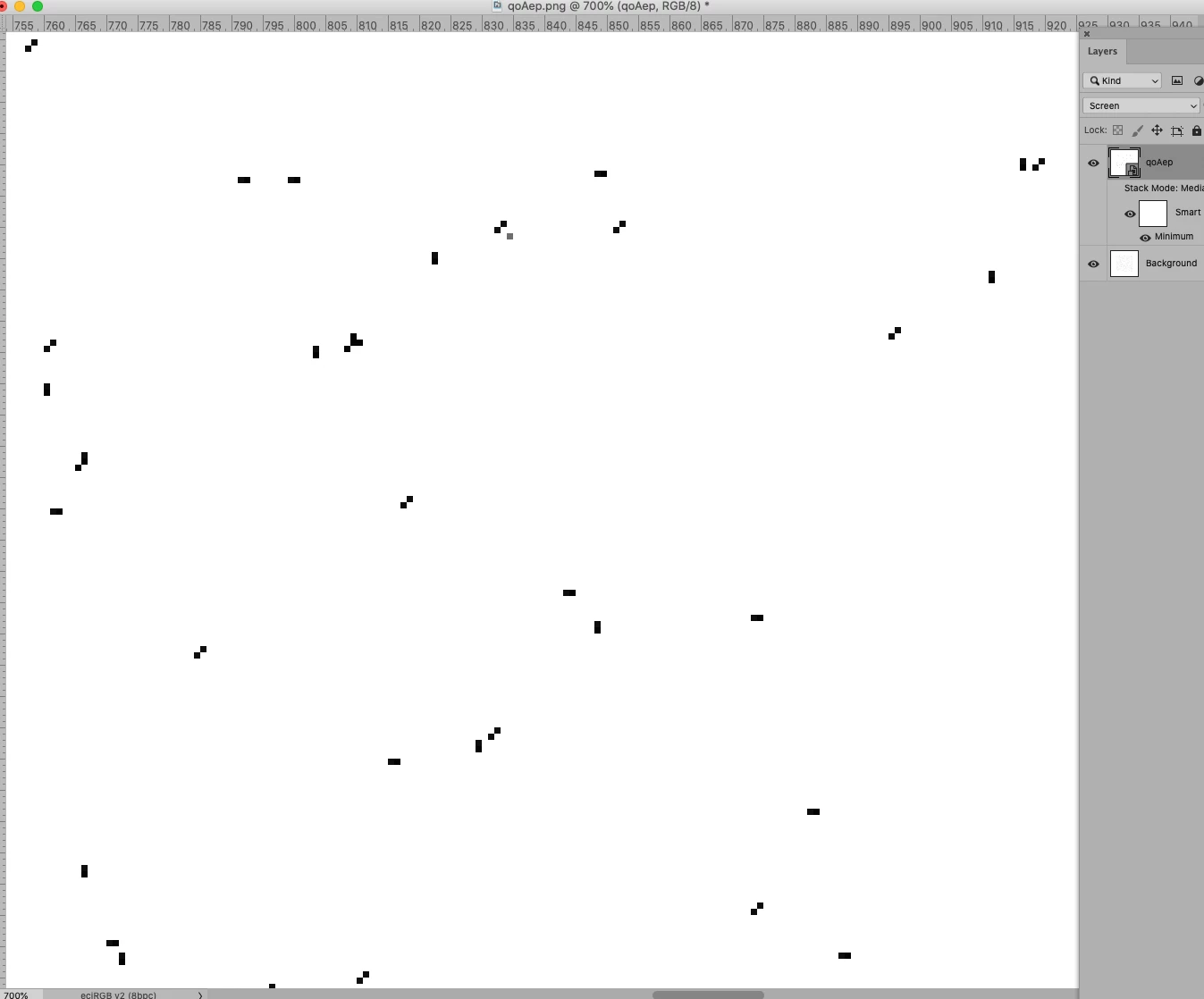
This might work: 

• duplicate the Layer thrice,

• move one copy 1 px to the right,

• aother 1 px down, 

• convert the three Layers to a Smart Object, 

• Layer > Smart Objects > Stack Mode > Median, 

• Filter > Other > Minimum aith 1px and Roundness, 

• set the Smart Object’s Blend Mode to Screen. 


3 replies

Legend
March 9, 2020

If you have black(gray\color) pixels and absolute white backgound then you can do this.

Make two copies of the original layer.


Apply to one of the copies Custom Filter

0 0 0 0 0
0 1 1 1 0
0 1 0 1 0
0 1 1 1 0

0 0 0 0 0
scale: 8 offset: 0


Using magic wand with

tol = 0, antial = off, cont = off

select white (255,255,255) on this layer.
If it's hard to find white, find a single pixel on the original, it will definitely turn white.


Turn off \ delete this layer. Switch to another copy. Fill the selection with white.

You can check the result by putting the layer to Difference blend mode or turning layer on\off.
 

Pixels at the very edges are not deleted. It is necessary to expand the canvas by 1 pixel at least with white filling.


UPD. To increase accuracy, you can replace in filter 1 with 256, and in scale 8 with 2048.


Kukurykus
Legend
March 9, 2020

I created my own dots this time, and all worked, with c_pfaffenbichler method too 🙂

Legend
March 8, 2020
There is an attempt to access individual pixels and the possibility of changing them using a script.
 
EDIT: In that topic, all the scripts are kind of broken. Forget it.
 
 
c.pfaffenbichler
Community Expert
c.pfaffenbichlerCommunity ExpertCorrect answer
Community Expert
March 8, 2020

This might work: 

• duplicate the Layer thrice,

• move one copy 1 px to the right,

• aother 1 px down, 

• convert the three Layers to a Smart Object, 

• Layer > Smart Objects > Stack Mode > Median, 

• Filter > Other > Minimum aith 1px and Roundness, 

• set the Smart Object’s Blend Mode to Screen. 


davescm
Community Expert
Community Expert
March 8, 2020

That is clever 🙂


It does pick up two pixels touching corner to corner in this direction

But misses the same in this direction - so would need a second run


Still very clever though.

Dave

Legend
March 8, 2020
It is not clear why this is necessary.
And if the pixels are white or just different colors?