
Known Participant
September 23, 2019
Answered

How to remove fine black outline from image

  • September 23, 2019
  • 7 replies
  • 79508 views

Here’s the issue:  I had a series of images printed and printer's final jpegs to me have a black outline that shows up when I post the images to my web site. I have searched and searched for instructions in how to remove it. I've searched under "frame," "border," "outline," etc. but nothing I've found seems to addres what looks like a fine black border around the image. Can you please show me the way? Many thanks. glgracey 
Correct answer Étienne220880292121


7 replies

Étienne220880292121Correct answer
Participant
December 4, 2021


Participant
August 12, 2022

Holy crap your a life saver. Thanks man.

For anyone that is viewing this thread in teh future, this solution works and is insanely easy. 

Participating Frequently
October 7, 2019

A. Assuming this is part of the image and not something to do with the website or artboard/template for original art:

Method 1:

1. open in photoshop

2. enlarge (from center) the whole thing about 2-3%

3. recrop to size. 

4. Select the image

5. copy and paste in front and size to original scale

6. select all on bottom layer and fill with white/ecru/tusk/lamp, whatever...


Method 2: 

1. open image in photoshop

2. make selection inside the black outline

3. invert selection and fill


B. But the way you're talking about this it sounds like something that is part of the original formatting of whatever program the original artist used. 

Method1. (Here's a doozy workaround for high res to web - last resort if all else fails.)

1. Printed art being 300dpi and millions of colors, and

2. Web art is viewed at 72dpi, you can (theoretically)

3. open the image as large as you can on your screen

4. take a screenshot (saves @ 72dpi jpg "rough"). 

5. Open in photoshop, crop out the black, and size it at 72 dpi for viewing.

CAVEAT: Don't even bother trying this work-around with text. It will get blocky/fuzzy.

GLGraceyAuthor
Known Participant
October 8, 2019
Thank you for all this. Did you see my post earlier today in which I detailed a Ben Willmore lesson on creating a border edge using a Layer Style? Seems like that was the method my printer used.
davescm
Community Expert
Community Expert
September 23, 2019

Can you post one of the jpegs so we can see the issue.

That said - if I understand you correctly, there is something strange in your workflow.
You appear to have sent some images to your printer who has printed a set and you are now going to edit then post the printer's jpeg files to the web? Why not prepare a new export direct from your master files?

Every time you edit then save a jpeg the image is degraded (that is the nature of jpeg lossy compression) so any jpeg should be a first export from the master, whether that is in high pixel size to send to your printer or reduced pixel size to post on the web.
Dave

GLGraceyAuthor
Known Participant
September 23, 2019

Here's one of the images. I think I understand what you're saying. I'm using the jpegs sent to me by my printer as the master files. He vastly improved on the original digital files I sent to him. My original files are nowhere near as great looking as what he did to them in Photoshop. I have emailed him to tell me how to remove the black outline and I will post his response. You've all been so great in helping me out on this issue. 


***Here is the jpeg sent back to me by my printer. Thanks. 

davescm
Community Expert
Community Expert
September 23, 2019
Hi the line in your image is easily removed with the crop tool - however that is still a screenshot. I was going to look at the original to see if the black line was in the actual jpeg or being added when you posted it on your website.
Kevin Stohlmeyer
Community Expert
Community Expert
September 23, 2019

are you certain it is in the image and not a css style being applied on your website adding a 1 px frame?

GLGraceyAuthor
Known Participant
September 23, 2019
Yes, quite certain. Nothing has been done to my website. Only jpegs referenced here have the black outline. All other website images are without it. Thanks..
Participating Frequently
September 23, 2019

My guess is that the image was on a black background before so what you are seeing is a 100% black trapping outline. 

Try:

1. - with layer highlighted - Select the "thing" with the outline. 

2. Go To SELECT - MODIFY - CONTRACT.

3. Enter the pixel amount you want the selection to move in and hit apply (ok/return)

4. Invert the selection

5. Hit delete to get rid of black edge.

Participant
February 25, 2023

Thank you! This is extremely helpful!

Participating Frequently
September 23, 2019

You might also try Image-Trim:

GLGraceyAuthor
Known Participant
September 23, 2019
Yes, tried that. Assume I uncheck all in Trim Away box. Correct? Nothing happens when I do that. Also notice some images with black outline have nothing checked in these boxes and line appears anyway. Would also add that line isn't apparent in Photoshop, but does appear outlining the images in Lightroom. Am happy to remove outline in Lightroom if anyone can give instruction. Many thanks for your help. Lorraine
Participating Frequently
September 23, 2019
"Yes, tried that. Assume I uncheck all in Trim Away box. Correct?" No you should checkmark all of the boxes.
Kevin Stohlmeyer
Community Expert
Community Expert
September 23, 2019

Have you tried just cropping the images 1px around all four sides?

GLGraceyAuthor
Known Participant
September 23, 2019
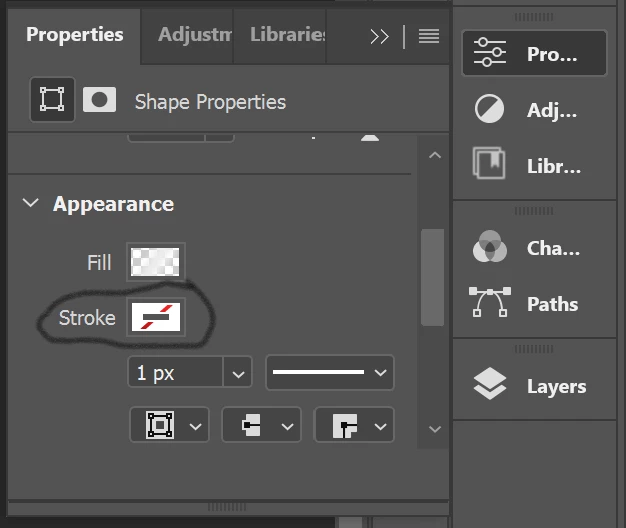
Yes, I've tried that. The black line goes with the crop. Wondering if line has something to do with a "stroke." I've seen instruction to go to View/Extras/Hide Frame Edges but nothing happens. Saw another instruction to go to Edit/Stroke, then select the fame and set the stroke to None or 0, but that instruction has to do with InDesign and I'm in Photoshop so I don't have those options in my Stroke window. Thanks for responding. Lorraine