Participant
February 13, 2021
Answered

How to remove the grey background noise

  • February 13, 2021
  • 2 replies
  • 1061 views

I'm doing some exercises with photoshop. I wish to transform a design to only black and white draw without background.

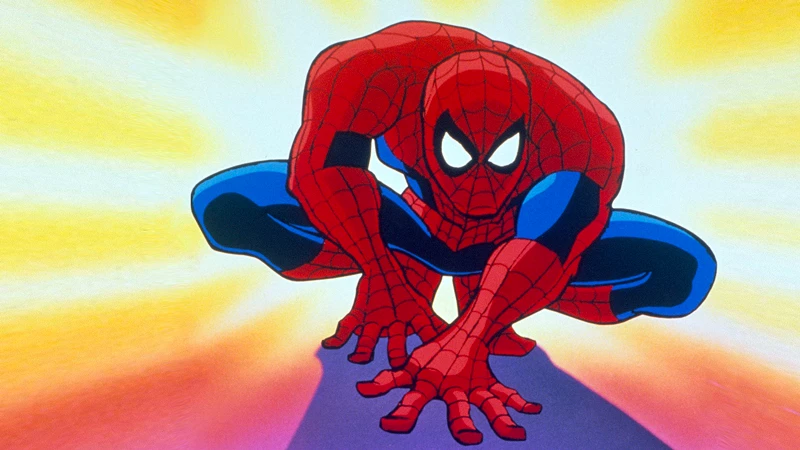
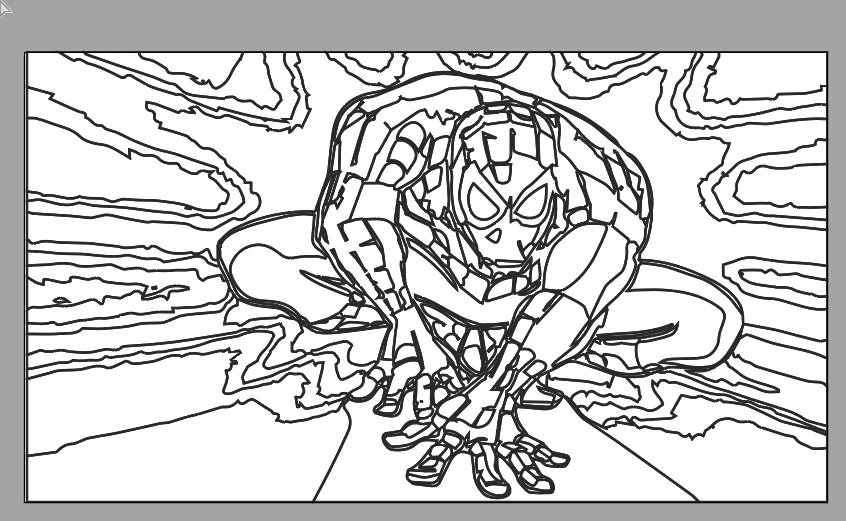
I'm working on this image
 

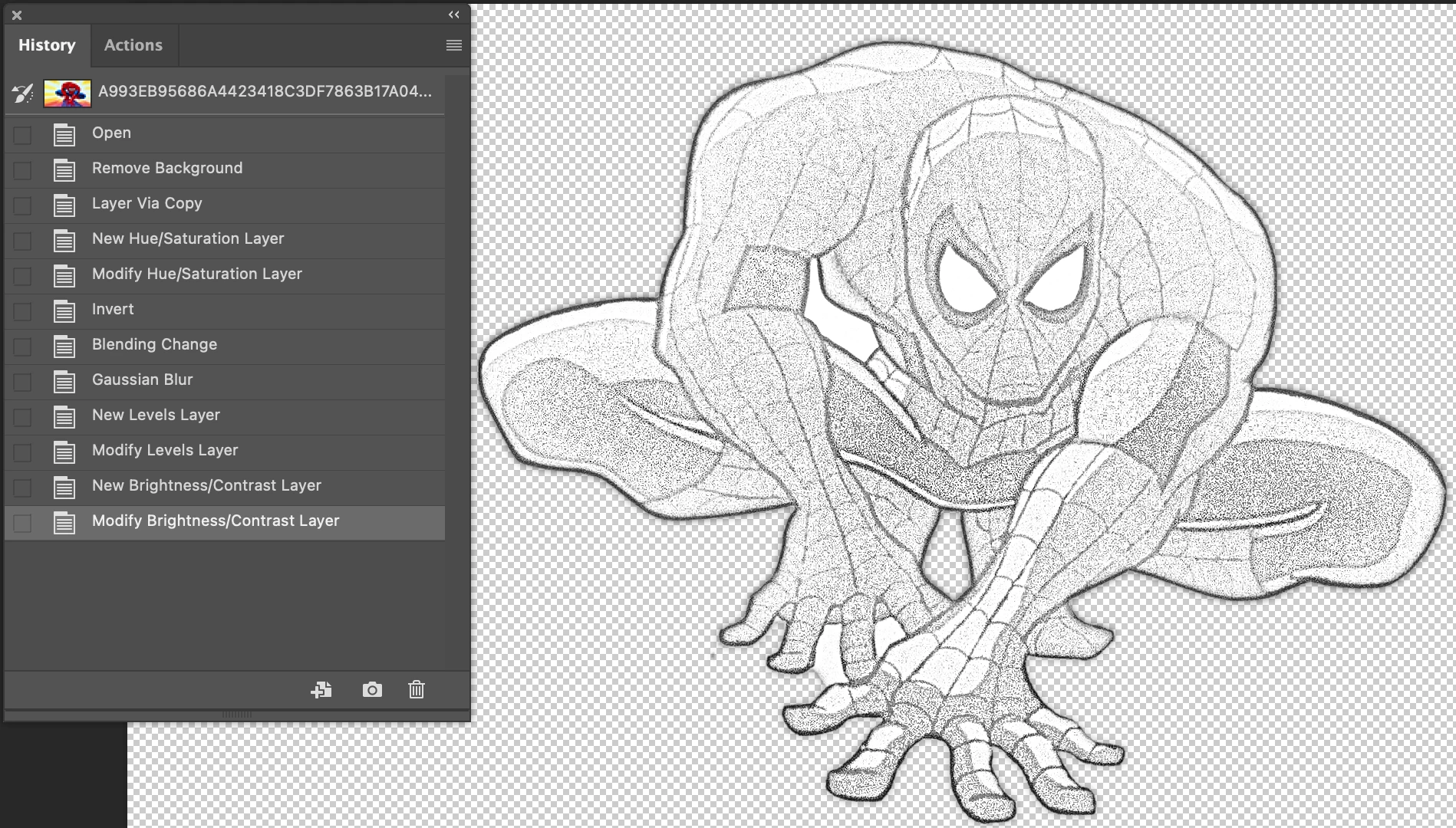
I tried two ways:
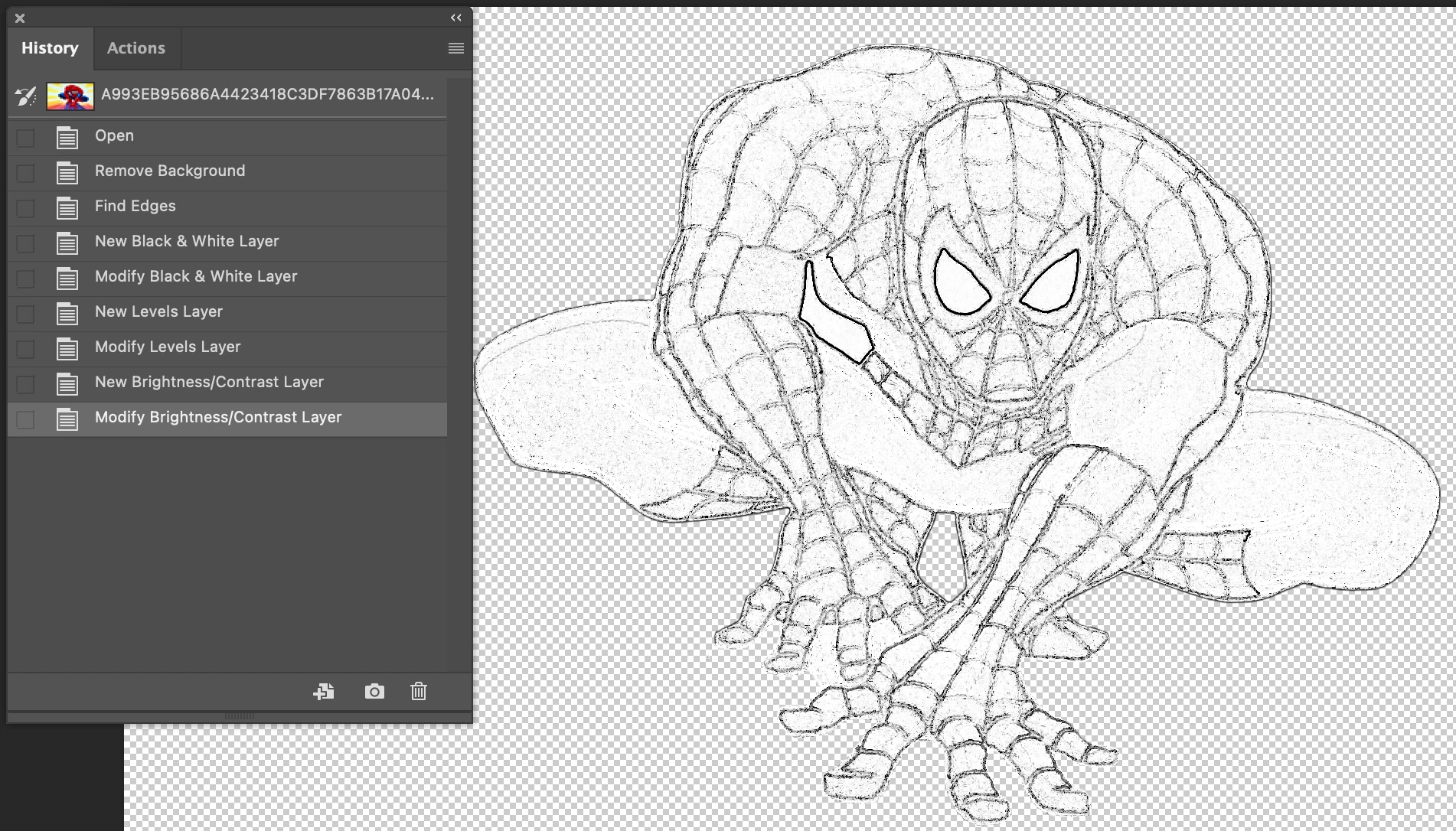


but it always remain a grey background noise inside the character.

Is there a way to remove it in a quick way?


This topic has been closed for replies.
Correct answer davescm

Hi

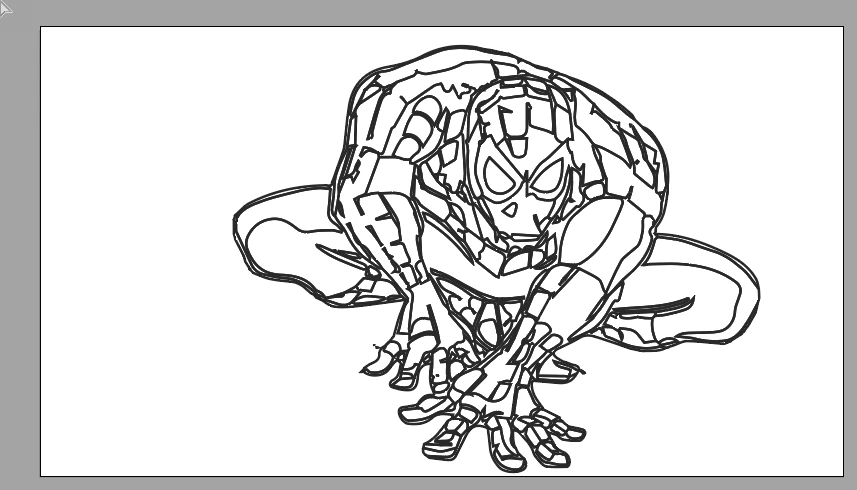
If you have access to Adobe Illustrator, try the Image Trace function, adjusting the controls to get the paths you want,  then Expand. This will give you paths for each individual shape on the drawing. Select All then just set an appropriate Stroke and Fill

You can then very quickly select unwanted paths around the outside and delete them


Dave

2 replies

davescm
Community Expert
davescmCommunity ExpertCorrect answer
Community Expert
February 14, 2021

Hi

If you have access to Adobe Illustrator, try the Image Trace function, adjusting the controls to get the paths you want,  then Expand. This will give you paths for each individual shape on the drawing. Select All then just set an appropriate Stroke and Fill

You can then very quickly select unwanted paths around the outside and delete them


Dave

luliboAuthor
Participant
February 14, 2021

Great!

Quick and easy way

Participating Frequently
February 13, 2021

Hi Lulibo,


have you tried to select the contours first? If you have them separate on a upper layer, it gives you more freedom to work with the rest of your image.

There are several ways to separate your contour lines.


kind regards,

Carl.


luliboAuthor
Participant
February 13, 2021

Hi Carl,

I'm sorry, I'm a dummy. Do you mean Filters -> Stylize -> Trace Contour ?

If so, yes, I tried but it doesn't help a lot.

I can imagine there are several ways but I'm not able to find one...