- Home
- Photoshop ecosystem
- Discussions
- How to repair specific banding on a digital photo
- How to repair specific banding on a digital photo

Copy link to clipboard
Copied
Hey, this isn't the normal kind of color banding. We think it possibly has something to do high speed sync with the electronic shutter at 1/8000 shutter speed. It seems the electronic shutter at a high shutter speed in really bright conditions will make the banding. I wasn't aware that this was happening while taking the photos...and now I have these irreplaceable images from a vacation that are essentially ruined. I was just wondering if anyone else has experienced this or has been able to repair this somehow so that I might keep these images. I'm going to attach one of the images as an example.



 1 Correct answer


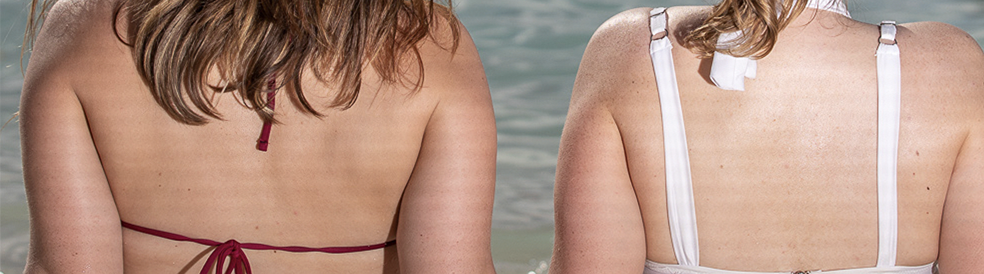
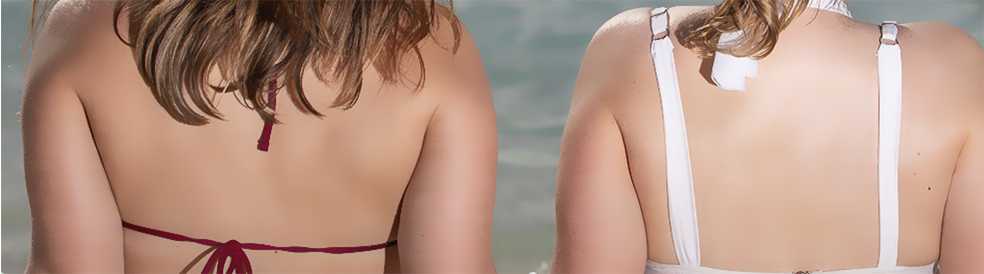
(Click on image to see @ 100%)
Change the mode to Lab Color
Choose the L channel
Filter > Blur >Surface Blur Radius 9. Threshold 15
Return mode to RGB


Explore related tutorials & articles
 35
Replies
35
35
Replies
35


Copy link to clipboard
Copied
Hi Dave,
I've followed your steps, skipping the high pass filter.
From there am I painting directly on the LF layer with white? When I try that, I get really pixeled lightening of that area, but it's not making it go away.
Could it have to do with the px I set on the gausian blur??
Sorry I'm a newb at these frequency seperation things.
Thanks! Your saving my butt for these first dance photos :S

Copy link to clipboard
Copied
Can you post the image?
Dave
Copy link to clipboard
Copied
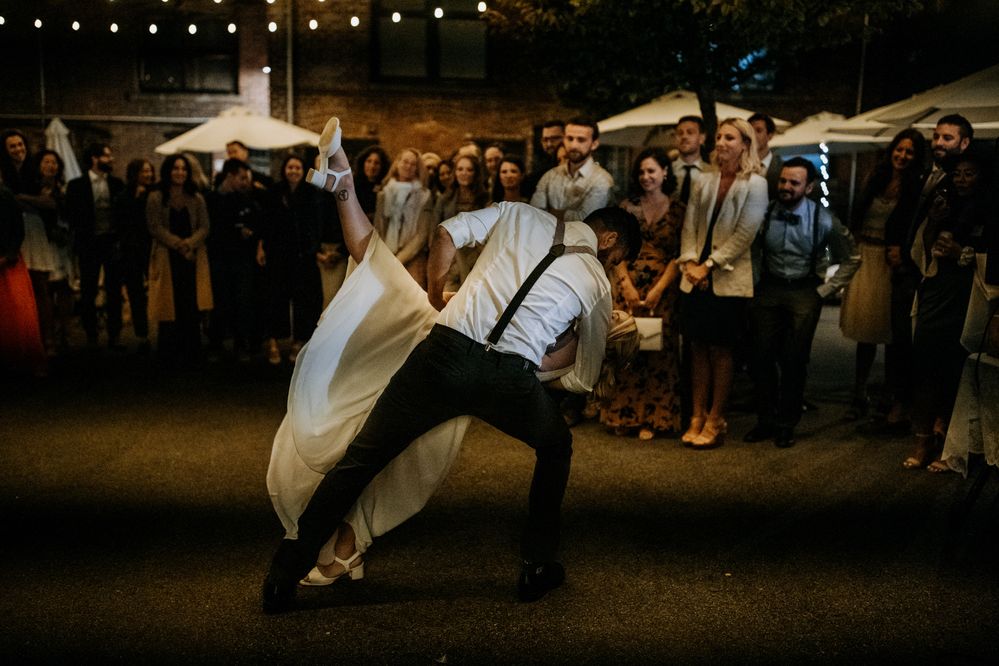
Here's a jpeg. I have 10 images I need to fix, so once I have a system I'll dive in. This is the most important one.
Copy link to clipboard
Copied
Hi
I don't think frequency separation is going to do it on that image. It works on the dress but in the dark areas of the ground for example there is no detail to separate. It helps with the dress but for the ground you will need to use some traditional cloning/ content aware fill
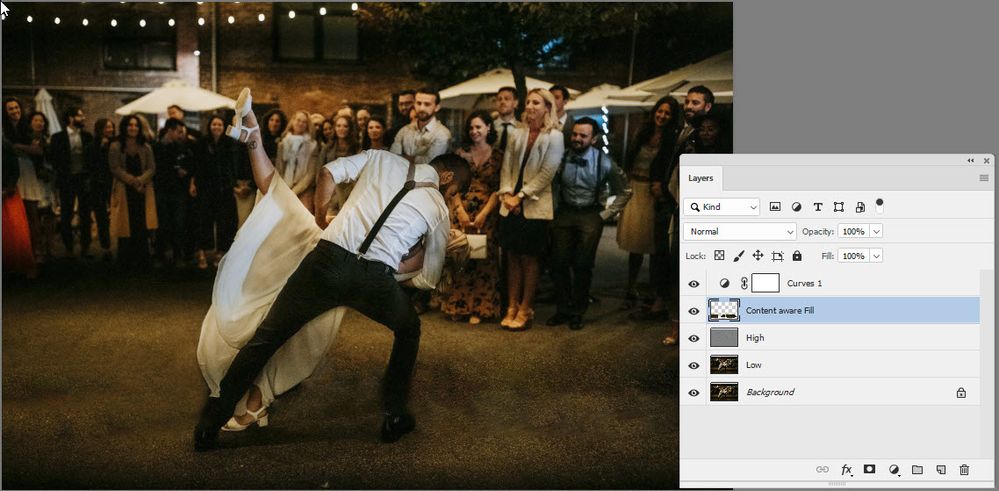
Dave
Copy link to clipboard
Copied
Thank you for taking the time! I really appreciate it.

Copy link to clipboard
Copied
Dear Dave, I am not sure whether I have followed your instructions correctly cos I did not generate the result as expected.
Where you wrote "Put the high frequency layer in a smart object" Did you mean "making HFL active, click "Layer > Smart Objects > Convert to Smart Object" ?
Is it correct that "use High pass" refers to "Filter > Other > High Pass..."
I am not sure how to do "adjusting the radius to keep the contrast detail but remove the banding" ?
I can do "Invert the Smart filter mask so all is black" by pointing the Mask in Layers then press Contol + I.
"Use a soft brush to paint on the mask until the banding goes" Do I paint on the mask layer of the photo or the small rectangle on the layer > smart object ?
Thank you!
Copy link to clipboard
Copied


(Click on image to see @ 100%)
Change the mode to Lab Color
Choose the L channel
Filter > Blur >Surface Blur Radius 9. Threshold 15
Return mode to RGB

Copy link to clipboard
Copied
( Filter > Surface Blur ) Nice! Worked great on the white hat, too.

Copy link to clipboard
Copied
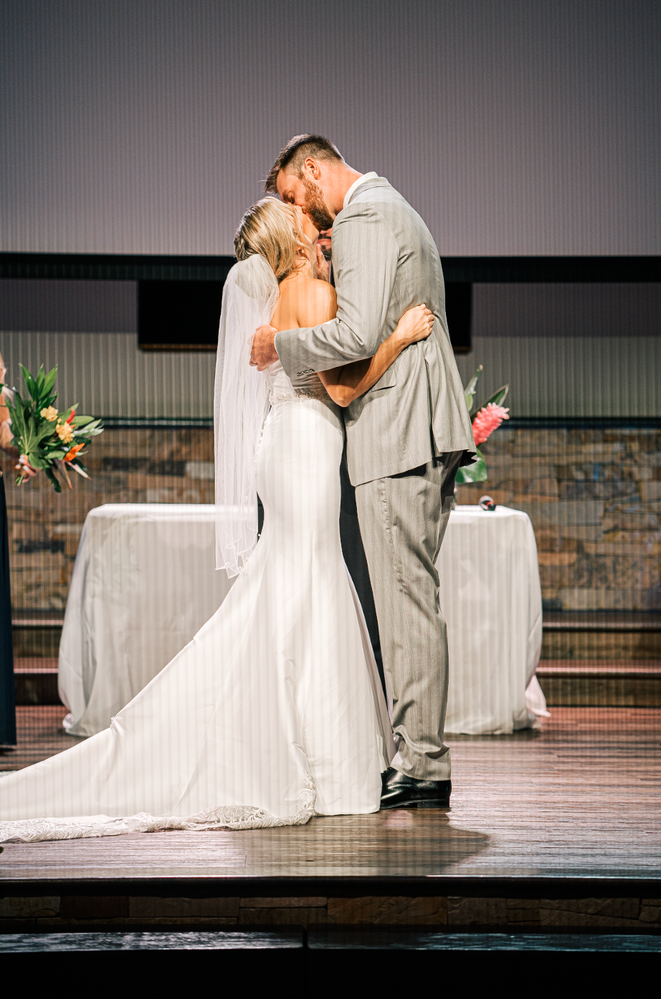
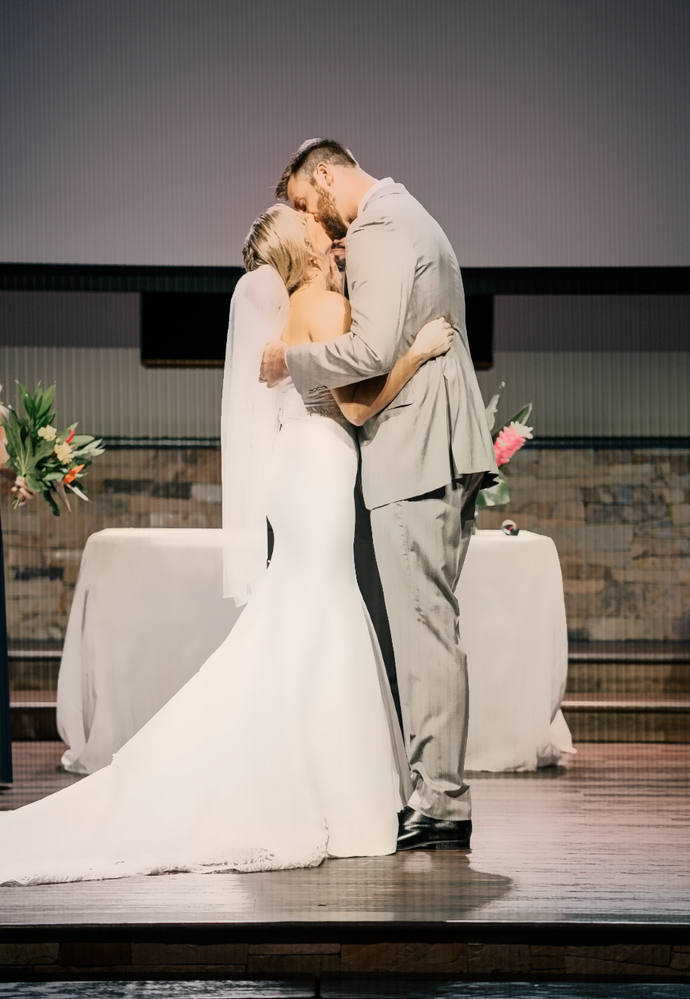
This is what happened when I tried this method - didn't work for these shots :((
Copy link to clipboard
Copied
Which method, there are two described in this thread?
Dave

Copy link to clipboard
Copied

-
- 1
- 2

Find more inspiration, events, and resources on the new Adobe Community
Explore Now
 AdChoices