
Known Participant
May 12, 2022
Question

How to rescale and print photograph in actual size

  • May 12, 2022
  • 2 replies
  • 3955 views

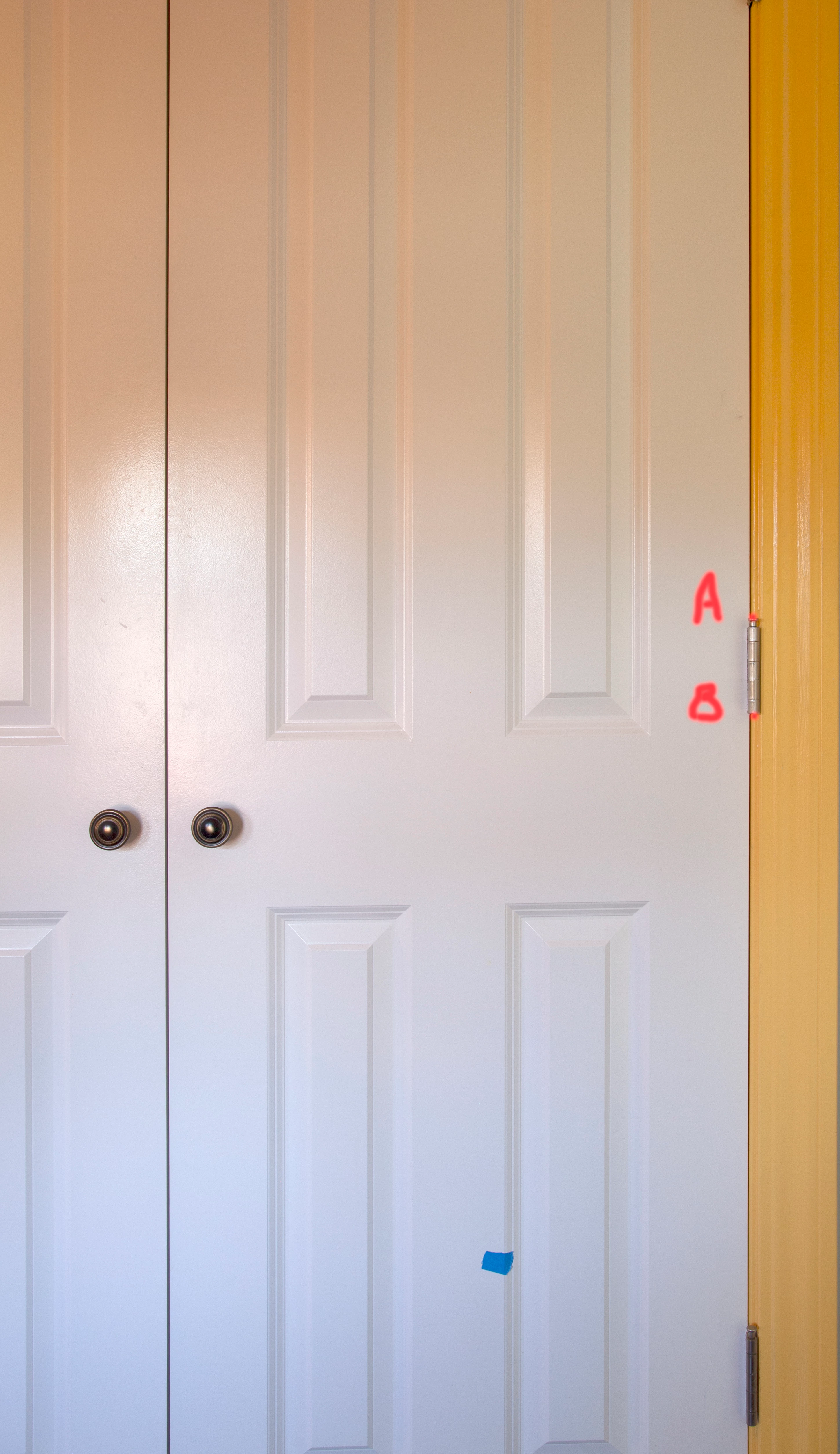
I have a photograph of a door which I want to print in its actual size.  Here's what I have done but it failed to achieve what I wanted.


I used the Ruler Tool to rescale the photograph according to an actual measurement of the distance between A and B.  I was hoping that this corrects the distortion by the camera and sets the correct size.  But when I checked the "Image Size", it shows the overall dimensions of the image based on the current resolution (in my case it was defaulted to 300 when I imported it from my camera.). 


So my question is, how do I know the actual sizes of the photograph (assuming I'm not able to measure it in real life), based on the measurement of one line in the photograph?


Any help is appreciated!

michae
This topic has been closed for replies.

2 replies

Semaphoric
Community Expert
Community Expert
May 13, 2022

Do you know the actual physical dimensions of any part of the door? If so, you can measure that with the Ruler tool, and then go to Image > Analysis > Set Measurement Scale > Custom. You put in the physical dimensions and assign a unit, and you can then measure any part of your image, and see the physical dimensions of that.

Known Participant
May 13, 2022
Thanks so much for the idea!  I did that and now I can measure the total length of the photograph and get the number.  So that takes care of my problem.
 
I want to piggy-back a related question: after I do the steps you suggested that set the measurement scale, is there a way to 'fix' the unit setting so that the rulers on the horizontal and vertical Rulers around the image shows the actual units?  This would be helpful for what I want to do with the rescaled photograph: I want to divide it up to sizes of 8.5"x11" so that I can print the divided parts on letter-sized papers.  I understand that, I can use the Ruler Tool to measure 8.5" and mark it etc.  But if the Rulers show the actual units in Inches, then I don't have to do the measurement.  Any ideas?
 
Thanks again!
michael
 
Conrad_C
Community Expert
Community Expert
May 13, 2022

@michaeljz24430063 wrote:
…I want to divide it up to sizes of 8.5"x11" so that I can print the divided parts on letter-sized papers.


Some other Adobe applications have a printing feature called “tiling” that does that automatically. (Photoshop unfortunately doesn’t have this feature.) If you open the image in InDesign, Illustrator, or Acrobat, you can use their automatic tiling feature in the Print dialog box. They compare the total dimensions to the selected paper size to calculate how many sheets to use. Of course, before you begin make sure the image size has been set to the large total print dimensions you want.


If you have to use Photoshop, there is a semi-automatic way to do this. Set the Rectangular Marquee tool to Fixed Size and enter the size* of the paper sheet. Position the marquee at top left, choose File > Print, and make sure Print Selected Area is enabled so that Photoshop prints only the area within the selection rectangle. Shift the selection rectangle over by one sheet (using Select > Transform Selection, you can enter an offset value such as “+8.5 in” into the X position field), and repeat. Keep doing it until tiles for all rows and columns are printed.


*Realistically you want to specify a selection rectangle (tile size) slightly smaller than the sheet size, to help hide page seams by ensuring overlap.  Depending on your printer, you may also have to reduce the tile size if your printer can’t print all the way to the edge. The automatic tiling features let you enter how much overlap you want, and they account for that when they calculate the size and number of tiles.

Conrad_C
Community Expert
Community Expert
May 12, 2022

Edit: I now see you already mentioned the Ruler tool, sorry. Let me think about it a little more...