October 1, 2020
Answered

How to run several Batches sequentially ?

  • October 1, 2020
  • 1 reply
  • 395 views

How can you run several BATCHES sequentially,  each for separate group of images with different Actions?

example:

BATCH1 (with ACTION1) for images in FOLDER1

BATCH2 (with ACTION2) for images in FOLDER2

etc.


This topic has been closed for replies.
Correct answer JJMack

Use menu File>Scripts>Image Processor...  twice, once for Folder1 Action1,  once for Folder2 Action2.   If folder1 and folder2 and action1 and action2 are always the same folders and same actions.  You could download and install the Plug-in Script Image Processor Pro.  Then you could record an action where you record using menu File>Automate>Image Processor Pro...  twice,  once for Folder1 Action1,  once for Folder2 Action2.  If Adobe fixes the Action recorder.  That Action would always run Image  Processor Pro twice and the steps would pass Folder1 Action1,  and Folder2 Action2 to the script in messages. The Script would not open  its UI dialog  both batches would be processed.


If you have an older version of Photoshop like I do. You can record the Action in CS6, CS6 will record and action step the will run the Image Processor Pro script and pass the parameters. However if you look at the action steps  in the Action you will not see anything. The two steps will look empty.  However the Action will work and you can use the action in Photoshop 2020 21.2.4.


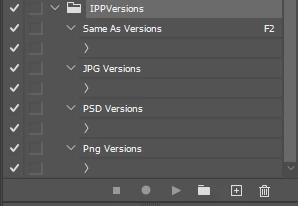
Here I recorded Image Processor in four actions to save version of the document you are currently working on.  Each action has only a single Image Processor Pro step.  Here is what the Actions look like in the Action Palette where the Image Processor Pro action set IPPVersions is fully expanded so you can see all that was recorder for the four actions.
 

1 reply

JJMack
Community Expert
JJMackCommunity ExpertCorrect answer
Community Expert
October 1, 2020

Use menu File>Scripts>Image Processor...  twice, once for Folder1 Action1,  once for Folder2 Action2.   If folder1 and folder2 and action1 and action2 are always the same folders and same actions.  You could download and install the Plug-in Script Image Processor Pro.  Then you could record an action where you record using menu File>Automate>Image Processor Pro...  twice,  once for Folder1 Action1,  once for Folder2 Action2.  If Adobe fixes the Action recorder.  That Action would always run Image  Processor Pro twice and the steps would pass Folder1 Action1,  and Folder2 Action2 to the script in messages. The Script would not open  its UI dialog  both batches would be processed.


If you have an older version of Photoshop like I do. You can record the Action in CS6, CS6 will record and action step the will run the Image Processor Pro script and pass the parameters. However if you look at the action steps  in the Action you will not see anything. The two steps will look empty.  However the Action will work and you can use the action in Photoshop 2020 21.2.4.


Here I recorded Image Processor in four actions to save version of the document you are currently working on.  Each action has only a single Image Processor Pro step.  Here is what the Actions look like in the Action Palette where the Image Processor Pro action set IPPVersions is fully expanded so you can see all that was recorder for the four actions.

 

JJMack
October 1, 2020

Great thanks!