
Participant
May 29, 2023
Question

How to set a standard distance between text?
  • May 29, 2023
  • 5 replies
  • 1930 views


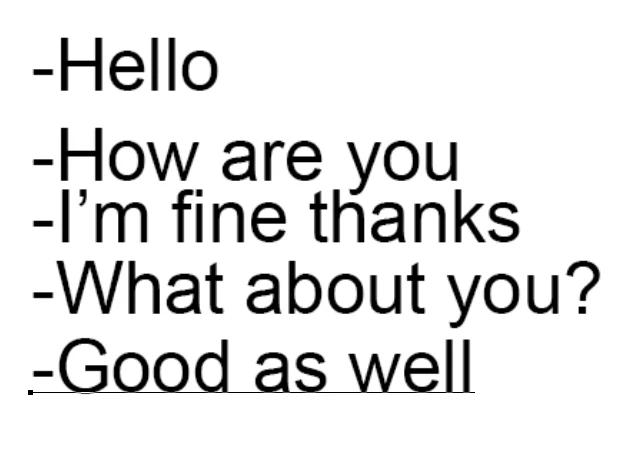
How can I set a standard distance between the text here? I know Photoshop offers some guidance how to do that, but it's not automatic. I'm wondering if I could just say, I want the distance between each row of text to be of 0.1 inch or 0.2 inch and so on.

This topic has been closed for replies.

5 replies

Zesty_wanderlust15A7
Known Participant
May 29, 2023

AFAIK, PS does understand these things (pt, px, mm, inch, ...), so try to type it out.

Stephen Marsh
Community Expert
Community Expert
May 29, 2023

If a single text layer, look into the paragraph style options for space before and space after. Also consider how soft and hard returns will be affected by these space settings.

jane-e
Community Expert
Community Expert
May 29, 2023


Typesize and Leading are by default measured in points, as designed by Gutenberg. We can't see your Layers panel — are the lines on separate layers or all on one layer?


Best practice when using multiple lines:

  • Create paragraph text, not point text: Drag out a text frame with the Type tool, then start typing. Resize the frame with the Type tool
  • Press Enter on the alphabetic keypad to start a new line
  • Leading (line spacing) is character level and in the Character panel (Window menu). Select all of the characters first. Typical leading is typesize plus two, but that's just a starting place. It might be 12/14 or 20/22, etc. Do not use auto leading as it is problematic. 


If your text is currently on four layers, they need to be on one layer in one frame before you can fix this. We can't see your Layers panel and you didn't say.


EDIT: Dave's answer didn't appear until after I posted. Distribution will work, but you may have to repeat it down the line if you have edits, possibly more than once. I would still take a few minutes to put in all in one frame...


Jane

davescm
Community Expert
Community Expert
May 29, 2023

The character panel will work if the text is in one text layer. However if all the text lines are on on separate layers:


Position the first line and last line with the move tool, then select them all and in the options bar for the move tool click on the three dots and choose distribute vertical centers (or another distribution method if preferred)


Dave


Participant
May 30, 2023


I'm afraid I don't always see the settings you are trying to show me. Here's how my photoshop pannel looks like.


Thanks and I appreciate your help.

davescm
Community Expert
Community Expert
May 30, 2023

You have to select the move tool to see those options in the options bar

Dave

Nancy OShea
Community Expert
Community Expert
May 29, 2023

Set Character line space to AUTO.

See screenshot.


Nancy O'Shea— Product User & Community Expert