
Known Participant
June 25, 2021
Question

How to stop "additive" brushing

  • June 25, 2021
  • 2 replies
  • 5269 views

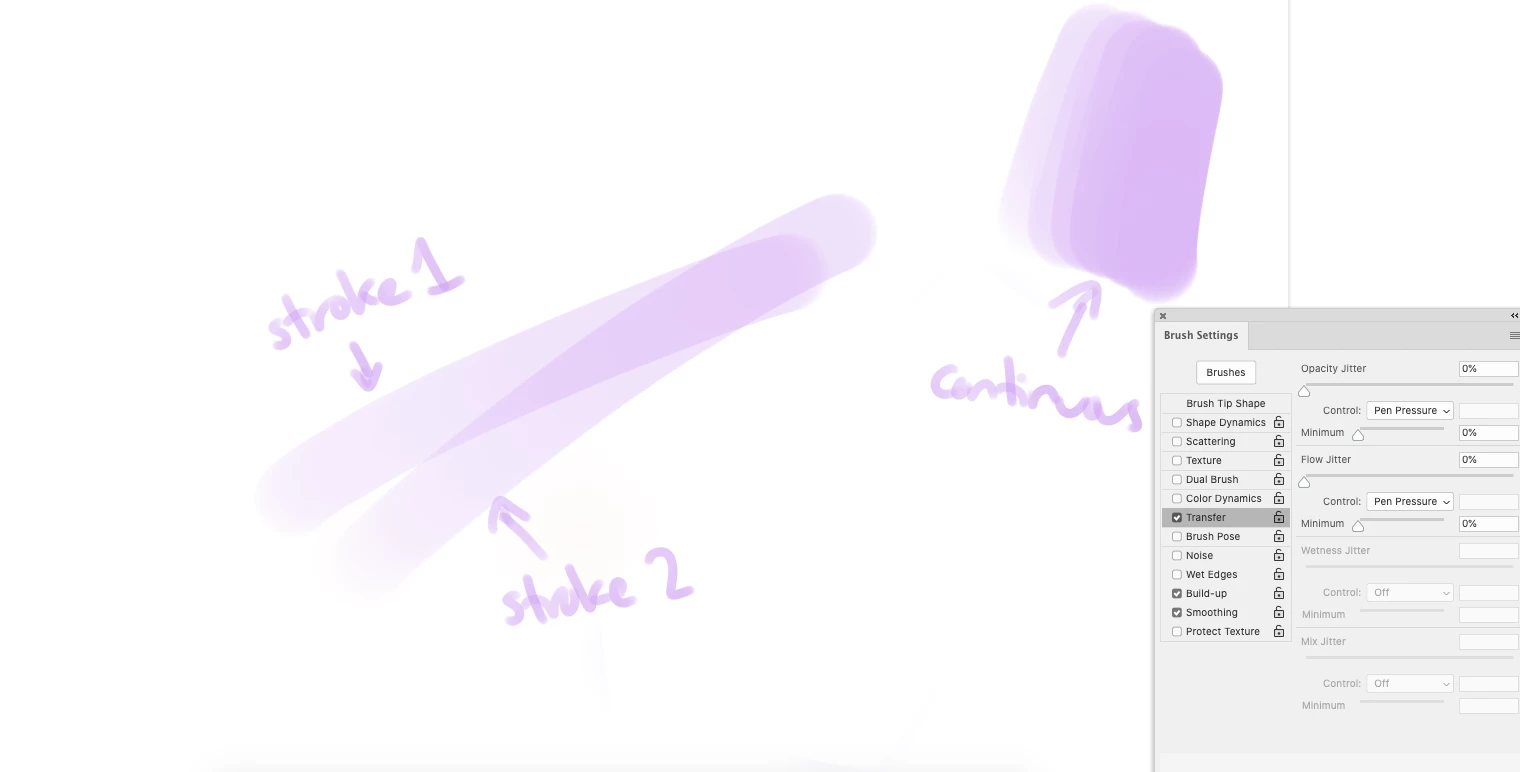
I have been so confused about this. When I use a hard brush, I keep getting an "additive" effect similar to a watercolor when I go over a previous brush stroke. I don't want this to happen - if I have the brush opacity set at 100% and to change according to pen pressure, I would like each stroke to remain distinctive, not have the previous stroke affect it. (See example that says "stroke 1" and "stroke 2").


Also, even if I hold down the brush the whole time, I feel like I'm also getting an effect I shouldn't beg etting. (See example that says "Continuous")


I don't think this used to happen, especially as in the first example - this effect makes shading incredibly difficult if not impossible. I feel like when I watch videos of people shading or even just painting they are not getting this build-up effect. What gives? 


Thank you! Austin 🙂
2 replies

Trevor.Dennis
Community Expert
Community Expert
June 26, 2021


You have opacity and flow jitter both set to Pen Pressure, which is why you are laying down semi transparent strokes.  So it is working exactly as it should.  The only way to get  strokes like that without subsequent strokes making previous strokes denser is to turn off opacity jitter and lower the layer opacity.


Known Participant
June 28, 2021

Thanks for all your help. So Trevor, (and others), you're telling me that you get exactly the same result as me? How weird! I never recalled this happening before! Maybe I am just getting more attuned to Photoshop? 🙂


So, I guess if you could

a:) just confirm for me the same thing happens for you (for a little reassurance 🙂 — after that I just have one more question?


b) What does "Build-Up" do in the Brush Settings menu? For the life of me I can't figure it out.


Thank you! 🙂

Trevor.Dennis
Community Expert
Community Expert
June 28, 2021

How well do you understand the Brush Engine and how the various controls work?  I'm going to assume that you are not 100%, so I apologise in advance if I am telling you things you already know.  Let's start by accepting that yoou had opacity and flow jitter set to zero, but the control is set to pen pressure.  I've always thought those settings could be confusing.


Jitter adds a random element to the brush stroke.  I've set brush spacing to a very loose 40% to better illustrate what is happening, so with opacity jitter set to 100%, you can see from the brush preview that each touch down of the brush has a random density — in this case ranging from 1% to 100% opacity)

Control has a loose association with jitter because it removes the random element, and gives us choices on how to control the setting.  You had it set to Pen Pressure, so the harder you pressed with the stylus the more opaque the stroke


You can see I started with a very light touch, and varied the pressure finishing on a lighter touch again.


I've never thought to combine pen pressure with random jitter, but it just means that when you apply a firm pen pressure the random element comes back into play.


The only other control I find useful is Fade.  The value controls each stamp of the brush, so the stroke goes from 100% to fully transparent in 1000 stamps of the brush.  Note I bought brush spacing down to 10% for this example.


For Build up, select a fully soft 100% opacity brush preset and using the mouse left click and hold down the button for a few seconds.  Now turn on Build Up and try that again.  With Build Up checked the stroke will continue to be applied becoming more dense until you release the mouse button.  It's the same with a tablet and pen.  Just touch down with the pen and hold it on the tablet.


Build up off (left) ............................Build Up on (right)


Now let's have a little bit of fun.


Lay down some random strokes on a new layer and go Edit > Define Brush Preset

Give about 50% size jitter and 100% angle jitter

Now give it 100% Foreground/Background jitter and 100% Hue Jitter

maybe add some scatter, but not much (I used 40%)

Make the foreground and background colours nice bright fully saturated colours

I decided to set size jitter to Pen Pressure

The best way to learn the brush engine is to play with it. It's a lot of fun and you'll discover all sorts of cool effects.


Kevin Stohlmeyer
Community Expert
Community Expert
June 25, 2021

Turn off the "Build Up" option. Also what is your transparency setting?

Known Participant
June 25, 2021

I have tried turning off build-up and the same thing happens. Layer opacity is 100%. Brush opacity is 100% and flow opacity 50%. Normal blending modes.

Known Participant
June 25, 2021

change everything to 100%.


Same thing happens, see new screenshot: