Participant
November 29, 2024
Question

HOW TO UNLOCK UI SCALE IN MACBOOK PHOTOSHOP 2025

  • November 29, 2024
  • 1 reply
  • 1378 views
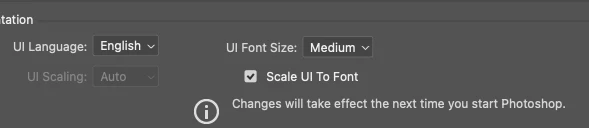
I have installed Adobe Photoshop on my MacBook m2, All the tool icons and interfaces show up too small, creating trouble for me. and the UI scaling is locked. How do I fix it?
1 reply

Sameer K
Community Manager
Community Manager
November 29, 2024

Hey, @akash_7107. Welcome to the Photoshop Community. I've moved your post to discussions for now. I'll clarify this for you. 


This feature is grayed out in Preferences because UI scaling is not supported on Mac OS.The display scaling option is locked to System Settings > Display. The font size in Preferences > Interface is functional, but adjustments are slight.


If the interface is hard to see, consider altering your Mac's display resolution. Additionally, 3rd party menu bar extensions can help you easily switch display settings and save preferences. 


Thanks!
Sameer K

(Type '@' and type my name to mention me when you reply)

Participant
February 18, 2025

HI, i have same problem Here.
Photoshop misrepresents the size of the object on the screen. I don't know what resolution to set to get it right. It's even worse with InDesign. Photoshop shows the size of the images half the size, while InDesign shows 4 times the actual size, of course at 100% scale

Conrad_C
Community Expert
Community Expert
February 18, 2025

Photoshop always shows ACTUAL pixels at 100%. Mac Retina screens are scaled (four real pixels = one screen pixel at the system default) so you may need to view at 200% to get correct size on screen. This is also true with 4k displays which are scaled the same way.


InDesign uses inches/mm or points/picas which are mapped to the screen based on document resolution. make sure you have document settings that work for your needs.


https://community.adobe.com/t5/indesign-discussions/indesign-sizing-resolution-question/m-p/13935858

https://helpx.adobe.com/indesign/kb/fix-image-display-performance.html


Also…you should know that if your goal is to represent real world object sizes, 100% is usually the least useful command. Because of that, Photoshop has multiple commands for representing object size:


The command View > 100% usually does not represent any real world object size (except on-screen viewing on old 1x displays). Because 100% means one image pixel to one display pixel, the real world size depends on the ppi resolution of the display, and those vary widely, anywhere from 90 ppi to over 500 ppi on some phones.


The command View > Actual Size can represent the real world object size in print, by getting the ppi resolution value of your display and correcting the rulers for that. By the way, this is the method InDesign uses, because InDesign is very print-oriented so it adjust 100% based on the display ppi vs the output ppi. So if you want Photoshop and InDesign to match, use View > Actual Size in both applications. And if you want an image to place at the expected size in inches on a page in InDesign, its native resolution should be 300 ppi, or you can scale it in InDesign until its effective resolution is 300 ppi.


The command View > Print Size can represent the real world object size if you entered a correct Print Resolution and Screen Resolution in Photoshop Preferences / Units and Rulers. You can even simulate the real world object size for any display by entering that into the Print Resolution field, because Print Resolution really means output resolution.