
gleng89199390
Participant
March 11, 2017
Answered

HOW TO USE LINE TOOL TO CREATE HACHURE LINES?

  • March 11, 2017
  • 2 replies
  • 3213 views

I am a mapmaker, and I need PhotoShop to make hachure lines for me automatically. Hachures are the old-fashioned representation of ridges, by means of short, parallel lines, packed close together, which go down each side of a topographic ridge. I have many features which I need to label this way over the top of an airphoto. I would like to use the Line Tool to draw the ridge lengthwise, then have PS create the small, parallel lines across the line I draw. These are sometimes referred to as "caterpillars" because they look like that. Thank you!
    This topic has been closed for replies.
    Correct answer c.pfaffenbichler

    Do you mean something like this?

    2 replies

    c.pfaffenbichler
    Community Expert
    Community Expert
    March 11, 2017

    Illustrator’s Scatter Brush would be another option.

    c.pfaffenbichler
    Community Expert
    c.pfaffenbichlerCommunity ExpertCorrect answer
    Community Expert
    March 11, 2017

    Do you mean something like this?

    gleng89199390
    Participant
    March 11, 2017

    YES! How do I do that? Glen

    Trevor.Dennis
    Community Expert
    Community Expert
    March 11, 2017

    I tried to carry out what you suggested, but did not succeed, and solved the problem in another way. I think the issue is that I’m not yet an Illustrator user at all, and in fact, have only used the Adobe PS drawing capabilities for very simple annotations over airphotos. If you felt like putting together the whole sequence (with more guidance), I could certainly use it next time, but you’ve already done more than your share! Thank you!

    From your name, I’m guessing that you may be in Germany. I lived there almost eight years, and loved it!

    Glen


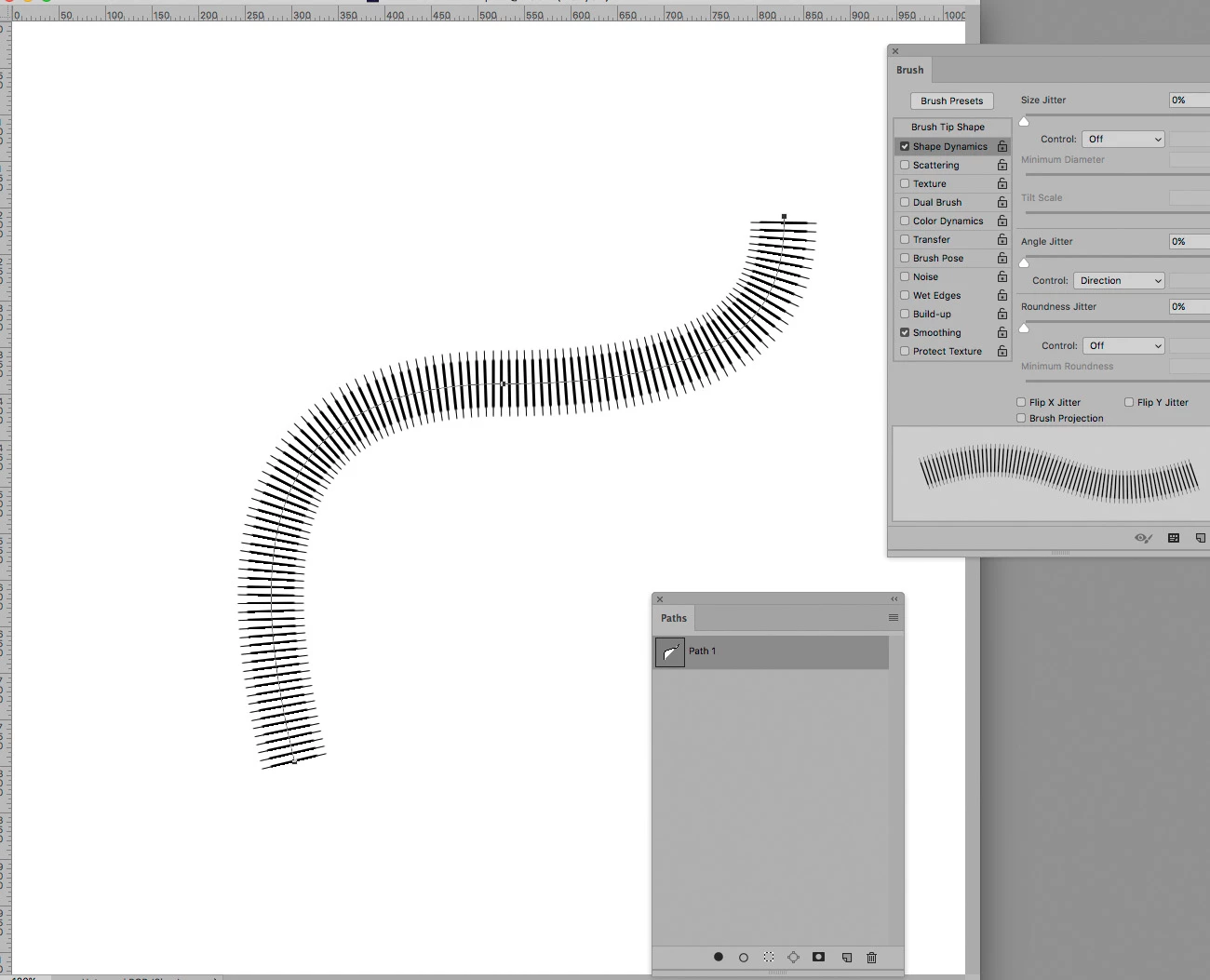
    Christophe used one of the Calligraphy brushes which you can 'Append' by clicking on the little cog icon after right clicking to show the brush preset panel.  Note the brush outlined is vertical.

    Two settings need to be changed.

    1) Angle jitter needs to be set to Direction in Shape Dynamics

    2) Spacing needs to set to give the required line density.

    It is then a simple matter of drawing the work path with the Pen tool, and Stroking that path.

    Right click the work path and make sure Brush is selected, and that the brush size is about right, and click OK.  Note Simulate Pressure should be turned off.

    Having done it once, you can repeat this process by clicking on this icon at the bottom of the paths panel

    '