Known Participant
January 20, 2018
Answered

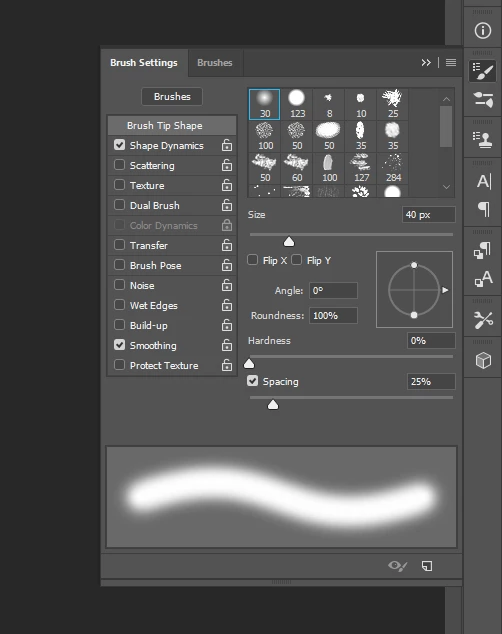
I am following a tutorial and I need to change jitter options for my wacom intuos pro. There is no option in the brushes section. All I get is this.

  • January 20, 2018
  • 4 replies
  • 1120 views

    This topic has been closed for replies.
    Correct answer teachbit

    Hello,

    that is the same screenshot, you send before. The Option Brush Tip Shape on the left hand side is active and so you see all the different possibilities available for the tip shape of the brush on the right hand side. If you want to activate the option Scattering or Texture, where the possibilities of jitter is available, you have to click on the word Scattering on the left, to open it’s Options.

    4 replies

    Participating Frequently
    January 21, 2018

    It’s Madam, Birgit is a female name. But I appreciate being a legend. Happy, I could help!

    Have a nice day.

    Known Participant
    January 21, 2018

    Apologies, Madam.  A Legend no less. 

    teachbitCorrect answer
    Participating Frequently
    January 21, 2018

    Hello,

    that is the same screenshot, you send before. The Option Brush Tip Shape on the left hand side is active and so you see all the different possibilities available for the tip shape of the brush on the right hand side. If you want to activate the option Scattering or Texture, where the possibilities of jitter is available, you have to click on the word Scattering on the left, to open it’s Options.

    Known Participant
    January 21, 2018

    You Sir, are a legend.  That is exactly all I needed.  It was as simple as that - just 'where to click'!

    Much appreciated.

    Participating Frequently
    January 20, 2018

    what happens, if you click on Shape dynamics or texture? On the left hand side you see the different labels (Shape dynamics, Texture...) you have to click on to activate that label and the the option for this label will oben in the right hand side.

    Known Participant
    January 20, 2018

    I’ve tried that. In fact there simply anything else left to click. Once I get to this screen, the right hand side alters very little. I certainly don’t get what everyone I’ve seen on video gets.

    Sent from my iPhone

    Silkrooster
    Legend
    January 20, 2018

    Show us what you see when you click on scatter

    Participating Frequently
    January 20, 2018

    here is a link with a good video explaining brush options in Photoshop:

    http://community.wacom.com/inspiration/blog/2014/may/guide-to-working-with-brushes-in-photoshop

    Participating Frequently
    January 20, 2018

    Hello again,

    as the video is rather small, I did some screenshots. So you have Angle Jitter in Shape dynamics, Count Jitter in the Scattering and Depth Jitter in the Texture options:

    Known Participant
    January 20, 2018

    Thanks guys, that’s great. But I don’t have the screen or drop down to adjust the jitter. I know about brushes etc, I’ve used PS for years. Why don’t I get the sliders to adjust anything. The screen shot I posted is the only option / end if the line. I’ve followed everything click by click but mine stops at this screen yet all the tutorials or posts show another box with ‘control’ and sliders.

    Sent from my iPhone