

morphinapg
Inspiring
May 26, 2022
Answered

I can't read measurements because the toolbar is pointlessly small.

  • May 26, 2022
  • 4 replies
  • 971 views

I have a 4K monitor, and I'm not using any DPI scaling. There's SO much more room for this toolbar to expand, but it's not expanding. I have no idea why photoshop is only using less than a quarter of my screen width to draw this toolbar. I see no way to resize it manually, either. I can detatch the toolbar, but it stays just as small as it is here


Windows 11, Photoshop Version: 23.3.2 20220503.r.458 d8a9c44 x64


I'm fairly sure I wasn't having this issue a couple months ago.
This topic has been closed for replies.
Correct answer Jeff Arola

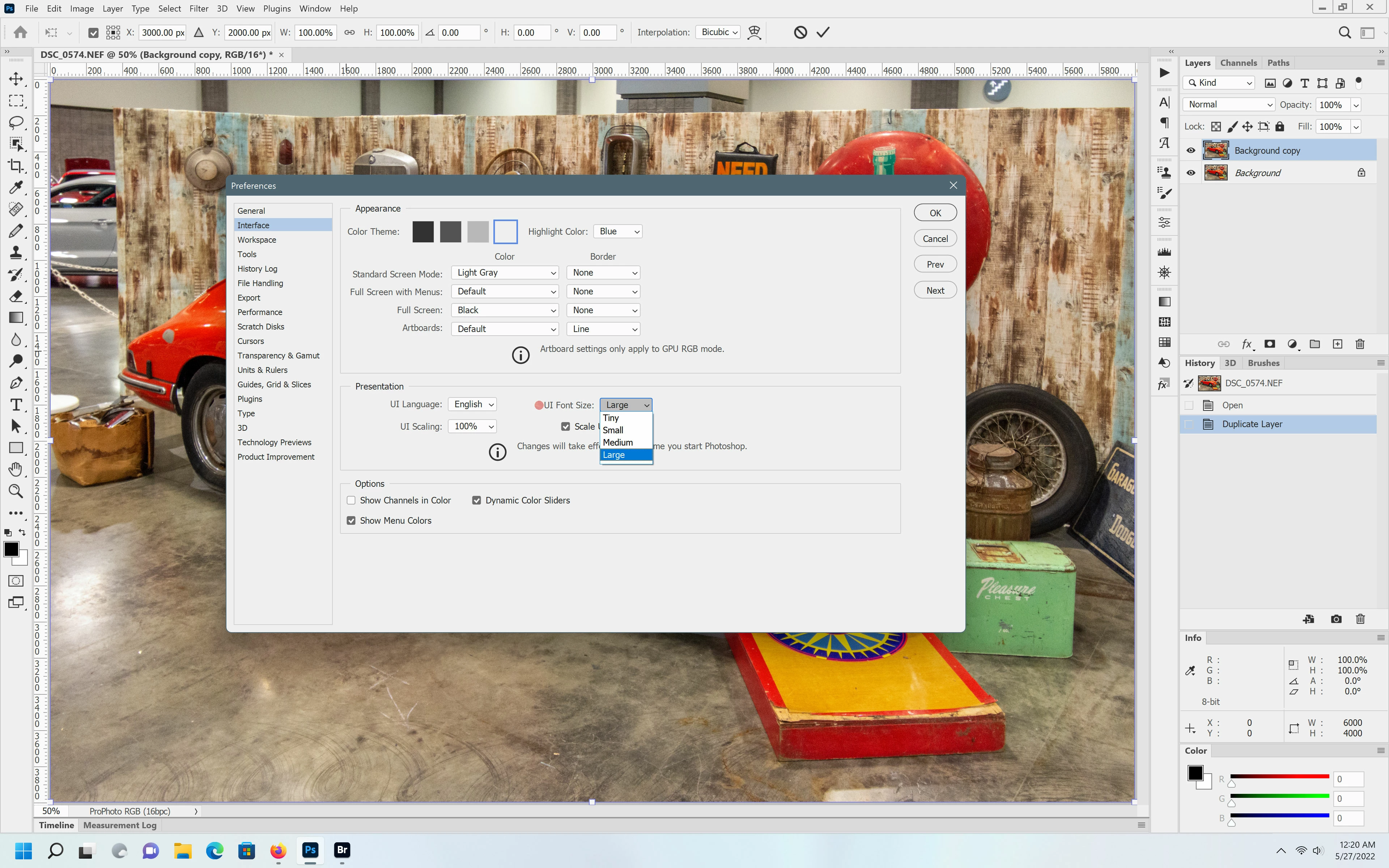
In photoshop you can go to Edit>Preferences>Interface and adjust the UI Font Size.

(photoshop needs to be restarted after each change)


4 replies

Trevor.Dennis
Community Expert
Community Expert
May 27, 2022

You do realise that setting the UI to 200% only affects the UI and your images will still display the same?  There's not really any down side that I can think of.  If you have a reason for not using the 200% scaling, could you explain, and we can maybe help work around it.


[EDIT] Incidentally, you need to show us a full size screen shot of your entire workspace for it to be in any way meaningful, and helpful.

morphinapg
Inspiring
May 27, 2022

I had tried using UI scaling options in Photoshop when I got my 4K monitor, but they did nothing. I don't want to scale the entire UI of Windows itself, as most apps don't need bigger scaling on the 42" screen I'm using. I didn't really need UI scaling in photoshop either, I just thought it would make it so I could sit back a little further while using it. So I reset those options to their defaults. Which again, didn't change anything in the UI itself because those options appear to be nonfunctional, since Photoshop appears to only follow Windows built in UI scaling now.


It turns out I must have increased the font size option from small to medium, which caused this text clipping issue apparently. Setting it to small fixed it. But it makes no sense why the options bar wouldn't expand to make use of the extra screen space. Photoshop must be making use of some extremely old code if it can't adapt well to wider resolution screens.

Jeff Arola
Community Expert
Jeff ArolaCommunity ExpertCorrect answer
Community Expert
May 27, 2022

In photoshop you can go to Edit>Preferences>Interface and adjust the UI Font Size.

(photoshop needs to be restarted after each change)


morphinapg
Inspiring
May 27, 2022

It turns out setting font size to small fixed it. It was on Medium. 


Adobe, please allow the options bar to expand if the text is larger and there's plenty of screen space. 

Jeff Arola
Community Expert
Community Expert
May 27, 2022

What is your screen resolution?


If you right click on your desktop, click Display Settings and under Scale & Layout the Scale is set to 100%?

morphinapg
Inspiring
May 27, 2022

Like I said in my post, it's 4K (3840x2160) and yes it's set to 100% scaling

davescm
Community Expert
Community Expert
May 26, 2022

That is the options bar and menus not the toolbar but, regardless of that, the scaling of Photoshop's user interface on Windows 10 and 11 is picked up directly from the scaling value in Windows settings. You might want to check that. If you alter it you will need to close and restart Photoshop.


Dave

morphinapg
Inspiring
May 26, 2022

As I said, I'm not using any DPI scaling. I meant that both in terms of Windows and in terms of the interface settings in Photoshop itself.


I just don't understand why this options bar doesn't automatically expand when I have plenty of screen space for it to do so.

Legend
May 26, 2022

What he is saying is that you may need to use UI scaling.