Known Participant
August 1, 2023
Answered

I cannot get my photoshop for some reason to save as 300 DPI jpegs. It keeps coming out at 72 DPI.

  • August 1, 2023
  • 3 replies
  • 9757 views

I cannot get my photoshop for some reason to save as 300 DPI jpegs. It keeps coming out at 72 DPI.  When I open the raw files, or any file for that matter it always opens in raw file viewer.  Even if it's a JPEG.  When I open these files in the raw file viewer and I check the resolution they always seem to say 300 DPI.  But when I open them on another computer they say 72 DPI.  See attached file. This is how it looks on my computer.  But on another computer it says 72 DPI.  Also can't get photoshop to stop asking if I want to save file even after I've already saved it when I want to close the window.  Please help folks.  Thanks.

Correct answer Conrad_C

Actually think I may have solved it.  Apparently the keyboard shortcut Quick Export as JPG does not save the image full size, but only at 7 instead of 12?


Yes, that is what davescm meant when he asked whether you were saving or exporting.

In Photoshop, “save” refers to Save As or Save a Copy. Those commands always embed the ppi metadata.

“Export” means Quick Export or Export As. Those commands never embed the ppi metadata, because they’re intended for web/screen delivery where ppi has no meaning. So that is why the ppi metadata wasn’t coming through.


(Save for Web (Legacy) is sort of an odd one. It doesn’t embed ppi metadata unless All is selected in the Metadata menu.)


quote

Apparently the keyboard shortcut Quick Export as JPG does not save the image full size, but only at 7 instead of 12?

By @f5pt6


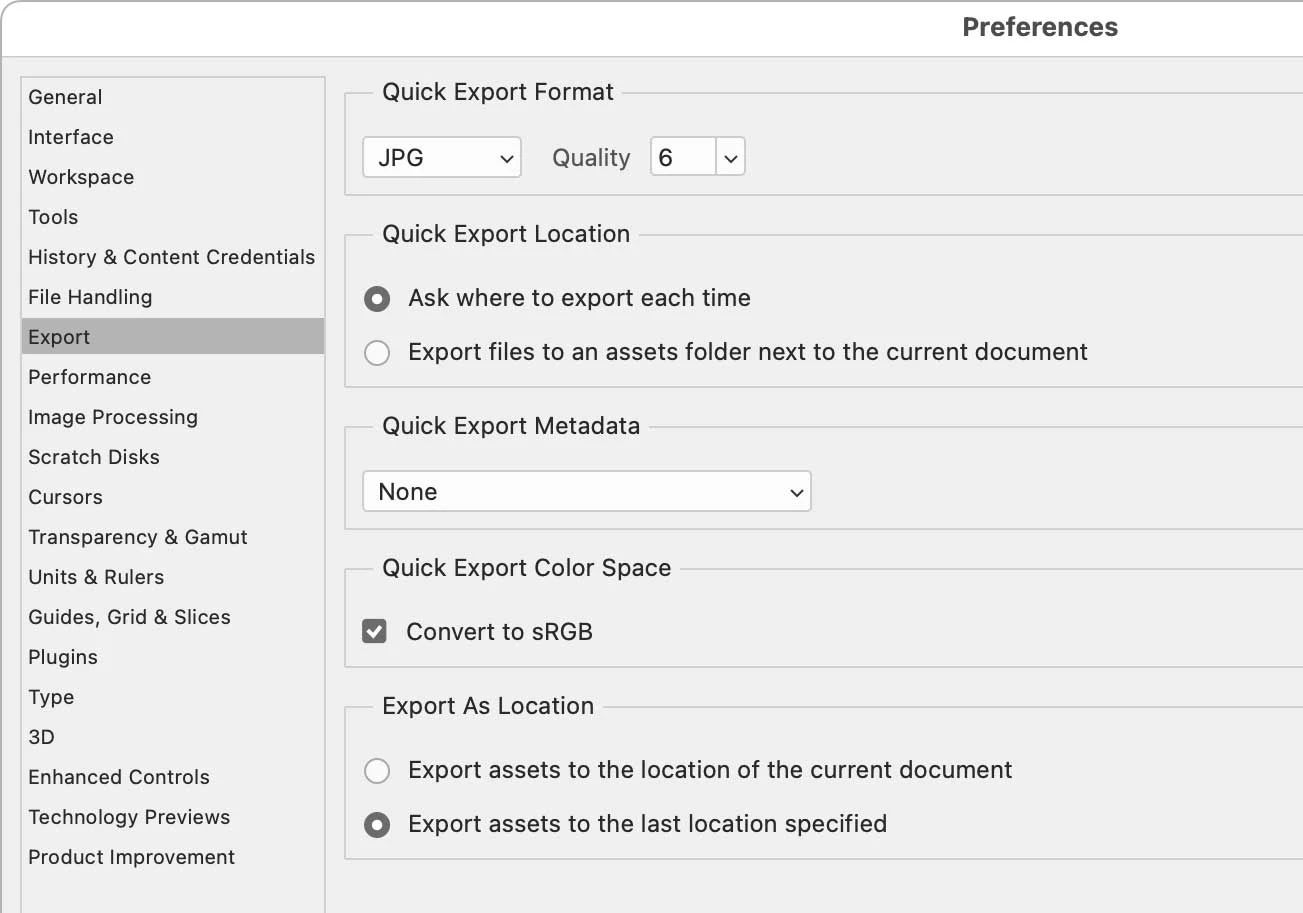
Quick Export is sort of an “express” feature that lets you export in one quick step, and it always does it the same way. Fortunately, you control what it does. If you open Preferences and select the Export panel, the top section is Quick Export Format. Whatever you enter there is what the Quick Export shortcut will do.


One problem here is that you are not going to get a JPEG Quality level of 12, because it maxes out at 7. So if you want to max it out it’s 7. (One of life’s great mysteries is why there are multiple JPEG Quality scales, such as 1–7, 1-12, and 0-100, among different commands just within Photoshop, and also compared to Lightroom and Camera Raw.)


What you probably can’t solve in Quick Export is the ppi. You see a Quick Export Metadata section in those preferences, but including ppi is not an option (such as in the All option in Save for Web). Again, because Photoshop tends to export ppi metadata with the print-oriented Save As and Save a Copy commands, but not for any of the web/display oriented commands that have Export in the name.

 

3 replies

davescm
Community Expert
Community Expert
August 2, 2023

I've just come back to this this morning, I had to get some sleep last night. Thanks to Stephen an Conrad for stepping in and getting to the bottom of the issue which was Exporting rather than Saving.


A couple of bits of info for clarity.


The ppi value does not itself affect the image quality. Whether you make it 1ppi or 1000ppi the pixels in the image do not change at all. All it does is tell the printer how big to print the image using those pixels. Literally how many pixels fit in one inch across the paper. That is why the ppi value is omitted from exporting which was designed to export images for screen use. An onscreen image does not need, or use, the ppi metadata.


Save a Copy, and using jpeg, will save a flattened jpeg and include the current ppi value in the metadata unchanged.


The quality slider in jpeg saving affects the compression level not the ppi metadata. This does change image pixels as jpeg uses lossy compression. The lower the quality value, the higher the compression.  This results in a smaller file on disk but with more image degredation (lossy compression cannot be reversed).


Dave

Participating Frequently
June 21, 2024

Would be very helpful to give 'Export As' the option to include PPI metadata.


It has a better user interface than Save As in many ways, including support for Art Boards, and a checkbox added to include PPI data is strongly suggested.

Stephen Marsh
Community Expert
Community Expert
August 2, 2023

If you like use Export As or Quick Export, there is a way to embed 300ppi into a JPEG (not PNG) after export, which does not affect image quality as it doesn't decompress and recompress the binary image data, it only updates metadata which is fast:


Photoshop Script Version:

f5pt6Author
Known Participant
August 2, 2023

This is awesome but I'm not an expert on this scripting stuff at all, just a lowly technically challenged photog who wants to make a keyboard shortcut to save as a full resolution 300ppi jpeg.  The stuff you're talking about is Greek to me.

Stephen Marsh
Community Expert
Community Expert
August 2, 2023

@f5pt6 wrote:

This is awesome but I'm not an expert on this scripting stuff at all, just a lowly technically challenged photog who wants to make a keyboard shortcut to save as a full resolution 300ppi jpeg.  The stuff you're talking about is Greek to me.


People use scripts all the time in Photoshop without even realising it, the difference is that they are preinstalled.


  1. Copy the code text to the clipboard
  2. Open a new blank file in a plain-text editor (not in a word processor)
  3. Paste the code in
  4. Save as a plain text format file – .txt
  5. Rename the saved file extension from .txt to .jsx
  6. Install or browse to the .jsx file to run (see below)


https://prepression.blogspot.com/2017/11/downloading-and-installing-adobe-scripts.html#Photoshop


This suggestion is a compromise, you don't have to use Export As or Quick Export (which strips PPI metadata) – but if you do and also want PPI metadata, then you now have an option. Otherwise, use Save As/Save As a Copy or Save for Web (Legacy) + All Metadata option – which does include the Resolution/PPI metadata.

davescm
Community Expert
Community Expert
August 1, 2023

Are you saving or exporting?

Save should save the ppi metadata with the image. However Export, which was designed for screen use, strips out that metadata and actually saves with no ppi value at all. On opening an image without a ppi tag value, Photoshop assigns 72ppi just as a working value. Other software does similar but may assign a different default value.


In short - to retain the 300ppi value use Save or Save As.


Note : None of this affects your image pixels, it is just a value held alongside the image and is used by a print driver to calculate a physical size when printed.


Dave

f5pt6Author
Known Participant
August 1, 2023

I am saving as JPEG. Not exporting.

--
Avi Steinhardt
[Personal data removed by moderator]

davescm
Community Expert
Community Expert
August 1, 2023

If you are saving, then the ppi value will be saved in the file. What software are you opening them with that reports 72ppi? How did you transfer the file from your PC to the other?


Dave

