Participant
April 8, 2023
Answered

I'm sure this is a dumb question

  • April 8, 2023
  • 3 replies
  • 708 views

I'm very very new to Photoshop (started using it today). I figured out how use the select tool option and how to create layers, but when I resize or move the object, the checkerboard background keeps the shape of the image, but the image moves within it. This same issue happens when I move the image onto a new background. This must be a very basic mistake, but I cannot even ask the question to google correctly because I don't know the terms to use. Any help is much appreciated!
This topic has been closed for replies.
Correct answer Trevor.Dennis

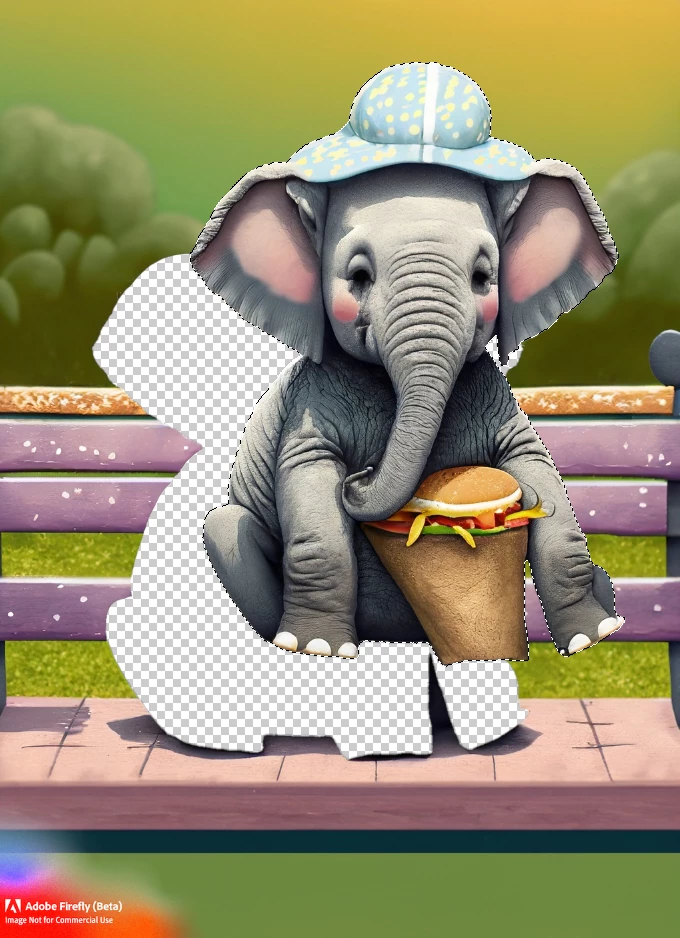
Hi Jennifer, and welcome to the forum.  We are having to guess at what is happening for you, so this might be way off, but taking the wee baby elephant with its Big Mac and Fries Jumbo meal, if I select and move it, we are left with the transparency checkerboard behind it.


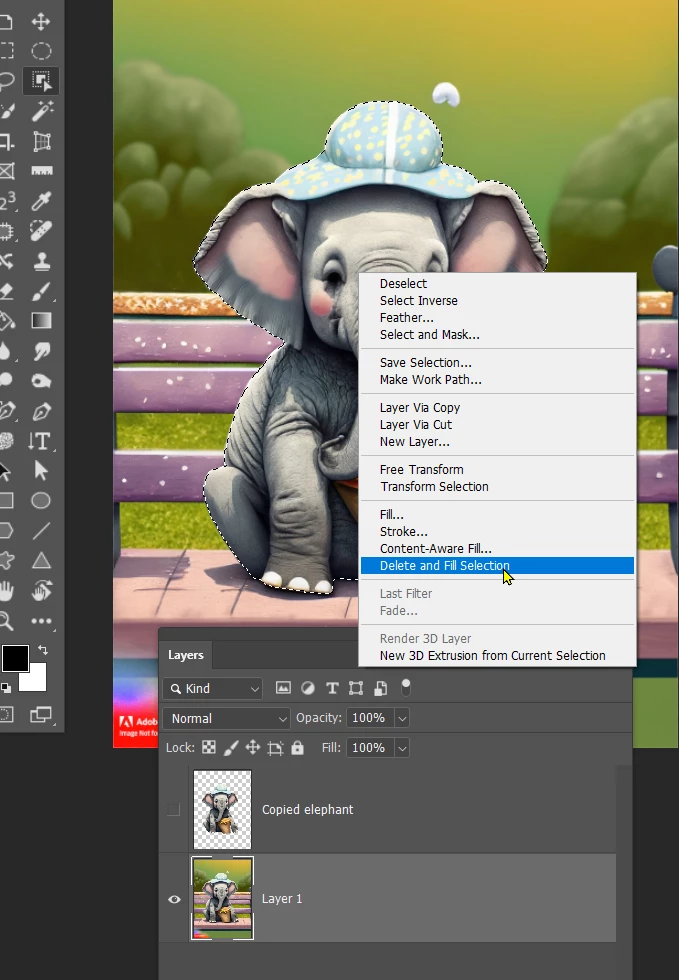
So what I have done here is to select the elphant and use trl J (Cmd J) to copy the selection to a new layer.

With any selection tool selected, you can right click the image window and choose Delete and Fill Sellection


You can see that has made a very reasonable job of removing the elephant from its original layer, so you can now move, resize, etc. without the checkerboard showing behind it.


Is that helpful at all?  If I am miles off, a screen shot might help as Gene suggested.


Note: I suspect we are going to see a lot of Firefly generated images on this forum going forward. 🙂

3 replies

Derek Cross
Community Expert
Community Expert
April 9, 2023

Welcome to this  friendly forum.

In addition the Trevor's excellent reply, consider taking one of the online Photoshop step-by-step video tutorials on Linkedin Learning (you can get 30 days free access). And of course, return to the forum with specific queries.

Participant
April 11, 2023

Thanks Derek, I will definitely check out the how to videos!

Trevor.Dennis
Community Expert
Trevor.DennisCommunity ExpertCorrect answer
Community Expert
April 9, 2023

Hi Jennifer, and welcome to the forum.  We are having to guess at what is happening for you, so this might be way off, but taking the wee baby elephant with its Big Mac and Fries Jumbo meal, if I select and move it, we are left with the transparency checkerboard behind it.


So what I have done here is to select the elphant and use trl J (Cmd J) to copy the selection to a new layer.

With any selection tool selected, you can right click the image window and choose Delete and Fill Sellection


You can see that has made a very reasonable job of removing the elephant from its original layer, so you can now move, resize, etc. without the checkerboard showing behind it.


Is that helpful at all?  If I am miles off, a screen shot might help as Gene suggested.


Note: I suspect we are going to see a lot of Firefly generated images on this forum going forward. 🙂

jane-e
Community Expert
Community Expert
April 10, 2023

Note: I suspect we are going to see a lot of Firefly generated images on this forum going forward. 🙂

By @Trevor.Dennis


That's adorable, Trevor, and a great use of Firefly!


Jane

Trevor.Dennis
Community Expert
Community Expert
April 10, 2023

Thankyou Jane, and they don't have to stop there...

gener7
Community Expert
Community Expert
April 8, 2023

The best thing to do is to provide a screenshot by pressing down and holding Cmd-Shift-3  Before you do that make sure the selected tool with the option bar on top is visible as well as an example of what you are trying to do. Also keep the Layers Panel open.


The screenshot will appear as a .png file on your Mac desktop,   Upload it in your reply.