
Participant
July 4, 2024
Answered

I need to stitch two similar images together to hide a scanning issue

  • July 4, 2024
  • 1 reply
  • 394 views

Hi there,


I scanned an illustration today but found that each scan had these horrible horizontal lines towards the bottom of the image. Since this is a handdrawn art commission, I want to be able to remove them with as little loss to detail as possible. I tried some blemish removal techniques but I didn't like the way they blurred the image. I also tried to use photomerge but it didn't remove the lines, just made them fainter.
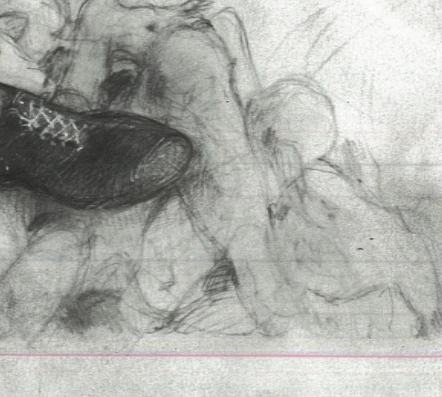
So, I'm trying to doctor this particular affected section with a 'clean' section from a different scan. It's the same area of the image, but the scans came out slightly different sizes for some reason, and I don't know how to get the alignment of this little section to exactly match the image that I'm pasting it onto. Is there any way that I can match my second scan perfectly to my first scan (in terms of size, rotation, etc) so I can get this nice clean section? Otherwise, is there another way I can remove these lines without screwing up my drawing?


Thanks

This topic has been closed for replies.
Correct answer Trevor.Dennis

A couple of options...

Select the images and use Edit > Auto Align Layers.

This should give you a good match if the layers are scans of the same image.


Alternatively, set the blend mode of the upper image to Difference.

Perfect alignment will show as full black if the layers have similar brightness. Clip a curves or Levels layer to the upper layer to adjust brightness if it shows after you return the blend mode to Normal.

When you get the upper layer in the right place, lock its position and do your masking.


1 reply

Trevor.Dennis
Community Expert
Trevor.DennisCommunity ExpertCorrect answer
Community Expert
July 4, 2024

A couple of options...

Select the images and use Edit > Auto Align Layers.

This should give you a good match if the layers are scans of the same image.


Alternatively, set the blend mode of the upper image to Difference.

Perfect alignment will show as full black if the layers have similar brightness. Clip a curves or Levels layer to the upper layer to adjust brightness if it shows after you return the blend mode to Normal.

When you get the upper layer in the right place, lock its position and do your masking.


AlymayAuthor
Participant
July 6, 2024

Awesoem, the Difference method worked great. Thanks so much!