


- Home
- Photoshop ecosystem
- Discussions
- Illustrator Blend Tool PS equivalent technique or ...
- Illustrator Blend Tool PS equivalent technique or ...
Illustrator Blend Tool PS equivalent technique or tool

Copy link to clipboard
Copied
Hi Forum.
I'm googling trying to find a technique the fastest way to multiply layers in PS but cannot seem to locate something helpful .
if there's a way in which the Blend tool option is used in AI, if anyone has found a way to quickly multiply an object or layer rather than duplicating each layer then layers to get the desired amount of layers needed. And then re positioning each layer one by one....
is there a 3rd party plugin or something which can achieve this?
Adobe Illustrator Basics: The Blend Tool Tutorial - YouTube
Thank you.



Explore related tutorials & articles
 20
Replies
20
20
Replies
20




Copy link to clipboard
Copied
The Blend Tool is also intended to create intermediates between multiple shapes and colors, such a thing is not possible in Photoshop as such currently.
Please provide a clearer description of what you want to achieve with the help of screenshots or sketches.
Creating multiple copies of Layers/Smart Objects could be automated bot with Actions and Scripts (which would offer more options for conditional operations and dialog entry).
Edit: script for distributing smart object instances along path for testing
Copy link to clipboard
Copied
Thanks for your reply.
I believe I'm covered 1000% by your reply, the fact that it seems likely impossible to what I want to achieve...
My intentions were to find a way to make a shape in PS, and then multiply it across my canvas depending on how many layers this shape is needed for, but anyway, it's hard to explain.
So Back to Illustrator I go.
Kind regards,
Copy link to clipboard
Copied
then multiply it across my canvas depending on how many layers this shape is needed for
Please elaborate, because I don’t quite follow.
Creating a certain number of duplicates of a Layer can be automated with a Script, covering the Canvas with certain repeating image elements would probably be easier to achieve with a Pattern.
Copy link to clipboard
Copied
I'm trying to make piano keys, so I'm trying to design 1 layer, with all the layer fx and brushes,(all the techniques involved to make it look realistic) etc etc, to make it look realistic.
and that 1 layer, needs to be multiplied 44 times across the canvas, so Ill need 44 layers in total.
example: In Illustrator, I make 2 shapes(rectangle) then using the Blend tool, it make all the copies i need in between.
Copy link to clipboard
Copied
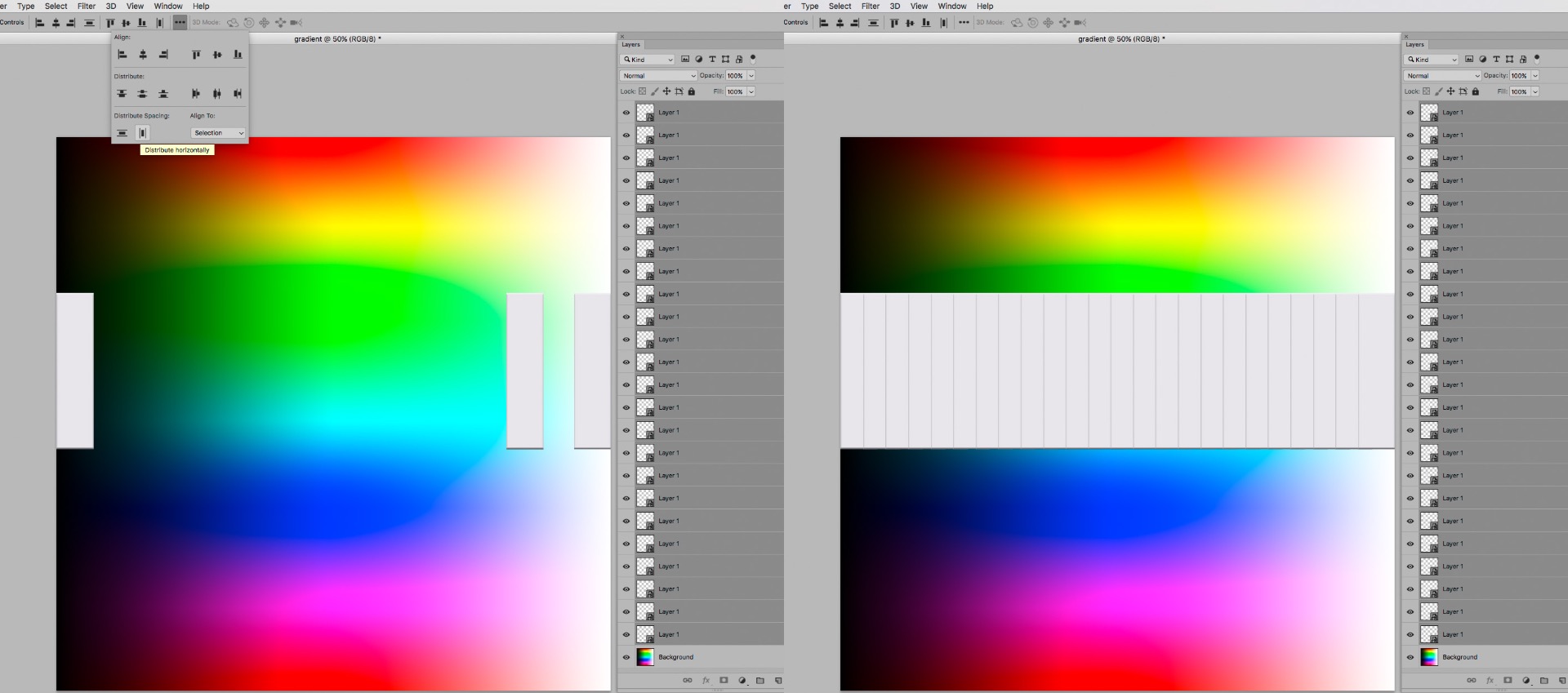
cmd-J can ve used to quickly create many copies of a Smart Object and those can be distributed.
Copy link to clipboard
Copied
Ah this would work great!
Thanks for the info!
Copy link to clipboard
Copied
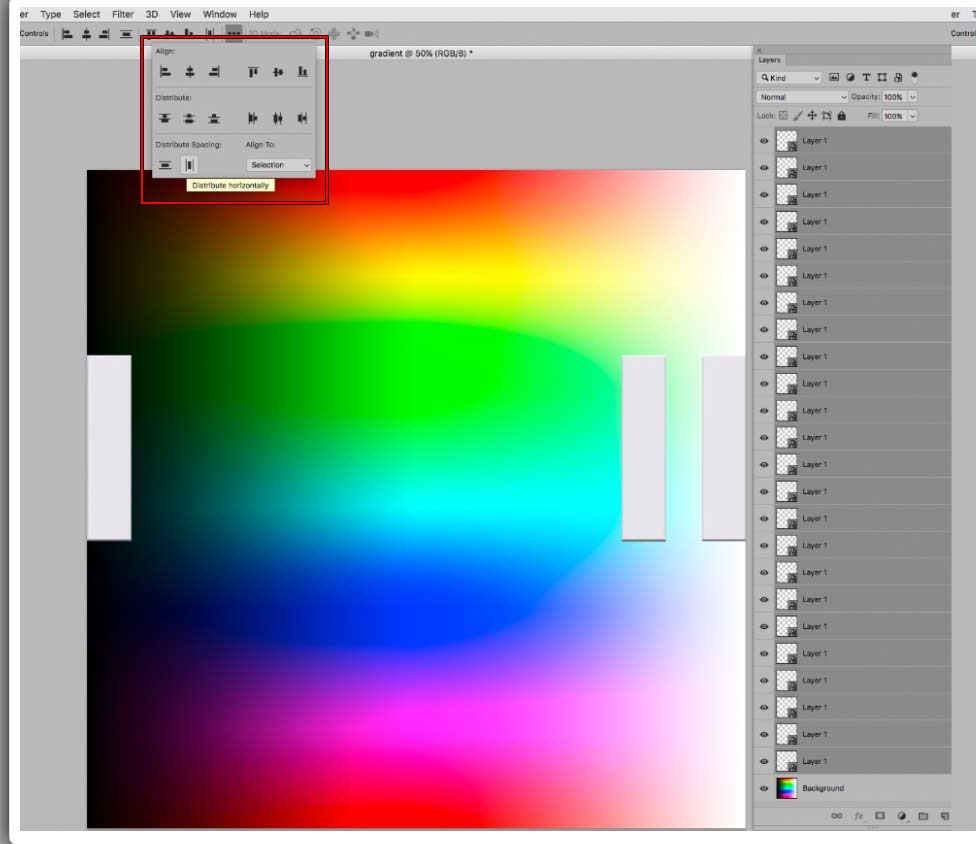
BTW on your left screen shot, I see you have a tab which shows, Align to selection, looks like AI tab, which also has align to artboard. I cannot find this in my PS. I got to windows, but nothing is there.
Copy link to clipboard
Copied
Is there a way to also set the pixel distribution between the layers?
Copy link to clipboard
Copied
Please provide a clearer description of what you want to achieve with the help of screenshots or sketches.
Copy link to clipboard
Copied
I managed to use the technique with distributing the layers with no problem. But I notice that I'd like my layers to be positioned a little bit closer. And in some instances, a little bit farther away. So is there also a way to be able to arrange the space between layer distances when I do the distribution technique?
I also noticed this panel here, which I don't seem to have the option.
Copy link to clipboard
Copied
I also noticed this panel here, which I don't seem to have the option.
Is the three-squares-icon missing in the Options Bar?
Please post a screenshot.
One could create a Script (and somebody probably already did) to distribute Layers with a certain distance between them.

Copy link to clipboard
Copied
Just read your post that you are doing piano keys. There is no direct equivalent in Photoshop to the blend tool that Illustrator has, but the technique I described in post #5 should work.
Copy link to clipboard
Copied
Hi Barbara, thanks for the insight, much appreciated, this should work just fine.
Kind regards.
Copy link to clipboard
Copied
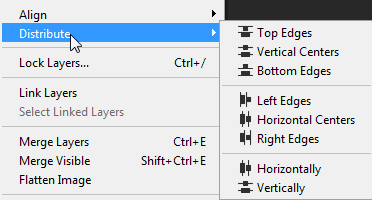
You might try the Align and Distribute commands under the Layers menu.
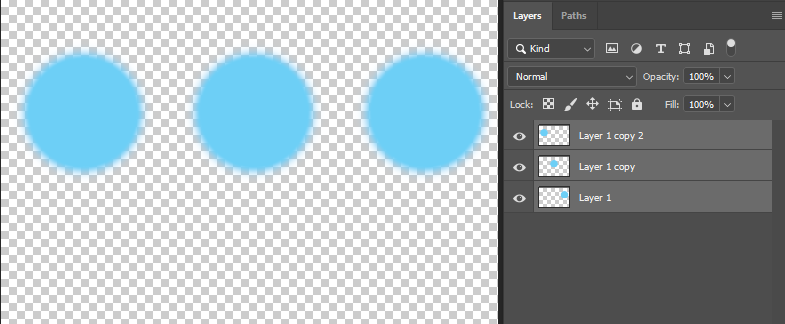
For example, if you have a layer like this:

You can quickly duplicate it multiple times with Command-j or Control-j.
Move the bottomost and topmost layers to the positions you want.
As long as the layers have a transparency you can select all layers and distribute horizontally or vertically.
Copy link to clipboard
Copied
yes mine are missing on my bar.

Copy link to clipboard
Copied
What does the rightmost of those icons do?
Anyway, check out the Script in post 6 of this thread to define the distance between Layers numerically:
Copy link to clipboard
Copied
Is has an auto align layers option.
thank you for that script, should make my project much easier. Hope that Adobe in future would ad this feature, will come in handy.

Copy link to clipboard
Copied
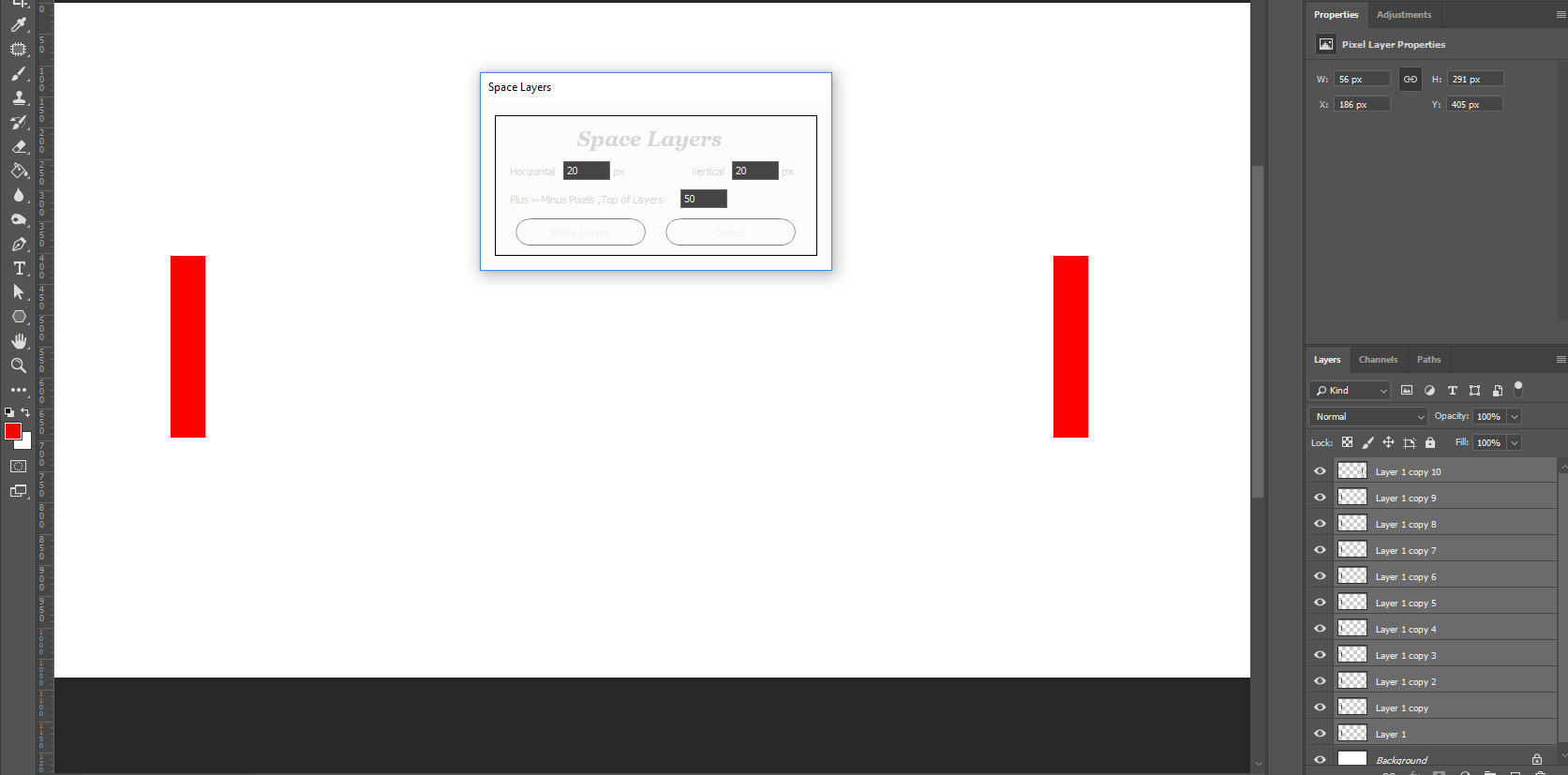
The link, which you included is no longer valid from what I read in the discussion. The guy Paul no longer has the website with the script. So I just hounded the web and found these script, if they are of any value to you as well. I also found what I was looking for.
Copy link to clipboard
Copied
Post 6 of that thread contained the plain code for a distribution-Script.
You can copy that into a txt-file and change the extension to jsx and that should work when put in Photoshop’s Scripts Folder.
Copy link to clipboard
Copied
WHOA, I'm impressed, lol, This is magical moments I'm living using PS!
very helpful script, and thanks for your insight.


Get ready! An upgraded Adobe Community experience is coming in January.
Learn more
 AdChoices