neonmamacita
Inspiring
April 11, 2018
Answered

Image --> Adjustments --> Replace Color is greyed out

  • April 11, 2018
  • 4 replies
  • 31490 views

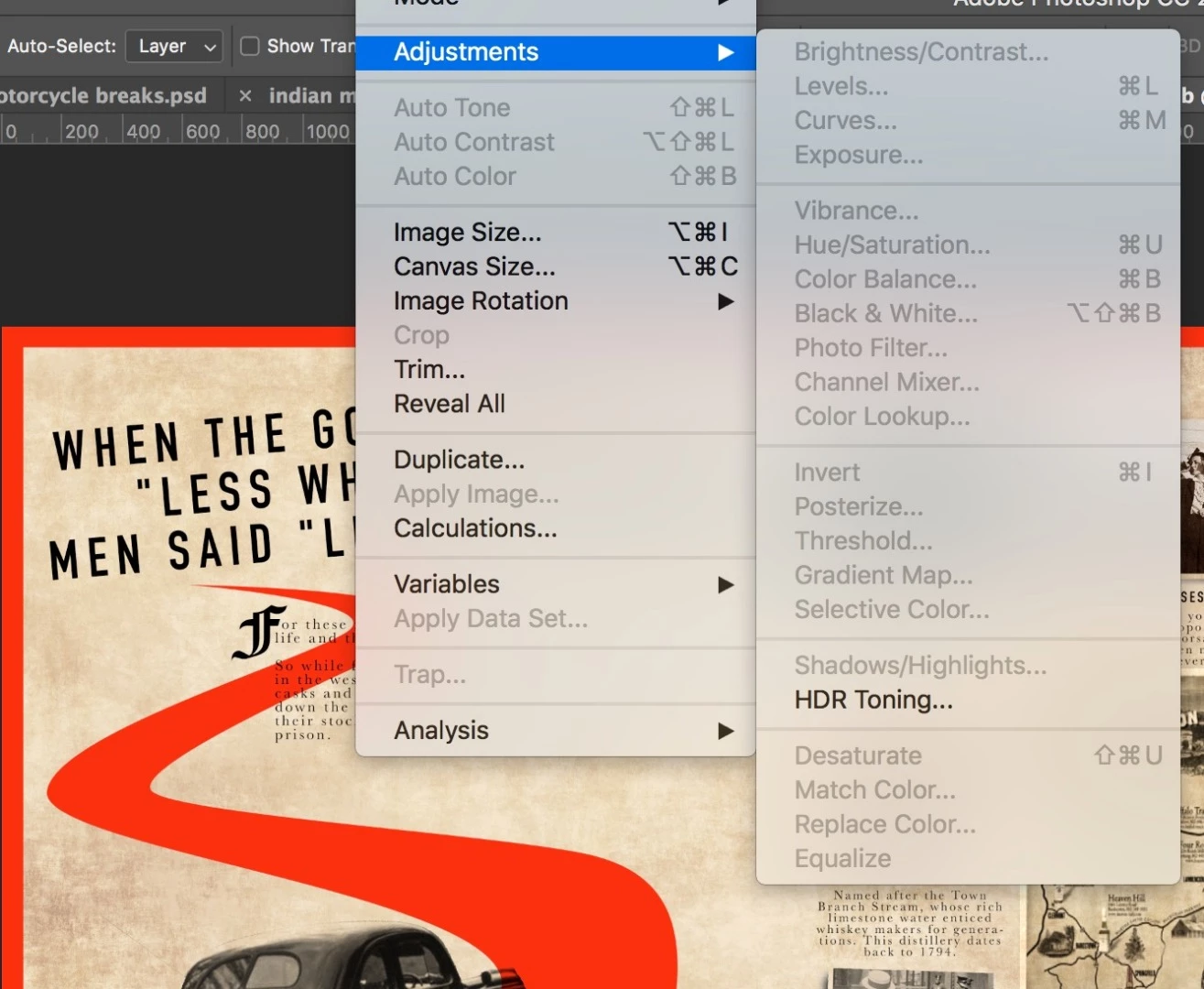
I have several red graphics that I'd like to change the color of. I would like to use Replace Color but I can't get it to be active. (
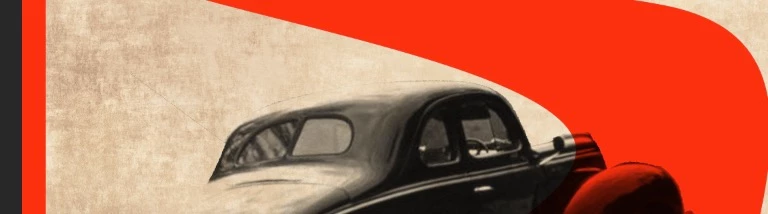
( i'd like to replace this red)

all these adjustments are greyed out.

Thanks!
    This topic has been closed for replies.
    Correct answer JohanElzenga

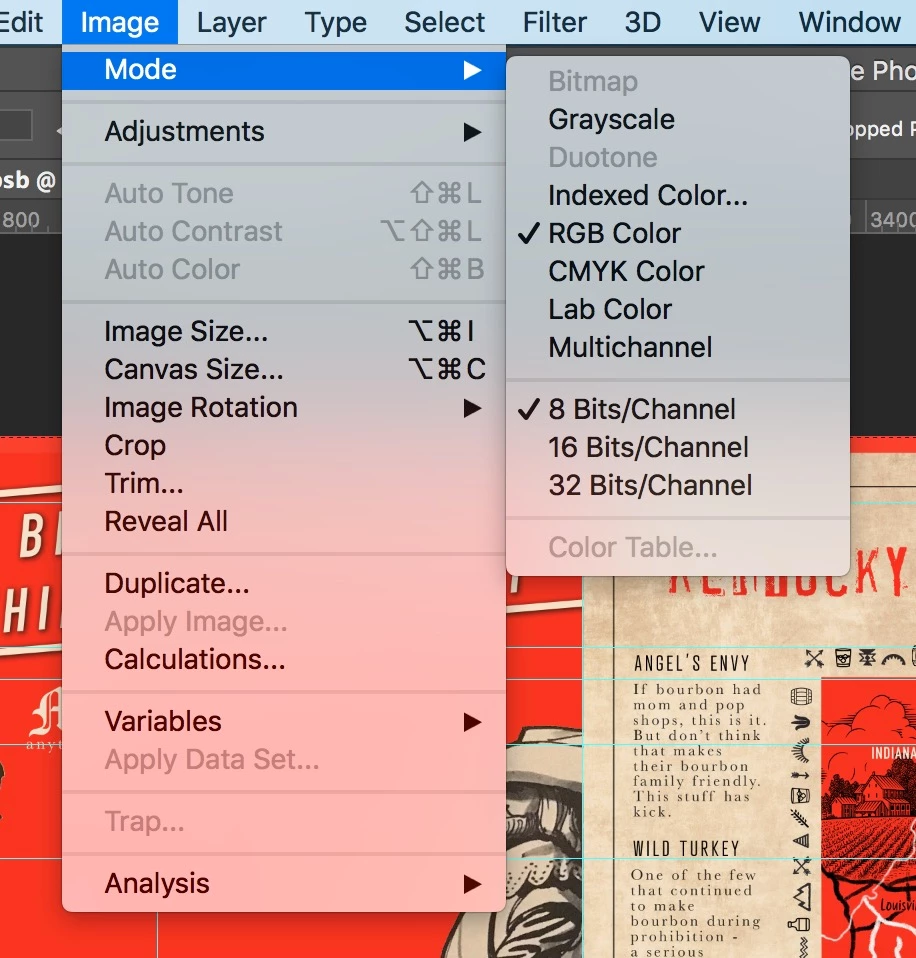
    It's on 8 bit.


    Another possibility: you have the wrong layer selected; a text layer. That gives me the exact same screenshot as you get.

    4 replies

    Participant
    October 23, 2023

    It can be that you try apply replace sky to smart object. Just look at layers panel and if you have small icon on layer image thats mean that it an a smart object. Just right click and choose convert to layers. Worked for my case.

    Lynn_D
    Participant
    October 19, 2023

    Check under the 'Image - Mode' that you're working in either 16 or 8 bit. If you go higher you will see the replace color is greyed out. 

    error_yatish
    Participant
    August 14, 2018

    May be you need to rasterize image layer

    Participant
    January 20, 2023

    In a separate case this is what worked for me! Thank you!

    JohanElzenga
    Community Expert
    Community Expert
    April 11, 2018

    Looks like this is a 32 bits/color HDR image. Most adjustment tools don't work with that (also depending on your version of Photoshop).

    -- Johan W. Elzenga
    neonmamacita
    Inspiring
    April 11, 2018

    Hm... how can I check? I'm using the most recent version of CC photoshop.

    davescm
    Community Expert
    Community Expert
    April 11, 2018

    To check use menu Image >Mode

    Dave