Doc_Pit
Inspiring
October 31, 2017
Answered

Image Size vs. Canvas Size Question
  • October 31, 2017
  • 3 replies
  • 4044 views

    This topic has been closed for replies.
    Correct answer Cari Jansen

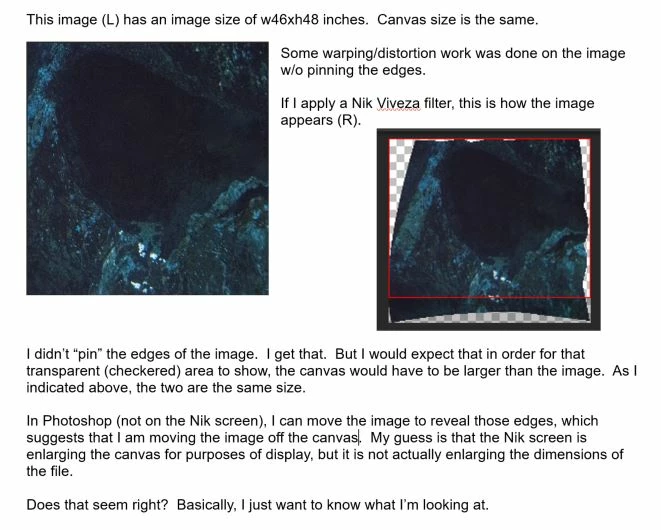
    You are right!  I never looked at it that way thanks for correcting me. You can have stuff from layers sticking outside the canvas size naturally and that makes the layer size (the bounding box around all image information in the layer) different from the canvas size.

    You don't see that however unless you move content around within the layer and make it visible again, or press Cmd/Ctrl-T for transform ;-). When you save the Photoshop file, and use it in other applications the visible area of the image will match the Canvas Size.

    3 replies

    Cari JansenCorrect answer
    Legend
    October 31, 2017

    You are right!  I never looked at it that way thanks for correcting me. You can have stuff from layers sticking outside the canvas size naturally and that makes the layer size (the bounding box around all image information in the layer) different from the canvas size.

    You don't see that however unless you move content around within the layer and make it visible again, or press Cmd/Ctrl-T for transform ;-). When you save the Photoshop file, and use it in other applications the visible area of the image will match the Canvas Size.

    Doc_Pit
    Doc_PitAuthor
    Inspiring
    November 2, 2017

    So, actually, there are three concepts, not two: canvas size, image size, but also layer size.  Thanks for the response.

    D Fosse
    Community Expert
    Community Expert
    April 24, 2024

    Many answers to the question of layer size say that layers have no size. But no matter how much I think about it, I don't quite get it.


    When we say a layer is a transparent sheet, does the layer itself have no physical size or substance? Objects in a layer can exist outside of the canvas size, so don’t layers also have a physical size?


    And If I add a new layer to a canvas with a width of 300,000px, draw a rectangle and move it outside the canvaw area, I get a message that says I can't move it because it has exceeded capacity, does this mean that layers also have their own size?


    I don't understand why the size of the rectangle that appears when Ctrl+T is pressed is called the size of the layer. Why is the empty space around objects on a layer not included in the size of the layer?


    I've asked a similar question elsewhere and read Conrad C's answer, but I still seem to be in a fog.

    What on earth is the technical nature or essence of a layer, and what does it mean to say it's a transparent glass plate but not the size of the glass plate.........


    As a Photoshop beginner, layers are something that seems to make sense to me, but also something I don't understand.


    If you don't mind me asking, can you tell me a bit about the properties of layers? Or maybe you could point me to a resource. I wonder if I'm misleading myself by focusing on the "a transparent sheet". Thank you.


    @SEASONS283724216wp2 

    First of all, why would you make a document 300 000 pixels wide? Do you understand how enormously big that is?


    300 000 pixels wide is the upper theoretical size limit for a PSB document. That's the file format that was specifically designed to handle huge file sizes. And you're right up in the ceiling. A normal PSD has a size limit of 30 000 pixels.


    A "normal" size interval is around 4000 - 10 000 pixels wide. That's what you get from a good modern camera.


    And yes, it's true, a layer has no size in itself. The size is defined by the canvas size. That's what you see on screen. But a layer can keep data outside that, you just don't see it - until you expand the canvas with "Reveal All" or manually.

    JJMack
    Community Expert
    Community Expert
    October 31, 2017

    Actually only the Background layer need to be canvas size and it does not support transparency.   Normal layers can be any size up to Photoshop max size.   Any part of any layer not over the  document canvas will be clipped  by the document canvas size. The pixels will be in the layer file unless the document is cropped and the cropped off pixels are deleted that a crop option.

    Some Photoshop features may change canvas size.  I think  remember seeing this when I rotated an image like 30 degrees  Photoshop added some canvas so none of the images pixels would be outside of the documents canvas.  But that may have been done by some script used or Adobe provided as part of Photoshop..Like Load files into a stack and align the stack.

    JJMack
    Legend
    October 31, 2017

    The canvas size is related to the image size (that is the w x h) of the image.  You can increase / decrease the canvas size by using the Crop Tool, or by using Image > Canvas Size. Consequently the physical dimensions (wxh) of the 'image' as you see it will also be adjusted.

    Photoshop's Warp will always initially retain the exact canvas size, which means you end up seeing transparent areas, but you can drag the corners outwards out of the canvas area, and thus transform the warped areas so you fill the entire canvas again, that's totally possible, so you can file the complete canvas area and not see the transparent areas.  Only thing to consider is that if your artwork is rasterised and you're not working with a Smart Object layer, you'll get some image resampling occurring as you transform things a second time, for background patterns etc. that's generally not an issue though.
